Publish to TRCPS
Trimble Connect is a web-based application designed for accessing, viewing, and collaborating on project information directly from your web browser. The Trimble Reality Capture Platform Service (TRCPS) is an extension of Trimble Connect that allows you to integrate reality capture data, such as 3D scans and photos, into your Trimble Connect projects.
The Publish to TRCPS feature allows you to upload LAZ files from your Trimble FieldLink project to a Trimble Connect project. At this time, FieldLink only supports LAZ files (including section boxes and inspections) for export to TRCPS.
NOTE – To use the Publish to TRCPS feature, you must have a Trimble Identity. You can create one by visiting connect.trimble.com. Make sure to sign in with your Trimble ID to access this feature. and to be connected to the Internet. The Trimble Connect account must support file upload so the ownership should be set to an account with an active Trimble Reality Capture platform service license.
Publish a Project with LAZ Data
-
Tap Scan > Export > Trimble Reality Capture.
-
Click the Input Form
 icon to view the export file name and Trimble Connect project destination. If the project already exists in Trimble Connect for the selected region, the file will be uploaded to that project. If the project does not exist, it will be created in Trimble Connect first, and then the file will be uploaded.
NOTE – When exporting LAZ files, you cannot change the Trimble Connect project later. This is because the LAZ file is permanently tied to the specific project and job context in which it was created. This ensures data integrity and prevents confusion regarding file ownership. Additionally, the TRCPS upload process requires both a Project ID and Job ID, reinforcing this project-level connection.
-
From the Input Form page in Trimble FieldLink, tap the Export button.
View the Published Project in Trimble Connect
-
After signing into Trimble Connect, the Projects page displays all available projects. A project acts as a container for all the data and files you bring into Trimble Connect. Select the project you exported to.
-
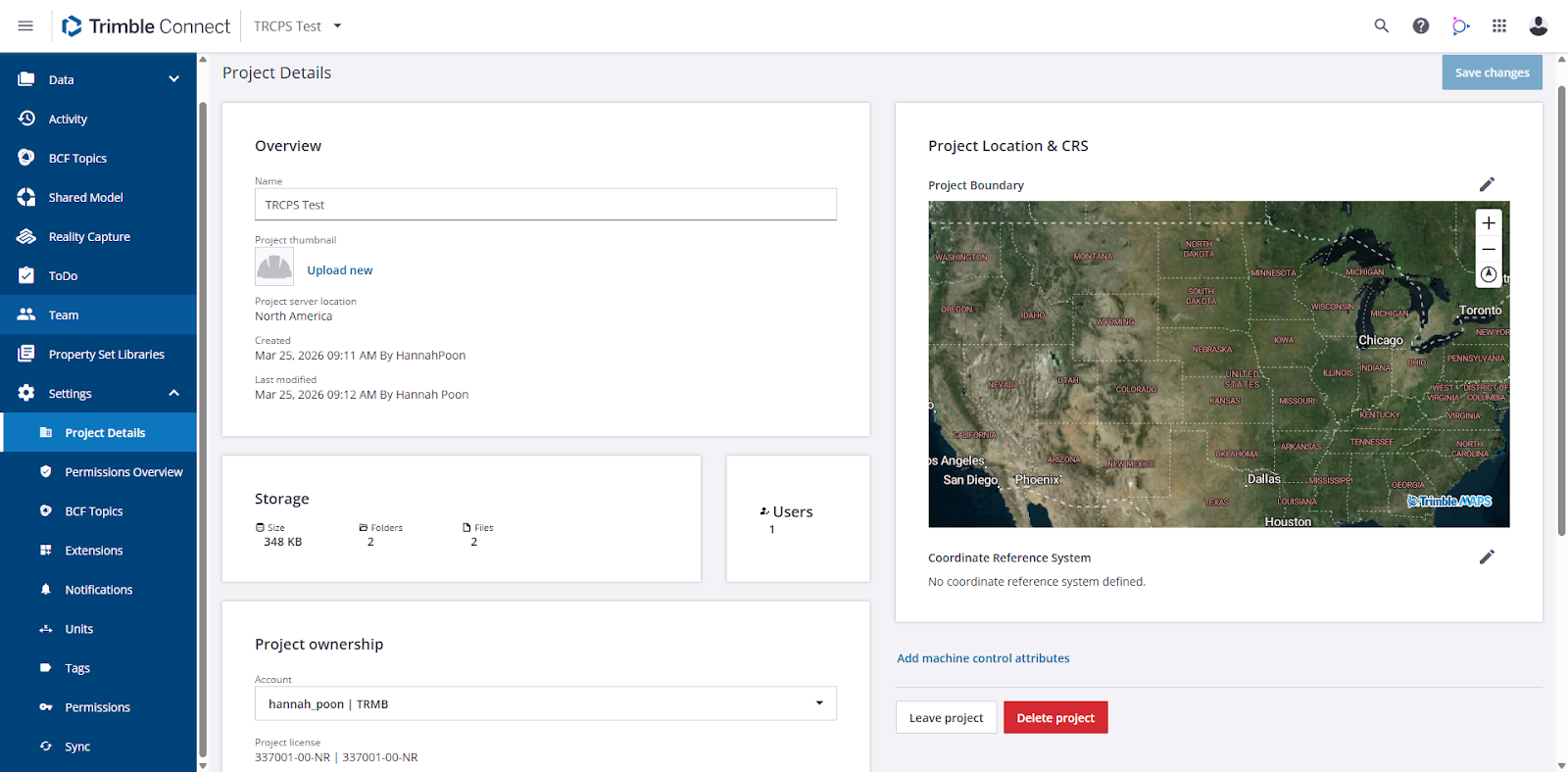
Open the project Explorer. If the Trimble Connect account type does not support file uploads, the user must update the project ownership details in Settings > Project Details > Project Ownership. Ensure the account and project license are set correctly.
-
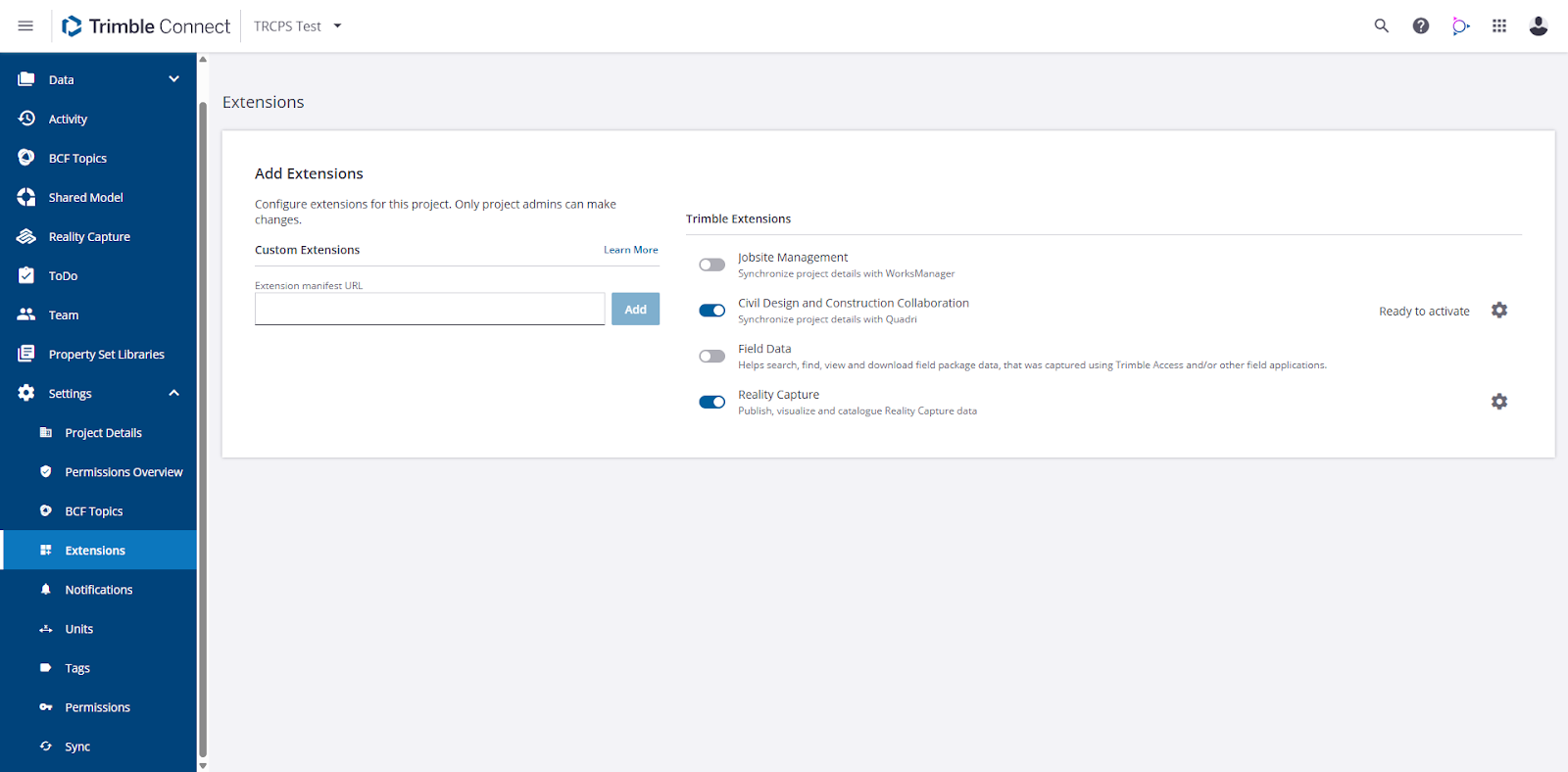
The TRCPS extension application is embedded within the Trimble Connect Web application. To enable the extension, go to Settings > Extensions, and toggle the Reality Capture extension switch to on.
-
Once it is enabled, click the Reality Capture icon to display the Reality Capture page. In the Reality Capture Data panel, click the All Project Data pull-down arrow and select the project you exported to.
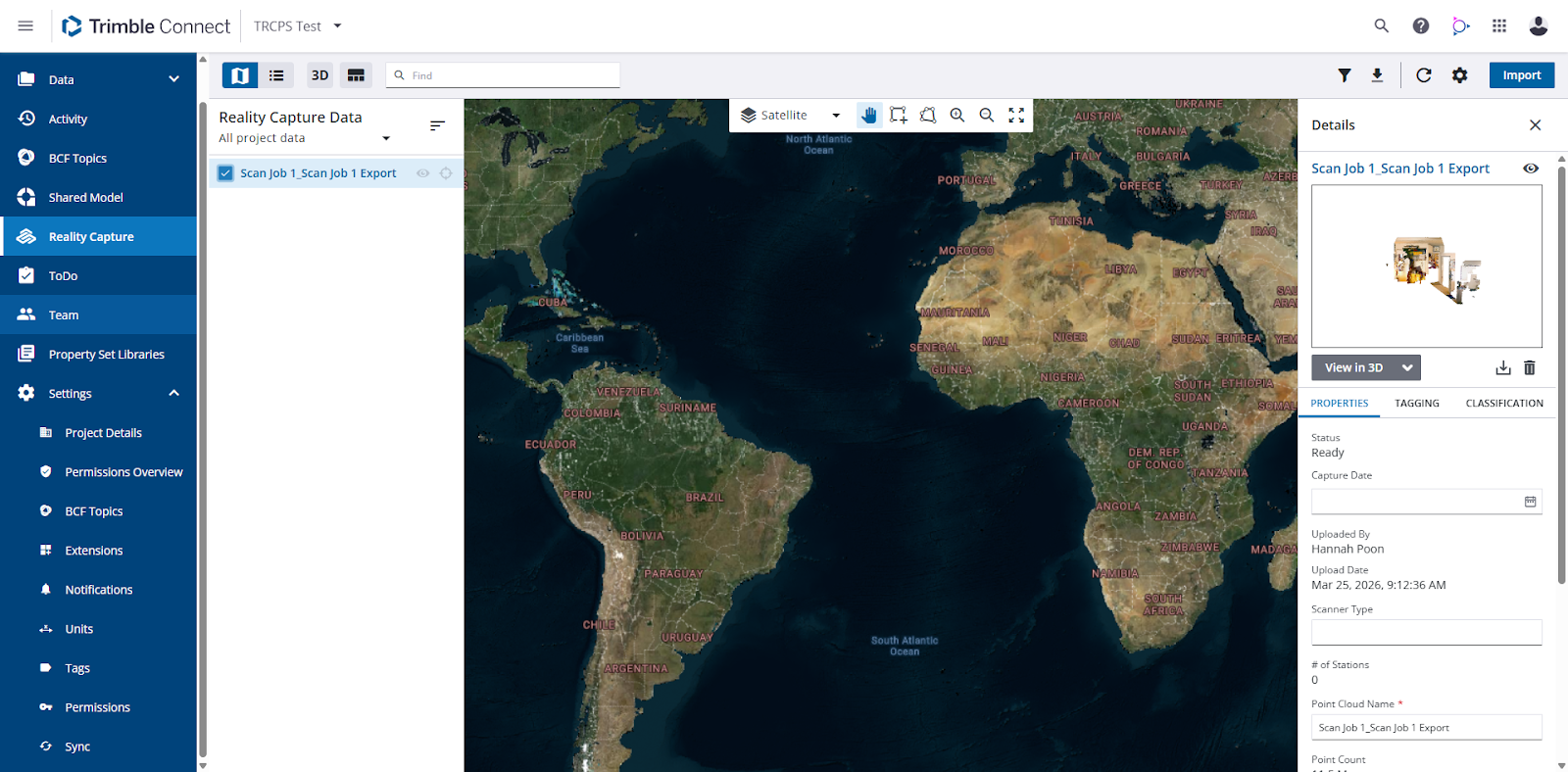
NOTE – Depending on the size of the published data, it may take a bit of time before it can be viewed in Trimble Connect. During this time, a "Not ready for viewing" message displays in the Reality Capture Data pane.
-
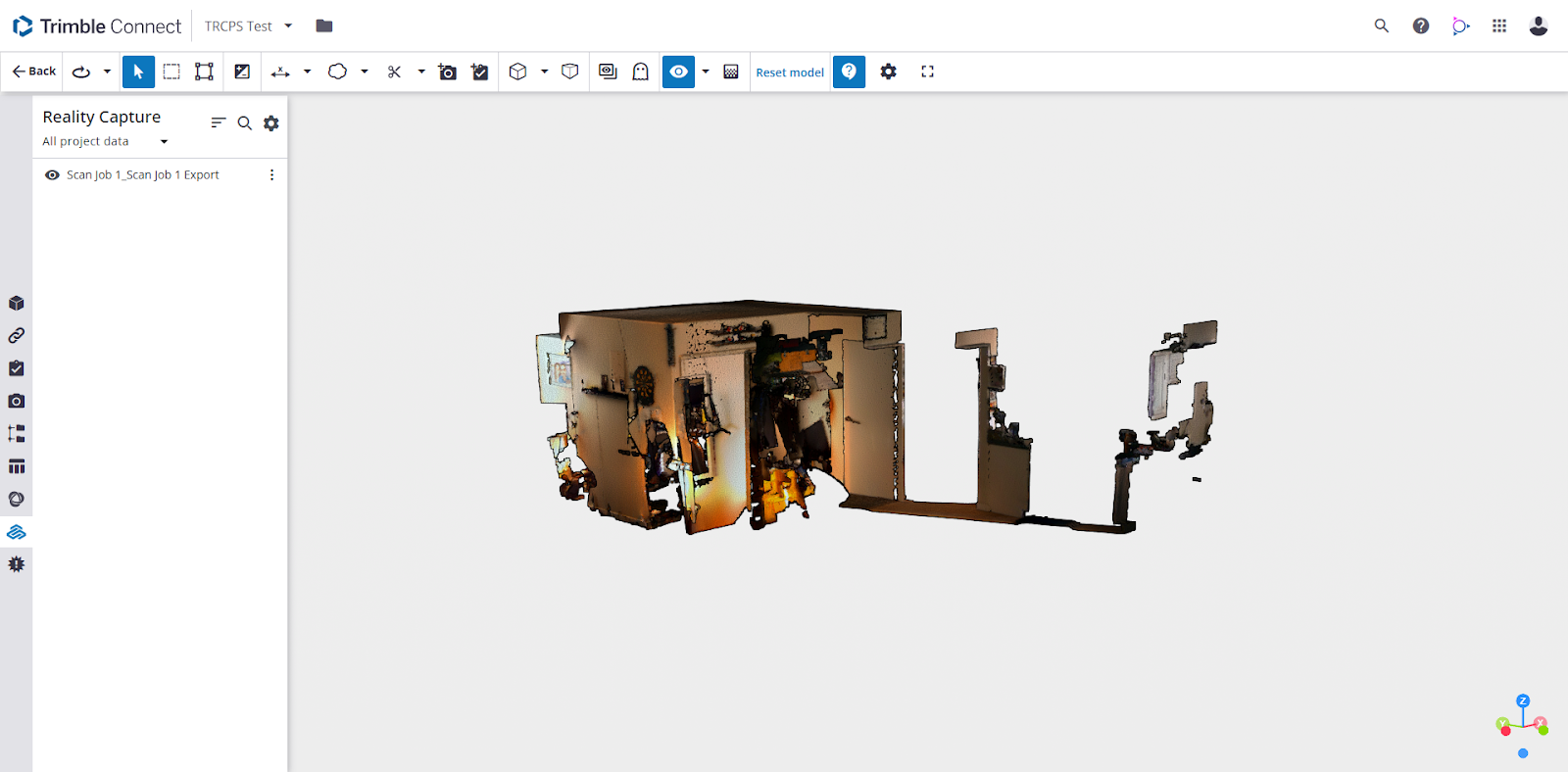
Click the View in 3D button. Exported data from Trimble FieldLink is published as an LAZ format file.