Lane Guidance
Lane guidance enables you extend a lane sideways so that you can pave beyond the boundaries of the lane.
Lane guidance is available when:
- You are in design mode
- You have a design loaded
- A master alignment is present
Working surface, vertical and perpendicular lifts and horizontal guidance all work with lane guidance.
NOTE – When you show cut/fill mapping while using lane guidance, you see a subset of the entire mapped ground surface. This is most noticeable when using lane guidance on a horizontal curve. Toggle lane guidance off to display the ground surface mapping over the complete design reference.
Extending a lane sideways
Lane guidance lets you select a lane or two lines and extend the surface of the lane or the grade between the two lines out to the left and right, to suit different situations.
For example, you can select a lane for guidance and extend it to the side to either meet the cut or fill batter or sideslope of the road. This is often also offset in height as well so that the design is built up in layers. See the figure below:
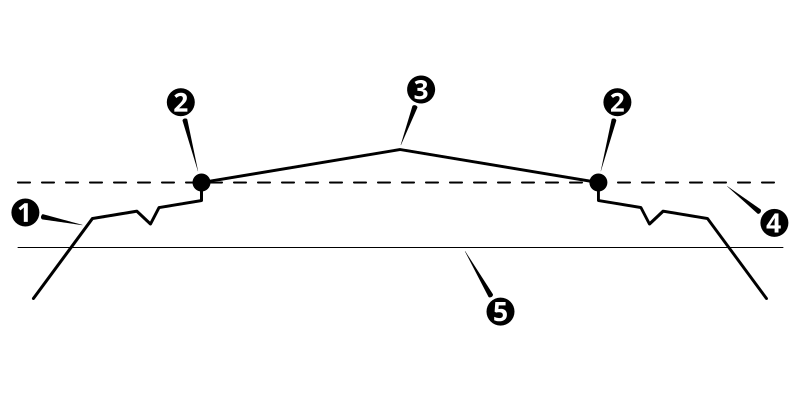
| 1 | Original design | 2 | Lane side | 3 | Master alignment |
| 4 | Lane surface | 5 | Lane surface for guidance (offset by 1 meter) |
The shortcut key
When you are in the work screen, you can use the shortcut key  to select a lane:
- Position the machine with the screed focus point between the required lane sides.
- Tap .
You can also touch and hold the shortcut key to open the Lane Guidance screen.
If your design does not have a master alignment, and you try to enable Lane Guidance via the shortcut key, the Select Master Alignment screen displays. In the plan view, tap the line that you want to use or select a named alignment from the drop-down list. Once you have selected a master alignment, the work screen displays.
You can recognize a master alignment because the name is wrapped in brackets, for example: <center>.
The Lane Guidance screen
To open the Lane Guidance screen:
- Touch and hold the shortcut key , or;
- Go to the Work Settings menu
 > Lane Guidance.
The Lane Guidance screen contains a plan view of the machine on a design. You can pan and zoom this view as required.
If the design file contains named lines, you can select them from the Line A and Line B drop-down lists.
The master alignment
The lane surface is calculated at right angles to the master alignment.
If the design file contains a master alignment, it displays in the plan view as a solid blue line. You must use this master alignment and cannot change it.
If the design file does not contain a master alignment, you must select one before you select the lane sides:
- Touch and hold . The Select Master Alignment screen displays.
-
In the plan view, tap the alignment that you want to use as the master alignment. Or, select an alignment from the drop-down list.
The master alignment is stored with the design indefinitely. If the design is unloaded and reloaded then the last selected master alignment is used.
NOTE – Think of the two lane sides and master alignment as a group. If you change the master alignment, but not the lane sides, this changes the lane surface and the guidance to it.
You can use the master alignment itself as one of the sides of the lane.
Creating a lane surface
To create a lane surface from the Lane Guidance screen, do one of the following:
- Select the alignments from the drop-down lists.
- Tap each lane side on the plan view.
- Touch and hold the area between two lane sides.
Lane Guidance limits
- The lane must be a minimum of 300mm (12in) wide.
- The lane sides must not turn more than 90° away from the master alignment.
-
Lane guidance will create unexpected guidance when operating in an area where any of the lines (the master alignment, left-hand side and right-hand side) turns back on itself.
-
Lane Guidance starts only when all three lines (the master alignment, left‑hand lane side and right‑hand lane side) have started. See the figure below:
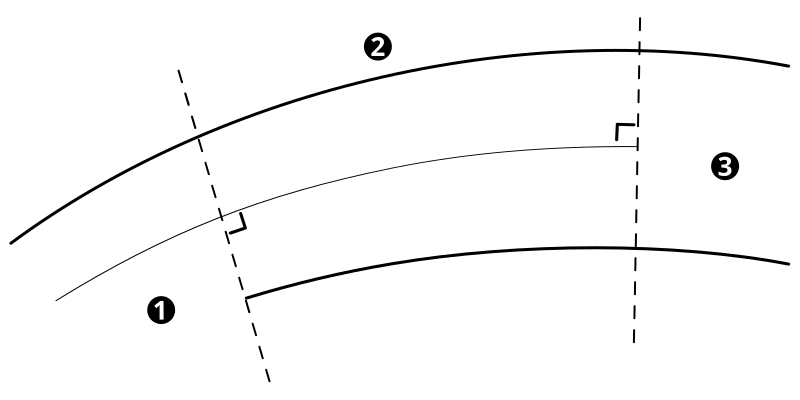
| 1 | Lane guidance unavailable: only one lane side is present | 2 | Lane guidance available: two lane sides and the master alignment are present | 3 | Lane guidance unavailable: no master alignment present |
Troubleshooting
Lane guidance is unavailable when:
- You are more than 100 meters extension (left/right) of the guidance lane sides.
- Either lane side does not lie above the design surface.
