The Android interface
When you turn on your device, the main Home screen appears. The Home screen is the primary screen for accessing all of the T70 features on the device. You can add and customize the Home screen by adding app shortcuts and widgets. Widgets are an at-a-glance view of the app’s most important information. You can also customize access to frequently used settings (Quick Settings).
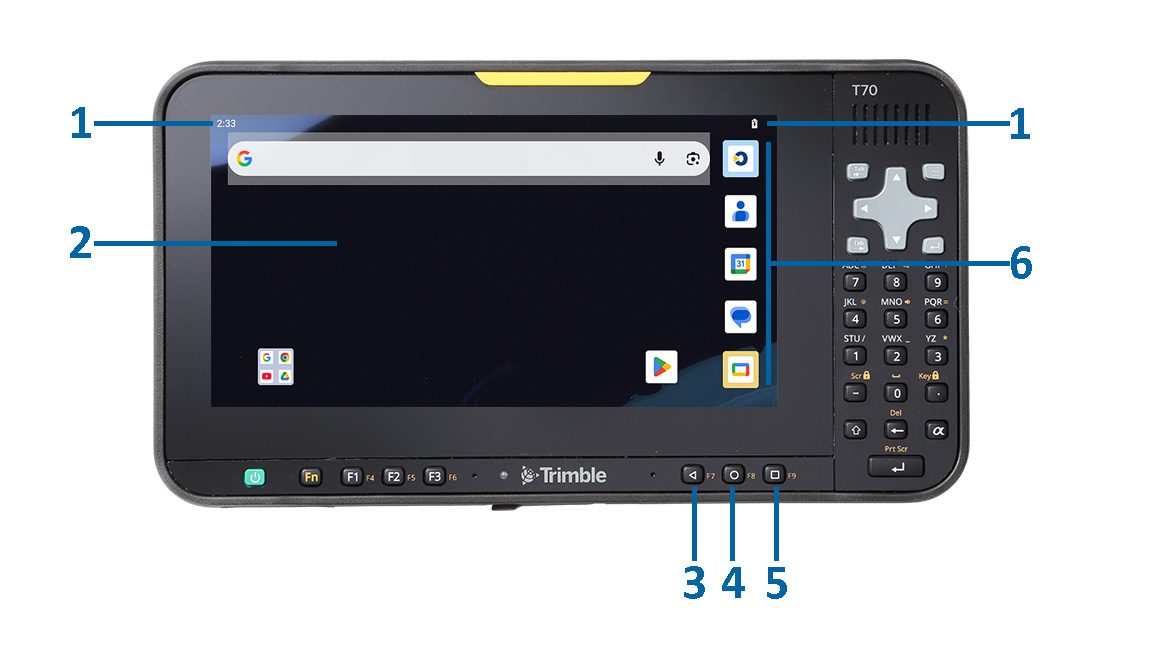
The main parts of the screen are:
|
1 |
Status bar indicator icons are shown at the top of the display. The right side of the status bar shows the mobile signal strength, Wi-Fi signal strength, and how much battery charge is left. The left side shows the time and app notifications. To access Notifications and Quick Settings: swipe down from the top of the screen. You can customize frequently used settings using Quick Settings tiles. See Customize the Quick Settings tiles below. To quickly open all Settings, swipe down from the top of the screen a second time, then tap the Settings icon. |
|
2 |
Home screen. To move between Home screens if you have more than one, swipe left or right. On the main Home screen, tap Google at the top of the screen or, if Google Assistant voice activation is enabled, say "OK Google" to search, send messages, ask for directions, or give other instructions. Otherwise, tap Search. |
|
3 |
Android Back key. Returns to the previous screen you were working in, even if it was in a different app (not supported by all Apps). Once you back up to the Home screen, you can't go back any further. |
|
4 |
Android Home key. Returns to the Home screen. |
|
5 |
Android Overview key. Opens thumbnails of apps you have worked with recently. To open an app, tap it. To remove (exit or shut down) an app, swipe the app thumbnail up or down. |
|
6 |
App shortcuts to launch apps. |
Adding widgets to a Home screen
The Google search bar widget is, by default, on the Home screen. You can add further widgets to your Home screens as required. Touch-hold on the Home screen until a menu appears, then tap Widgets. Touch-hold a widget from the list to place it on your Home screen.
Android navigation keys
The T70 includes Android navigation keys (3, 4, 5) on the physical keyboard, so they do not appear on the screen.
Status bar
The Status bar (1) shows different status icons for various functions and apps on the device. Common icons show the battery charge status, Wi-Fi signal and connection status, mobile broadband signal and connection status, and Bluetooth connection status.
Customize the Quick Settings tiles
You can customize the Quick Settings tiles to suit your needs.
-
Swipe down from the top of the screen to open Quick Settings tiles — giving you quick access to items that you frequently use.
-
Swipe down again from the top of the screen to show all Quick Settings options.
You may have Quick Settings tiles on more than one screen; small dots below the tiles indicate this. Swipe left/right to switch between the screens.
-
To change the order and add or remove Quick Settings, tap the
 icon.
icon.-
To rearrange the order of any Quick Settings tiles that you already have showing, touch-hold then and drag-drop the required tile to where you want it.
-
To add new Quick Settings tiles, scroll down on the screen, then touch-hold then and drag up and drop the required tile to where you want it in your Quick Settings.
-
-
Tap the Back arrow (top left of the screen) to exit Edit mode.
Apps screen
To see all apps that are pre-installed on the device and those that you downloaded from Google Play, swipe up on the Home screen to access the Apps screen.
On the Apps screen:
-
To open an app, tap its icon.
-
To search apps, enter the name of the app you are looking for in the Search apps bar.
-
To place an app icon on a Home screen, see Adding apps to a Home screen.
-
To get more apps, tap Play Store
 .
. -
To explore apps, swipe up and down from the Apps screen to view the full list of apps installed on your device.
Adding apps to a Home screen
-
From the Home screen (or any Home screen if you have more than one) open the Apps screen.
-
Swipe up or down to find the app you want.
-
Touch-hold the app, then slide the app icon to any Home screen and place it where you want it, and then lift your finger off the screen.
Removing an app, shortcut, widget or group from the Home screen
-
Touch-hold the item on the Home screen, and drag upwards. A menu appears.
-
Continue to hold and drag the item up to Remove at the top of the screen, then lift your finger off the screen.
-
The Remove option removes the shortcut off your Home screen but does not uninstall the app from the device.
Moving apps between Home screens
To move an app icon from the primary Home screen to another Home screen, touch-hold it, then slide the app icon to another Home screen.
Uninstalling apps
-
Touch-hold the item on the Home screen until a menu appears. Lift your finger off the screen.
-
Do one of the following:
-
Tap Uninstall to uninstall the app from the device.
-
Tap App info. On the App info screen, select UNINSTALL to uninstall the app.
-
