Adjust Profile
 The Adjust Profile command allows you to select one or many linestrings and apply a vertical adjustment to the profile of the string using serval different methods. This command is particularly useful for creating new strings allowing for Hog adjustment in bridge decks.
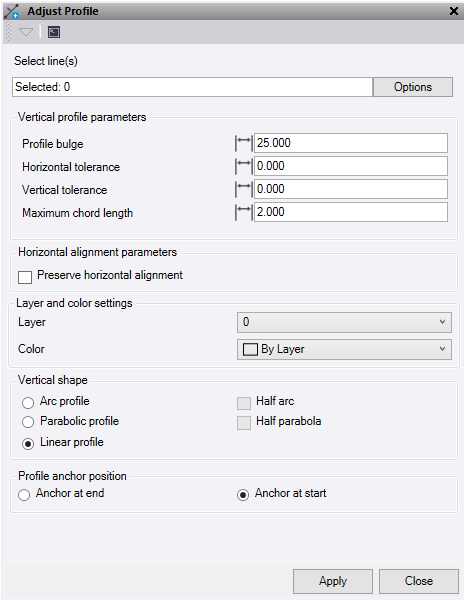
- Click in the Select Line(s) field and then in a graphic view select the data you want to convert. Click Options for additional selection options.
- Select a Vertical profile parameter.
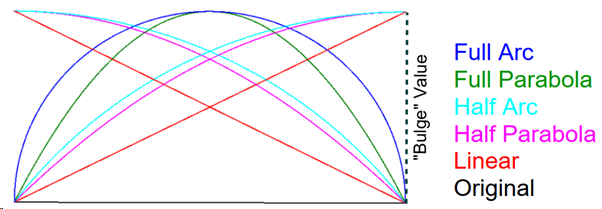
- Profile bulge – Vertical adjustment value to be used with one of the vertical shape methods.
- Horizontal tolerance – Horizontal tolerance for linearizing the line. Must be greater than 0.
- Vertical tolerance – Vertical Tolerance for linearizing the line. Must be greater than 0.
- Maximum chord length – The maximum segment length on the newly created line.
- Check the Preserve horizontal alignment box to maintain the existing horizontal geometry of the line. If unchecked the horizontal component will be chorded.
- Choose the Layer and colour settings to use.
- Layer – Select or create a layer for the new lines.
- Color – Select a colour for the new lines.
- Choose the Vertical shape with which to apply the profile adjustment.
- Arc profile – Apply the adjustment value using an arc.
Clicking this option enables you to use Half arc and anchor at one end of the line.
- Parabolic profile – Apply the adjustment value using a parabola.
Clicking this option enables you to use Half parabola and anchor at one end of the line.
- Linear profile – Apply the adjustment value linearly using one end as an anchor.
- Arc profile – Apply the adjustment value using an arc.
- Use Profile anchor position to choose which end of the line to hold at the existing level with no change.
- Click Apply to create the new linestrings with adjusted profiles.
- Click Close to end the command.
Note: If the linestring contains VPI’s you may wish to convert it to horizontal only for this command to work on them using the "Convert to Horizontal Linestring" command.
Example: