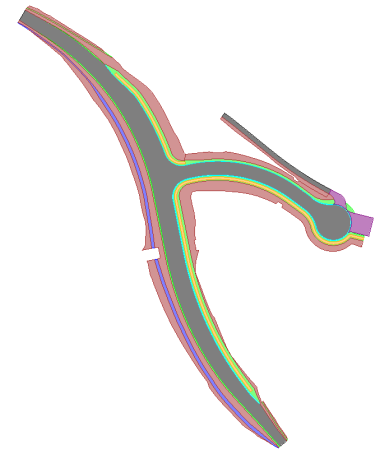
Convert to Polygon
 Convert to Polygon enables you to convert closed CAD polylines and Linestrings into Polygons. This command converts horizontal and vertical arc data to straight line segments in the process.
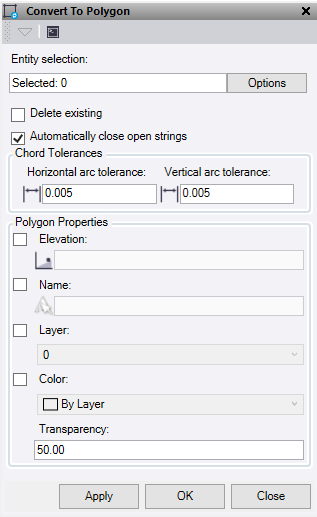
- Click in the Entity selection field and then in a graphic view select the data you want to convert. Click Options button for additional options.
- Optionally, check the Delete existing box to delete the source lines once they have been converted into polygons. Any lines not converted will remain.
- Optionally, check the Automatically close open strings box to use lines that are not closed to create a polygon.
- Under Chord Tolerances, select the following:
- Horizontal arc tolerance: The horizontal chord to arc tolerance used when converting arc data and linearising segments to straight lines.
- Vertical arc Tolerance: The vertical chord to arc tolerance used when converting arc data and linearising segments to straight lines.
- Under Polygon Properties, select one or more of the following:
- Elevation – Check this box to set the polygons to a constant elevation, if unchecked it uses the elevations of the original line.
- Name – Check this box to set the polygons to a new name, if unchecked it uses the name of the original line.
- Layer – Check this box to set the polygons to a new layer, if unchecked it uses the layer of the original line.
- Color – Check this box to set the polygons to a new color, if unchecked it uses the colour of the original line.
- Transparency – Set the polygon fill transparency value.
- Do one of the following:
- Click Apply to convert the lines and keep the Convert to Polygon command pane open.
- Click OK to convert the lines and close the Convert to Polygon command pane.
Note: To create polygons the seed lines need to be joined and the area covered by one line.