Batch Export
 The Batch Export command enables you to set up rules to export multiple layers and surfaces to various file types as a repeatable process. The files are placed in folders on your PC or server. This can be useful on projects where you need to export revisions of the same files at the end of every day for field crews.
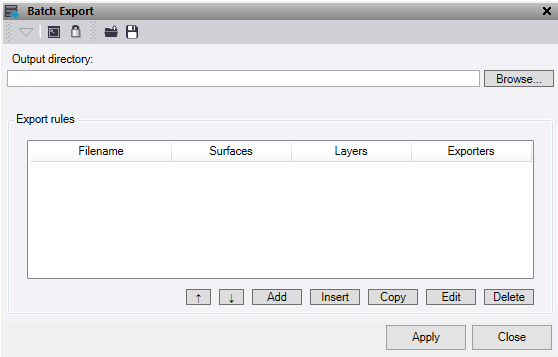
Click Load or Save at the top of the command pane, then populate the command with the appropriate rule sets and save it in a file that can be reloaded in the future.
- Under Output directory, type in the directory path or use the Browse button to select the folder to write the files to.
- To add Export rules to the table, click the Add button at the bottom of the command to display the Edit rules dialog box.
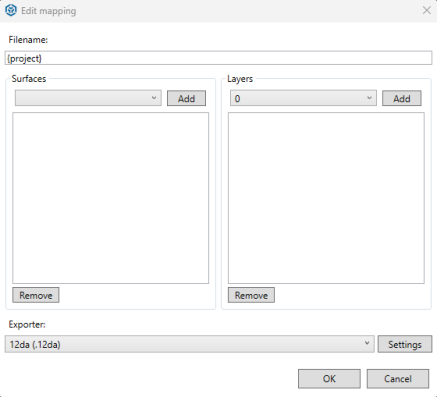
- Enter a Filename. If you require the file to be saved into a new folder, add it in here. For example, "New folder\Filename". Use the available placeholders by right clicking in the text box.
- Select the Surface from the list and press Add to include it in the list.
- Select any Layers of data from the list and press Add to include them in the list.
- Select the required file type to be exported from the Exporters dropdown. Press the Settings button to modify the output options for each export type. The available file types include:
- 12da
- TTM –This will only hold one surface which will be the first one in the list if multiple selected.
- DXF
- DWG
- XML
- IFC
- VCL
Your selections are displayed in a new row in the Export rules table in the command pane.
- To delete a row from the table, select the row and click Delete. To delete multiple rows, select the top row and hold shift and select the bottom row, then press delete.
- To move the row order, use the Up and Down arrows and to edit a previously entered row use the Edit button or double click on the row in the table.
- To insert a row above an existing one, click on the row location and press the Insert button. To copy an existing row, highlight the row and press the Copy button and this will be added directly below.
- To export the contents of the table as rule sets into a ".batchexport" file that can be reused in other projects, click the Save button at the top of the command pane.
- Click Apply to run the export and keep the Batch Export command pane open.
