Compare Lines
 The Compare Lines command enables you to select original line data and compare it to an imported file to find linework that does not have an identical match. This is useful when receiving revisions of data, to be able to find what has changed and separate it.
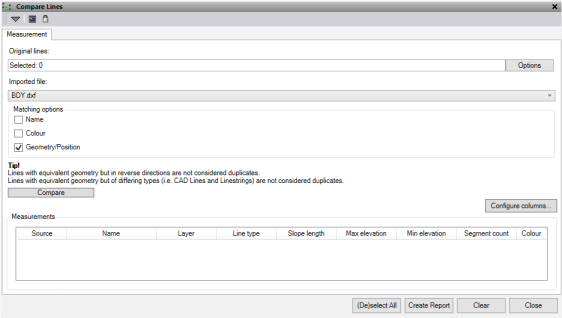
- Click in the Original Lines selection field and then in a graphic view select all the original linework you want to compare. Click Options for additional selection options.
- Select the Imported file from the drop-down menu of the new linework.
- Tick any of the following Matching options:
- Name – Line name
- Colour – Line colour
- Geometry/Position – For the line geometry to match the lines must be identical in all ways. This not only includes the geometric shape but also the line type and direction.
- Click the Compare button to check the lines and populate the table with a list of lines that are unique in the data set.
- Optional: Click Configure columns to customise the columns displayed in the table and report.
- Select one of more lines in the Measurement table table to highlight them in the plan view. Duble click a row to zoom to that line at the current plan view zoom level.
- Use the (De)select All button to either select all the layers in the list or deselect any layers in the list that are currently selected.
- Use the Create Report button to export the contents of the table to a CSV file.
- Use the Clear button to delete the contents of the table.
Note: The Compare lines feature only works with line objects
