Find and Replace Points
 The Find and Replace Points command enables you to search for, select, and optionally rename points by Point ID or Feature Code.
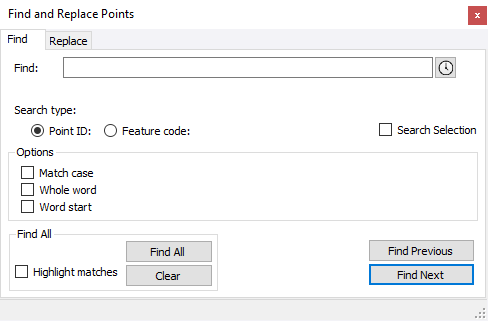
To find point ID’s and feature codes:
- Select the Find tab.
- In the Find field, enter the point ID, or feature code you want to find.
- Select the appropriate Search Type option.
- To search the whole project, leave the Search Selection box unchecked. To select a group of points to search, check the Search Selection box.
- Check the appropriate check boxes in the Options group to refine your search.
- To select all point IDs or feature codes that match your search criteria, check Highlight Matches and click Find All.
- To select point IDs or feature codes that match your search criteria one at a time, click Find Previous or Find Next.
Note: When using the Find Previous or Find Next buttons, the plan view automatically zooms to the point selected.
To replace point ID’s and feature codes:
- Select the Replace tab.
- In the Find field, enter the point ID, or feature code to find and replace.
- In the Replace field, enter the point ID, or feature code to use to replace the existing name or code.
- Select the appropriate Search Type option.
- To search the whole project, leave the Search Selection box unchecked. To select a group of points to search, check the Search Selection box.
- Check the appropriate check boxes in the Options group to refine your search.
- For Point IDs only: Use the Replace & Increment Point ID option to replace the text and add an incremental number at the end.R
- To replace all point IDs or feature codes that match your search criteria, click Replace All.
To select point IDs or feature codes that match your search criteria one at a time, click Find Previous or Find Next. To replace the selection with the ID or code displayed in the Replace field, click the Replace button.
Note: When using the Find Previous or Find Next buttons, the plan view automatically zooms to the point selected.
