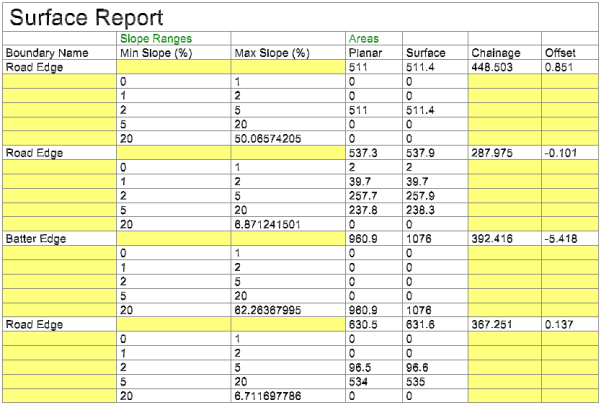
Insert Excel Table
 The Insert Excel Table command enables you to create a table from an excel spreadsheet in csv format and customise the settings for display in the plan view.
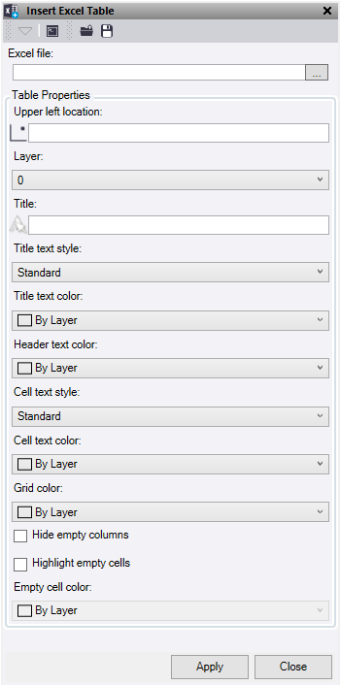
Use the Load and Save buttons at the top of the command pane there is the ability to load and save a settings file. Once you have populated the command with the appropriate settings you can save it in a file that can be reloaded in the future.
- Select the Browse icon to choose an Excel file.
- In the file explorer, navigate to the folder containing the excel table in .csv format and open the file.
- To choose where the table is inserted, click in the Upper Left Location field and select a location by clicking in the graphic view, or enter the coordinates. This point is the bottom left corner of the Title row.
- Select a Layer, or select <new layer>.
- Optionally, enter a Title.
- Optionally, select a Title Text Style, or select <New text style>.
- Optionally, select a Title Text Color.
- Optionally, select a Header Text Color to give the column headers a color.
- Optionally, select a Cell Text Style, or select <New text style>.
- Optionally, select a Cell Text Color.
- Optionally, select the Grid Lines a colour.
- To hide columns with no values, click Hide empty columns.
- To highlight empty cells, click Highlight empty cells and select an Empty cell color.
- Click Apply to insert the table and turn on the appropriate layer to view.