Remove Duplicates
 TheRemove Duplicates command enables you to remove duplicate lines, points, and text based on a selection of properties such as position, geometry, name/id, text, and color.
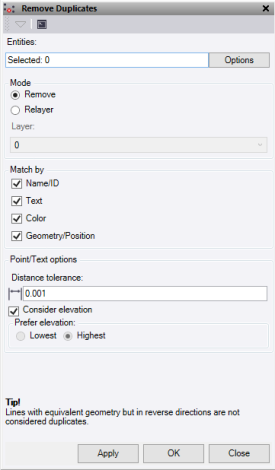
- Click in the Entities field, then in a graphic view select the objects to check for duplicates. Click Options for additional selection options.
- Select the Mode to use for any duplicate data found.
- Remove permanently removes the data.
- Relayer moves the data to another layer.
- Select the required Match by fields to determine which objects to search for duplicates.
- Name/ID
- Text
- Color
- Geometry/Position
Objects must be of the same type to be matched. For example, if a point and a line have the same name/id and the Name/ID field is selected, they are not considered duplicates.
When comparing two objects all the fields selected must match for the objects to be considered duplicates. For example: if Name/ID and Geometry/Position are selected along with three points – all three of which have the same id but only two of which have the same position – then only two of the points will be considered duplicates (one point will be removed). If the same selection is used but the Geometry/Position field is turned off, then all three are considered duplicates (two points will be removed).
The following table explains the available Match by fields, and which objects they apply to:
|
|
|
Applies to |
||
|
Field |
Remarks |
Points |
Text |
Lines |
|
Name/ID |
For lines this is the name, for points the ID. |
ü |
û |
ü |
|
Text |
Applies to both Text and MText objects. |
û |
ü |
û |
|
Color |
Does not apply to the points layer color. |
û |
ü |
ü |
|
Geometry/Position |
For text objects this is the insertion point. |
ü |
ü |
ü |
- Set the required Point/Text Options.
- Distance tolerances is the distance used to compare points or text with each other. To match exactly it must be set to "0.000".
- If Consider elevation is checked, the position is compared in 3D. If it is not checked, the position is a 2D comparison.
- If Consider elevation is unchecked, check Prefer elevation to keep either the highest or lowest point from the duplicates.
- Click Apply to apply the changes and keep the Remove Duplicates command pane open to see computation results.
Note: When duplicate objects are found and need to be removed, the command keeps the one with the highest serial number (which in practice means the newest object). This applies to all modes and objects.
