Surface Cleanup
 TheSurface Cleanup command enables you to optimise surface geometry by averaging nearby vertex positions, or holding original ones and removing ones that fall within tolerance. This can remove small, unrequired triangles from the surface and build a new one which improves performance and results.
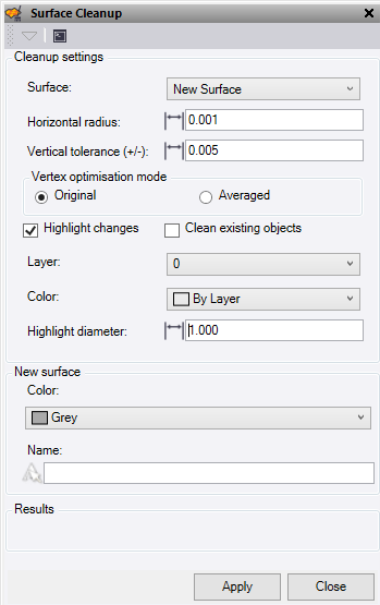
- Select the Surface on which to run the cleanup process.
- Enter a Horizontal radius to identify vertices close enough to be considered for merging or exclusion.
- Enter a Vertical tolerance (+/-) to determinr if vertices are sufficiently close in the Z-axis to be merged or removed.
- Under Vertex optimisation mode, select one of the following:
- Original – Retains original vertices, excluding any that meet the specific criteria for removal.
- Averaged – Calculates the new vertex position by averaging the coordinates of combined vertices.
- Check Highlight changes to draw circles around the surface vertices that have been altered, which will differ depending on the mode chosen. If the Original mode is used, deleted vertices will be circled. If the Averaged mode is used, the new vertices will be circled.
- Check Clean existing objects to clear all objects from the layer chosen for the highlight circles.
- Choose or create a new Layer for the highlight circles to populate.
- Choose a Color for the circles.
- Enter a Highlight diameter to use for drawing the highlight circles.
- Choose a Color for the new surface.
- Enter a Name for the new surface.
- Click Apply to run the cleanup and keep the Surface Cleanup command pane open.
The number of vertices checked and deleted are displayed under Results.
Note: This command attempts to maintain the original triangle formation however care should be taken when choosing the horizontal and vertical tolerances being used. Also, any existing errors in an imported surface will be flagged on the new surface created.
