Binding a T4D license
There are two methods to bind a T4D license:
-
Using the Trimble License Activator
-
From within T4D Control
License Activation Connectivity Check
Before activating your T4D license, ensure the server can connect to the Trimble License Server: https://trimbleweb1-aws.trimble.com/LicenseServer/LicenseActivatorService.svc
How to Verify:
-
Open this link in a web browser on the server where T4D is installed.
-
If the page loads connectivity is confirmed, even if it shows raw service data.
-
If it does not load, proceed with troubleshooting below.
Troubleshooting Connection Issues:
-
Confirm the server has an active internet connection.
-
Check firewall settings to ensure HTTPS traffic is allowed.
-
If using a proxy, make sure the proxy configuration permits access to the URL.
-
Whitelist the domain trimbleweb1-aws.trimble.com in security software.
-
Contact your IT administrator if network policies block external connections.
After confirming connectivity, follow one of the two methods to bind your license.
Method 1: Trimble License Activator

-
Open the Trimble License Activator from the Windows Start menu.
-
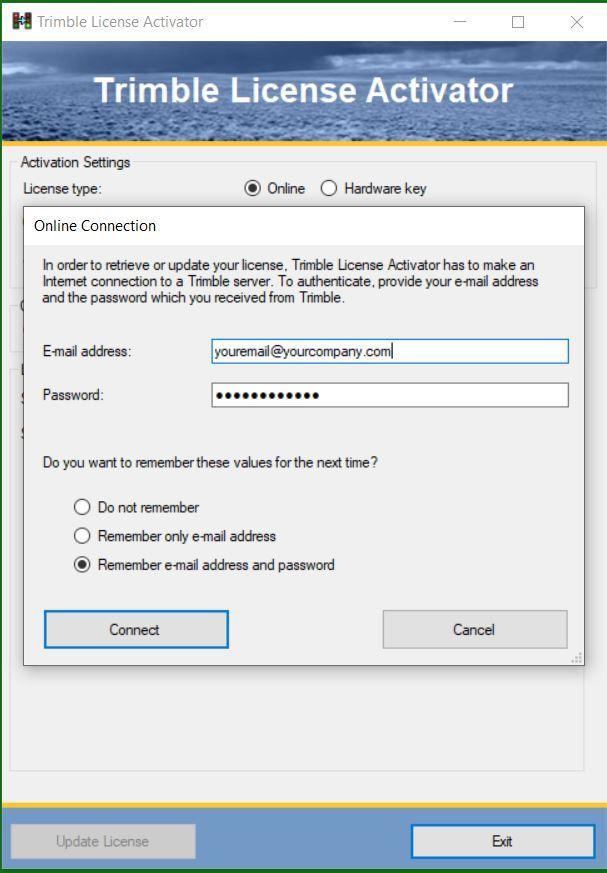
Enter the email address and password associated with the T4D license. The password is delivered to the license email address upon purchase from infrastructure_license@trimble.com.
If you cannot find your license password, contact MonSol_Support@Trimble.com.
-
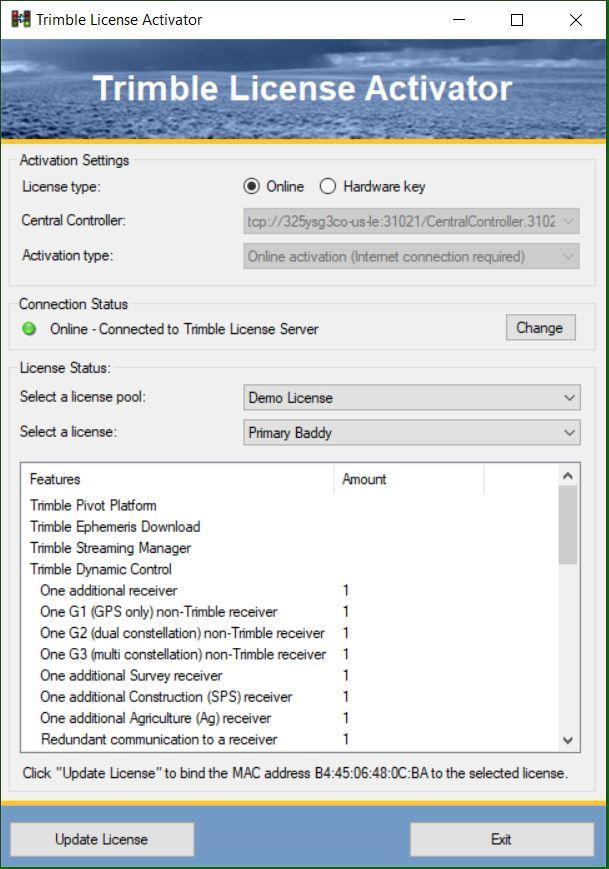
From the License Status section, select the correct license pool and license from the drop-down lists.
-
Select Update License.
-
Confirm the license is bound. The globe icon will indicate a bound online license.

Method 2: T4D Control
-
In T4D Control, select the System Properties button
 .
. -
Scroll to the bottom of the window to the Online Licensing section.

-
Enter the email address and password associated with the T4D license. The password is delivered to the license email address upon purchase from infrastructure_license@trimble.com.
If you cannot find your license password, contact MonSol_Support@Trimble.com.
-
Select the [...] option in License 1.
-
Select the correct license pool and license from the drop-down options.
-
Select Bind License.
-
Confirm the license is bound. The globe icon will indicate a bound online license.
