Options - Setting Up Email SMTP or URL Redirect for T4D Web
Option 1: Setting Up Email SMTP (T4D Web)
Setting up an SMTP (Simple Mail Transfer Protocol) service allows T4D Web to send emails, alarms, and reports directly to user accounts. If SMTP is not configured, these services will only function locally on the server where T4D is installed.
-
Log into T4D Web locally where T4D is installed.
-
Open a browser and navigate to http://localhost/T4DWeb
-
Log in with the default system administrator username and password:
Email: admin
Password: AdminWe recommend changing the default system administrator login information only after the SMTP service has been configured so you can use the 'Forgot Password' email feature if needed. Always record and safely store any new passwords to prevent loss of access.
-
-
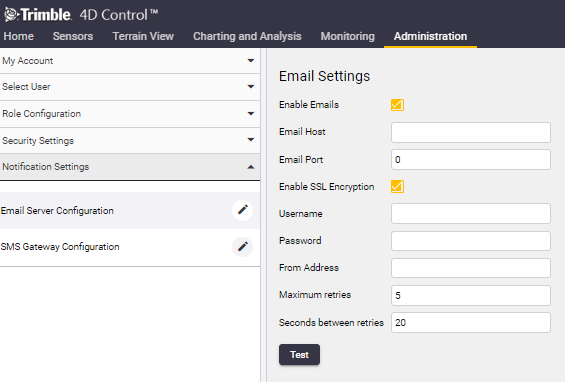
In T4D Web go to Administration > Accounts > Notification Settings > Email Server Configuration.
-
Fill in the required SMTP Server details:
-
After entering all required details, click 'Test' to verify SMTP connectivity.
-
If the test passes, email notifications, alarms, and reports can now be sent to any configured user account email in T4D Web.
Option 2: Setting Up URL Redirect (T4D Web)
To access T4D Web from outside the local server where T4D is installed on, an SSL Certificate can be applied with a redirect from the standard ‘LocalHost/t4dweb’ address.
-
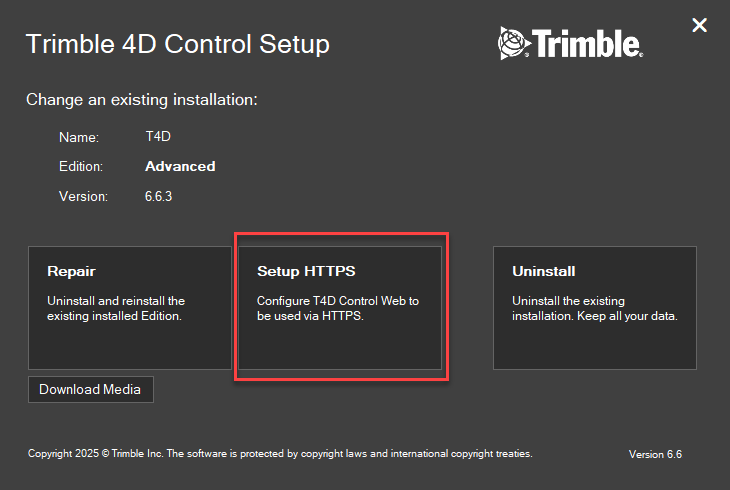
On the server where T4D Control is installed, use Windows search to find and open 'Trimble 4D Setup Bootstrapper'.
-
In the Bootstrapper, choose the Setup HTTPS option in the middle.
-
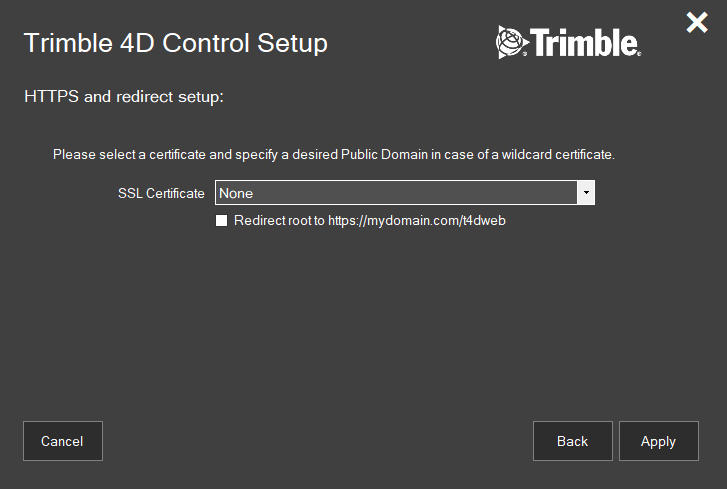
In the HTTPS and redirect setup, select an SSL Certificate from the drop-down list.
This window lists automatically all SSL Certificates available on the server.A .pfx certificate file is required. If the SSL Certificate is not available, please install or import it now onto the server. Reopening the Trimble 4D Setup Bootstrapper, the newly added certificate should now appear in the drop-down list.
-
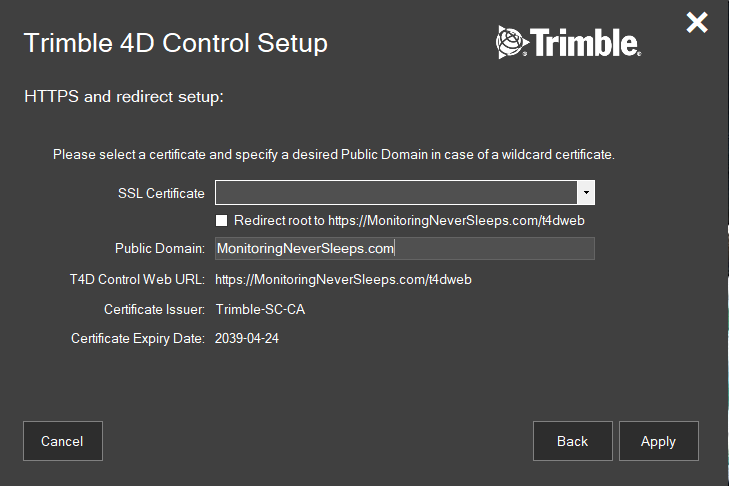
After selecting the correct SSL Certificate, enter the custom domain name that will be used to redirect T4D Web.
-
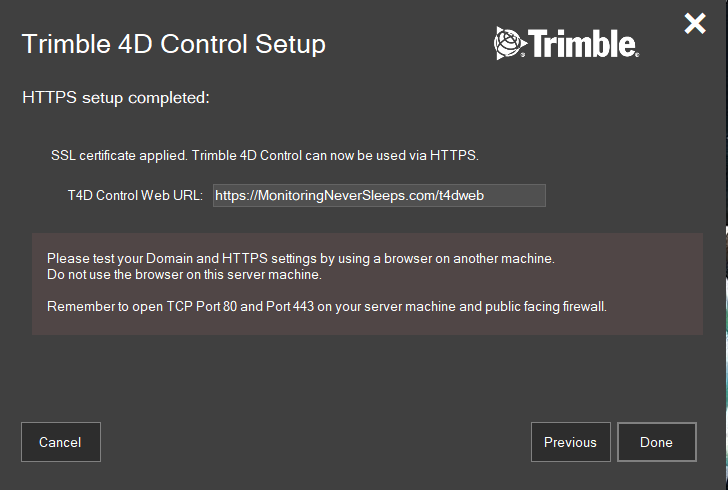
Select 'Apply' and review the generated custom URL and Redirect information.
-
Click 'Done' to apply the changes directly to the Internet Information Services (IIS).
-
Verify Access: Open a browser and test the new T4D Web URL to confirm that HTTPS is working correctly.
