Positional Sensor Readings report
To add a new Positional Sensor Readings Report (PSR), on the Report Schedule page click the Add Report Schedule button, select PSR Report and then click Create.
The PSR Report is an Excel file export containing readings of sensors with Positional Data Types.
The report also calculates and presents the sensor’s resultant position by adding the originally measured sensor location to the measured change in the position according to the readings.
The PSR Report Details are below the Report General Settings section.
You can edit the listed settings by clicking on the particular setting. This will open the PSR Report Details dialog where you can edit the settings. You can also click on the Configure Report Details button to open the PSR Report Details dialog.
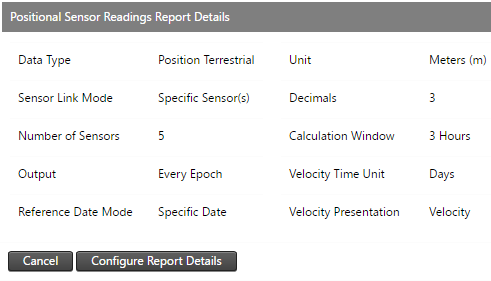
The following steps will guide you through configuring your PSR Report.
-
The first tab on the PSR Report Details dialog allows you to select the Positional Data Type and the relevant sensors associated with that Positional Data Type to include in the report.
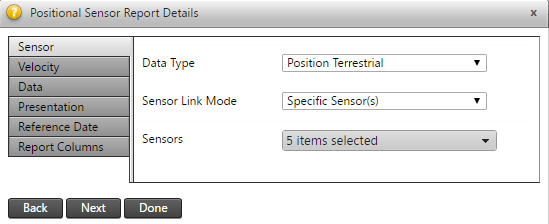
The Sensor Link Mode allows you to include either specific sensors, all sensors of a selected Sensor Type or all sensors of a selected Sensor Group (see Sensor groups). In the example above, we selected Specific Sensor link mode and we selected five sensors to be included in the report.
Click Next to proceed.
-
Configure the Velocity settings. The Velocity settings tab is visible only for data types where velocity is applicable.

The settings are as follows:
-
Calculation Window: Specify the width of the rolling time window over which a linear regression line should be fitted in order to calculate the velocity to be monitored.
-
Velocity Presentation: Specify whether the velocity should be presented as Velocity (v) or Inverse Velocity (1/v).
-
Velocity Time Unit: The time unit in which the velocity should be presented. These are Per Hour or Per Day.
Click Next to proceed.
-
-
Select the type of data to be used for the report.
-
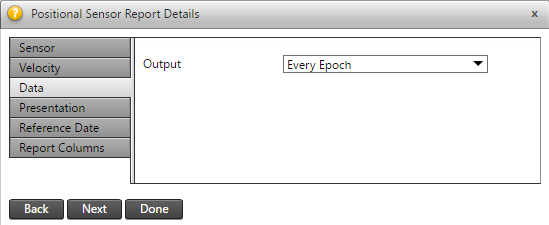
Output: Specify the Summarized Data Set to be used to generate the report (see Summarized data sets (data type reductions)). Every Epoch refers to the unsummarized readings.
Click Next to proceed.
-
-
Configure presentation of the positional readings.

-
Unit: Specify the unit in which ti present the positional readings.
-
Decimal: Specify the number of decimal places to use for positional readings.
Click Next to proceed.
-
-
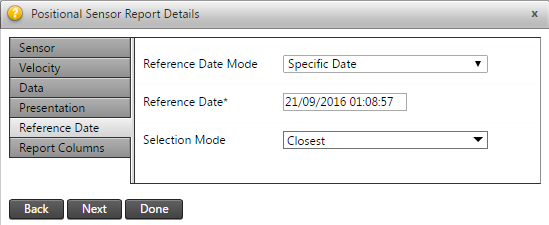
Configure the reference date to be used by the relative measurements.
-
Reference Date Mode: Specify whether to use a Rolling Offset or a Specific Date.
-
Reference Value Offset: If Rolling Offset was selected for Reference Date Mode, then you can set the reference date offset here.
-
Reference Date Mode: If Specific Date was selected for Reference Date Mode, then you can enter the fixed Reference Date here.
-
Reference Date Mode: Choose how the reference value is selected here. This setting determines a preference for closest values before or after the Reference Date.
Click Next to proceed.
-
-
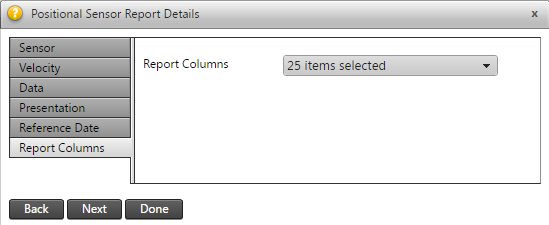
Configure the columns to include in the PSR report.
-
Report Columns: Choose columns related to the sensor (Sensor Name, Sensor Alarm State), the sensor readings (Delta Northing, Delta Easting, … ), or the resultant sensor position at a particular point in time (Northing, Easting, …)..
-
-
Click Done.
