Filtering BIM models using properties
Use the Filter tool to isolate objects in a BIM model based on their property values, such as an ID number, material type, or pipe diameter. Filtering simplifies the map view and allows you to focus on the specific objects for stakeout or surface inspection.
The image below shows how using the Filter tool enables selection of a specific part of a object, for example highlighting specific welds within a frame model by ID number or property value.
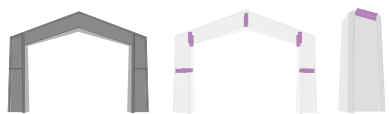
TIP –The BIM Filter tool isolates objects based on embedded data. To identify details of the model, use the selection tools to view the attribute information to use in the filter. If you need to select a specific physical part of an object, change the display settings for BIM models from whole object to Individual faces
-
In the BIM toolbar select the
 tool.
tool. If the BIM toolbar is not shown, tap
 on the Map toolbar and then select BIM toolbar.
 -
From the Property list, select how you want to search:
-
All: Scans every property in the entire model. This is ideal when you have a unique reference ID, for example a piece mark written on an assembly, but unsure which property category it belongs to.
-
Property: Restricts the search to a specific data category chosen from the list, for example an assembly mark, material, or pipe diameter.
-
Favorite: If you have favorited a specific attribute during a model review, it appears as a favorite for repetitive tasks.
-
-
Define the filter by typing the filter name into the Filter field or by tapping the arrow and selecting the filter from a list. The filtered objects will highlight yellow.
-
Tap Apply to only show the objects that meet the filter criteria. The map hides all non-matching objects.
-
Tap the
 button on the BIM toolbar to reset the filter and return to full visibility of the BIM model.
