Quick reference: CAD toolbar with Measure points or Measure topo
Refer to the example features and the button-press information below to create these features in the Measure points or Measure topo form using the CAD toolbar.
TIP – To create back curb (BC) or standard manhole (STMH) features, define the BC and STMH feature codes as lines in the feature library and make sure the feature library includes definitions for the appropriate control codes.
 To create the example line and non-tangential arc feature
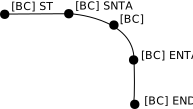
- For point 1, select [BC] + tap
 .
. - For point 2, select [BC] + tap
 .
. - For point 3, select [BC].
- For point 4, select [BC] + tap
 .
. - For point 5, select [BC] + tap
 .
.
To create the example three-point circle (edge) feature
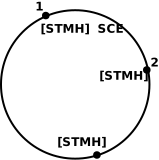
- For point 1, select [STMH] + tap
 .
. - For point 2, select [STMH].
- For point 3, select [STMH].
To create the example two-point circle (center) feature
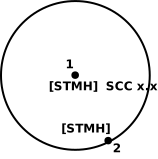
- For point 1, select [STMH] + tap
 .
. - For point 2, select [STMH].
To create the example one-point circle (center) feature
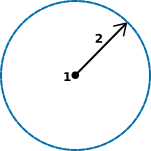
- Select [STMH] + tap + enter the radius value [x.xx].
To create the example three-point rectangle feature
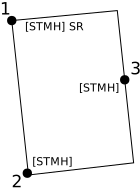
- For point 1, select [STMH] + tap
 .
. - For point 2, select [STMH].
- For point 3, select [STMH].
To create the example two-point rectangle feature
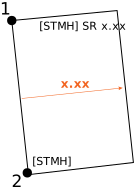
- For point 1, select [STMH] + tap + enter the width value [(+/-)x.xx].
- For point 2, select [STMH].
To create the example smooth curve feature
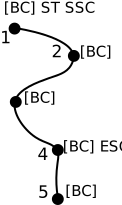
- For point 1, select [BC] + tap +
 .
. - For point 2, select [BC].
- For point 3, select [BC].
- For point 4, select [BC] +
 .
. - For point 5, select[BC].
