Collaboration using shared views and topics
Elevate your team's collaboration and task management with our innovative tools. Trimble Connect multi-pane viewer streamlines your workflow by enabling seamless collaboration through saved Views or Topics for issue management.
Views 
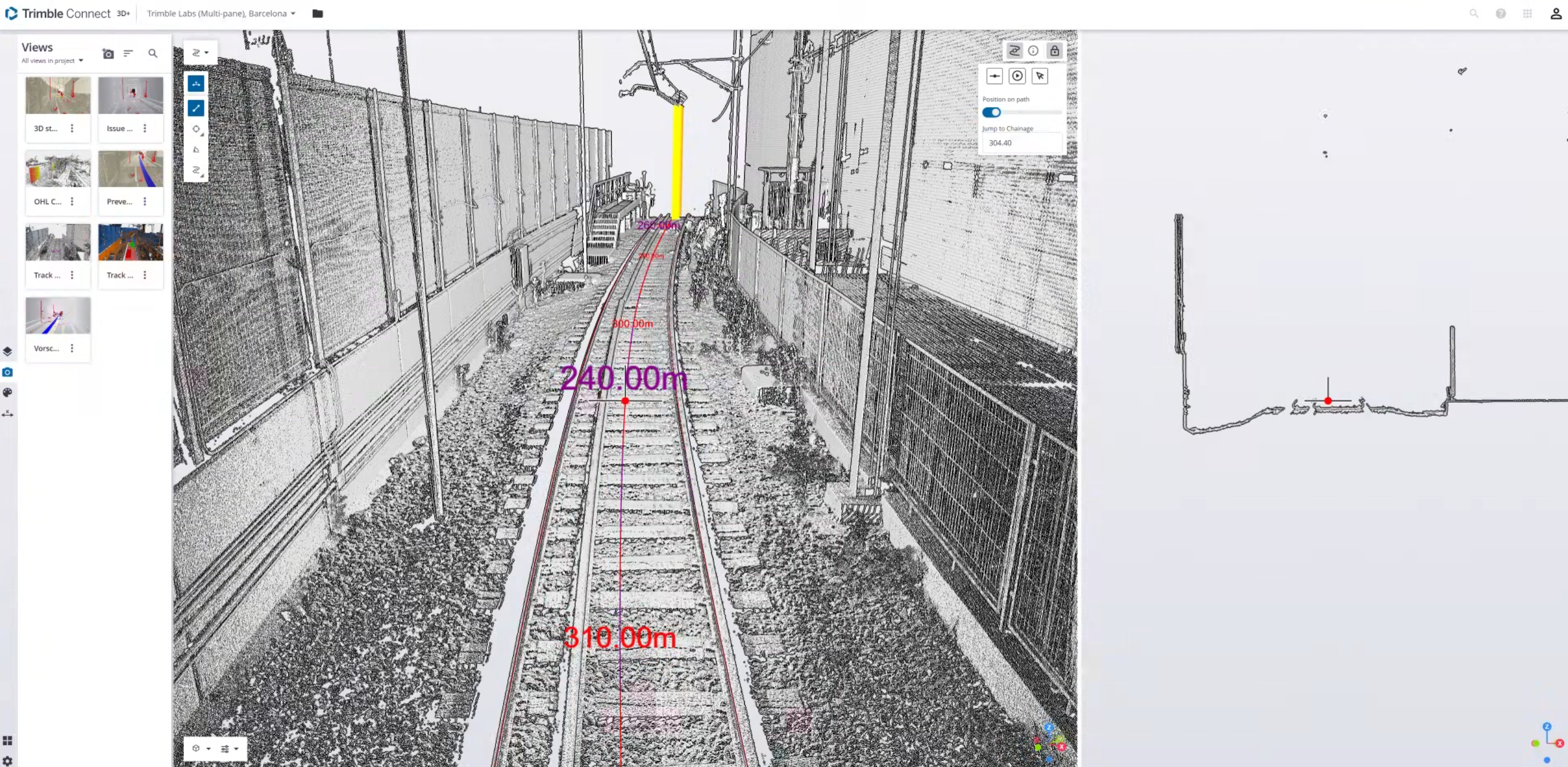
Views enable you to save a precise state of the visualization, for example camera angle, data layers, and point cloud styling. These saved visualizations are a key component for collaborative work, as they can be shared directly with colleagues via the Trimble Connect platform.
-
Use the Add View tool
 to save the current view of the project and share it with other team members and to insert the following information:
-
Title (required) - Insert a title for the view.
-
Description (required) - Add a short description for the new view.
-
Shared with - Select team members to share the view.
-
Tags - Add a specific categorization label to your view. Assign multiple, customizable tags to views to improve and streamline collaboration.
-
-
Opening an existing view automatically reloads all the saved parameters, ensuring consistency. This includes measurements and markups.
For more information, see Trimble Connect Skill Builder: Creating and Sharing Views.
Topics 
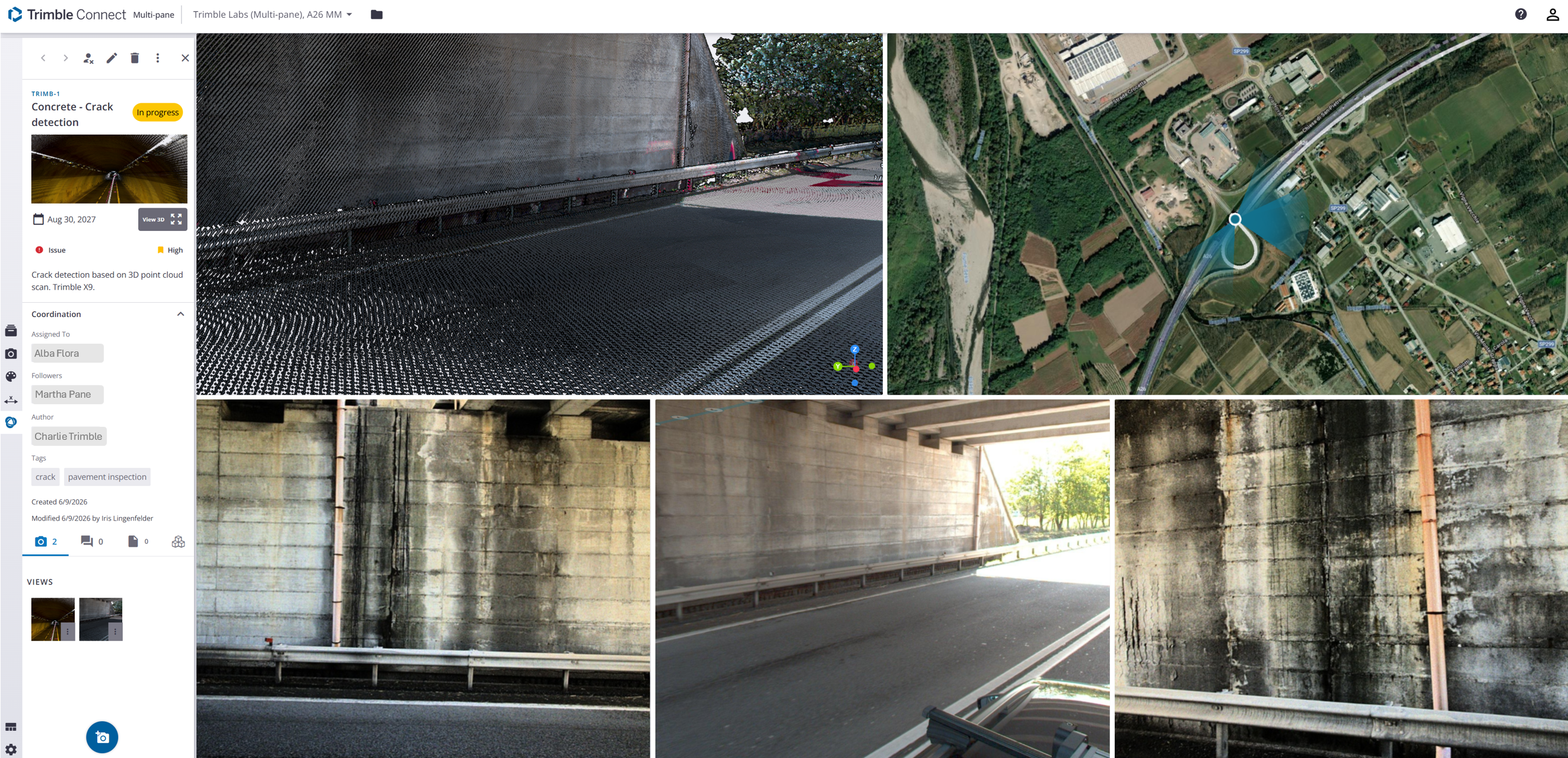
Topics are a powerful feature for collaborative issue tracking, functioning similarly to shared Views. Topics support a model-based communication in the multi-pane viewer to collaborate with all project members. Topics in Trimble Connect multi-pane viewer allow project members to create, manage, and collaborate on issues, requests, or questions, linked directly to BIM models (Building Information Modeling).
Trimble Connect's BCF (BIM Collaboration Format) topics follow the open industry standard defined by buildingSMART International, enabling seamless sharing of issues between applications that support this standard.
Create topics in the Topics tab and assign users, set priority, due date, tags, and status and references or flag points of interest and add a different views. Share them with team members, where all members can comment, follow, or unfollow topics to receive notifications about edits.
For full details and step-by-step instructions see below or visit Trimble Connect Topics for further information within Trimble Connect.
Create a new Topic in Trimble Connect multi-pane viewer
To create a topic:
-
Open the Topics tab from the left toolbar.

-
Select + Add new issue.

-
Enter input into the data fields:
-
Title (required) - Insert a title for the topic.
-
Type - Select one of the Type values in the list.
-
Priority - Select one of the Priority values in the list.
-
Status - Select one of the Status values in the list.
-
Due Date - Select a date.
-
Description (optional) - Add a short description for the new topic.
-
Assignee - Start typing to see proposed users and user groups.
-
Followers - Enter the names of the users who need to follow the topic.
-
Tags - Start typing a Tag value and select one of the suggested already existing Tags (configured in the project settings) or type a new Tag value. Note that if a new Tag is given, it is automatically added to the project settings.
-
Add references - To link items to a topic, click Add references, then browse the project hierarchy and add files or enter a web URL. In each tab, click the Add references button to include the selected content. Please note that files with identical names will not be added.
-
Add comment - Enter a comment to provide feedback, details, or updates for the topic.
-
-
Select Save.
After creating a topic, you can continue to add:
-
Views
-
Comments
-
References
-
Topic markers (visible immediately on project load)
Note that only topic markers appear automatically when opening a project, but other topic elements require opening the topics tab.
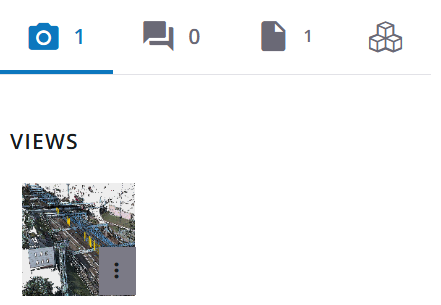
To add a topic marker:
-
Open the topic you want to mark.
-
Position the view so the target location is visible. You can place the marker in a 3D, image, or panorama pane.
-
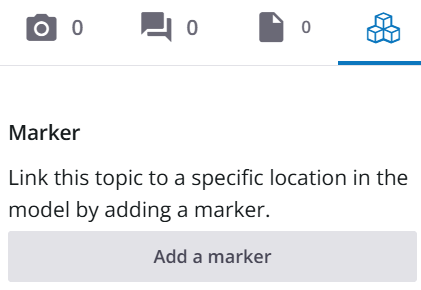
Select the 3-cubes-icon on the right side at the bottom of the topics panel.
-
Select Add a marker.
-
Move your pointer in the pane. A placement preview follows the pointer.
-
Click the desired location in the pane.
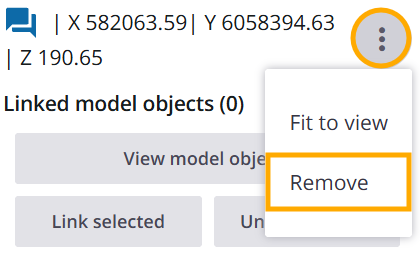
The marker icon is added at that location, and its X, Y, and Z coordinates appear in the topics panel. Note, that a topic can have one marker.
-
To delete a marker select the menu to the right of an existing marker and select Remove.
Filter Topics
Use the Topics drop-down menu to filter the list of topics displayed:
-
All Topics in Project – Shows every topic in the project.
-
Active Topics – Displays only topics that have a status assigned and are not closed.
-
Assigned to Me – Lists topics assigned to the current user.
-
Followed – Shows topics that the current user is following.
-
Created by Me – Lists topics created by the current user.
-
From This Model – Displays only topics linked to the currently visible model. If a model is added as a reference, this filter will limit topics to those related to that model.
Sort Topics
Choose a sorting option to arrange topics based on the selected criteria.
Options
Refresh - Updates the list to display the most recent topics and changes.
Search - Opens the search bar, allowing you to find topics by typing a keyword or partial word.
Option Show Topics in 3D
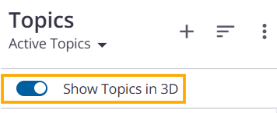
Enable Show Topics in 3D at the top of the topics listing to display the topic marker icons in the 3D pane. This makes it possible to see visually in the 3D pane where the listed topics are located.
Note that the topic marker is a Trimble Connect feature. The BCF Topics standard does not support markers. This means that the markers are available in the Trimble Connect context. When importing or exporting Topics using the buildingSMART BCF-XML file format, then the markers are not included.
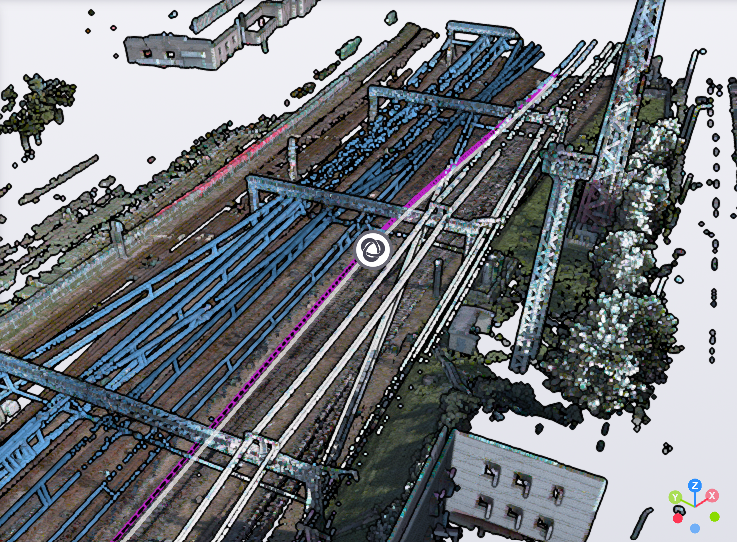
The topics listing filter and search impacts which marker icons are visible. If a user has searched/filtered the topics listing, only the marker icons of the search/filter results are displayed in the pane.
When a single topic is active in the topics panel (the topic details are visible), then only the marker icon of the active topic is displayed in 3D.
Clicking a marker icon in the 3D view opens the topics details panel for the topic.
Work with an existing topic
Once a topic is created, a toolbar appears providing quick access to various actions:

Navigate between topics – Use the left and right arrow buttons to step through existing topics in sequence.
Follow/Unfollow issue – Click the follow icon to subscribe to updates. The topic will be added to your followed list and notify you of changes. If you want to unfollow an issue select the icon again.
Edit – Open the topic in edit mode to update its title, description, references, or other details.
Delete topic – Permanently remove the topic from the project. (Use with caution — deletion cannot be undone.)
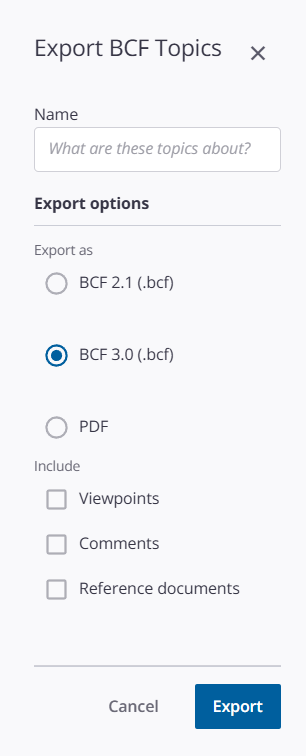
Options – Export a topic: Insert a name for the exported topic, choose the export format (BCF 2.1, BCF 3.0, or PDF), and decide which information to be attached (Viewpoints, Comments, and Reference documents).
Close Topic – Exit the currently open topic and return to the topic list.
When a topic is opened in the side panel, an icon appears in the view pane capable of displaying that topic's view.
 View 3D - This button, located below the thumbnail of the topic, opens the topic in the 3D pane of your view.
Open a topic in multi-pane viewer
Open the Topics tab from the left toolbar. 
Existing topics are listed in a tile view and can be selected by single click. If you select a topic detailed information is displayed and a marker icon showing the location of the topic in shown in the 3D pane.
Select View 3D to open the topic in the 3D pane.
Close Topic – Exit the currently open topic and return to the topic list.
Follow Topics
For a selected topic the toolbar offers the option to follow a topic.

This lets you subscribe to a topic and receive email notifications when it is edited, providing control over the topics for which you want update alerts.
Key points for following a topic 
-
When a new topic is created, neither the author nor the assignees are automatically added as followers. To become a follower, you must explicitly follow the topic.
-
If an assignee is a user group, all members receive assignment notifications, but the group itself is not added as a follower. Members must follow the topic individually to receive update emails.
-
Comment additions do not trigger email notifications.
Follow or Unfollow a topic
To change a topic's follow status in Trimble Connect multi-pane viewer:
-
Open your project in the multi-pane viewer.
-
In the left toolbar, select Topics.
-
Choose the topic you want to follow or unfollow.
-
Click the Follow icon to subscribe to updates.
-
Click the Unfollow icon to stop receiving updates.

Edit topic followers
Topic creators, assignees, and project administrators can add or remove followers:
-
Open your project.
-
In the left toolbar, select Topics.
-
Select a topic, click the Edit icon, and scroll to the Followers field.
-
To add a follower, type the user's name in the field.
-
To remove a follower, click the X next to their name.
-
Select Save.
Find the topics followed

You can find the list of topics that you follow:
-
Open your project.
-
In the left toolbar, select Topics.
-
Use the Topics drop-down filter Followed to display only the topics where you are listed as a follower.