Using Favourites
The Favourites section in the Sidebar acts as a collection of custom shortcuts to your most important files and folders. Any item you mark as a Favourite will appear in this list for quick and easy access, regardless of its original location.
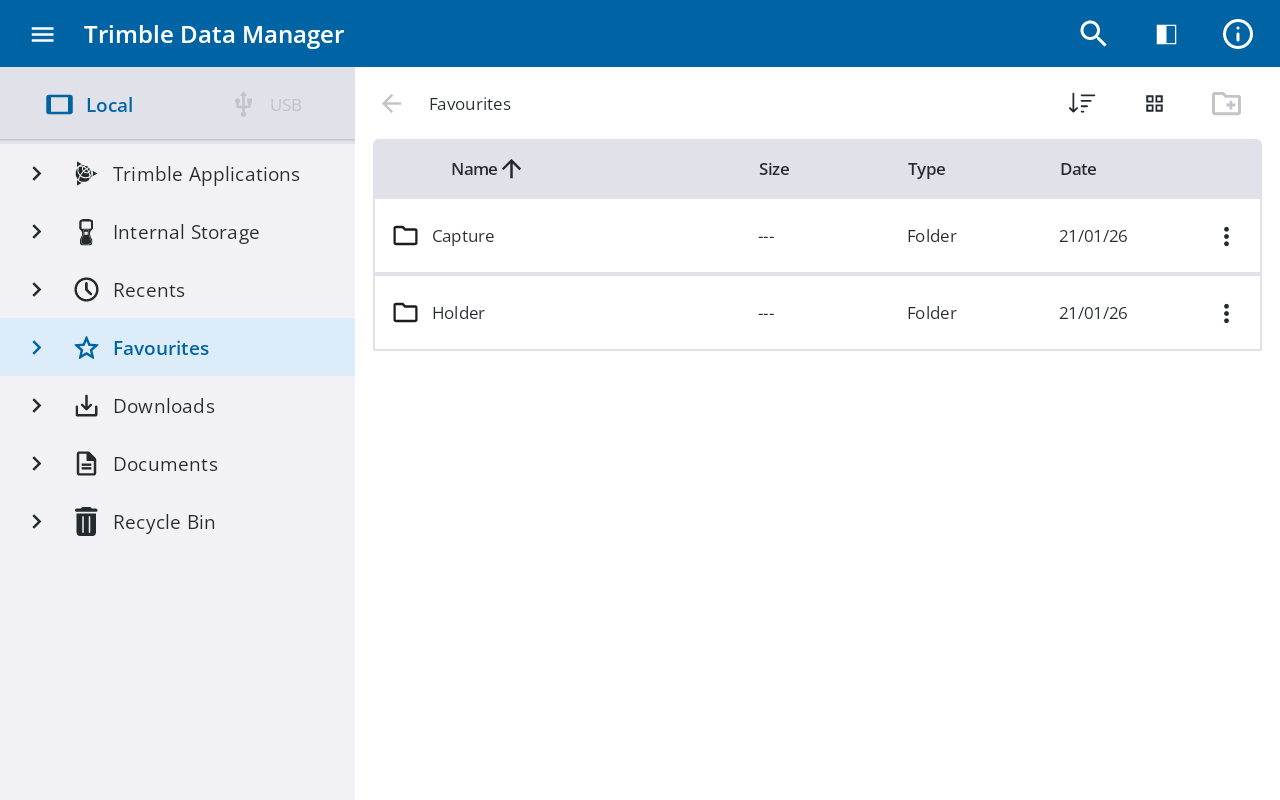
Adding items to Favourites
You can add single or multiple items to your Favourites list:
-
To add a single item, navigate to the required file or folder, tap
 to its right, then tap Add to favourites from the context menu.
 -
To add multiple items, tap-hold an item, then tap the additional items you want to select. Then tap Add to favourites from the action menu that appears.
Removing items from Favourites
To remove an item from your Favourites list, do either of the following:
-
From its original location, navigate to the item you want to remove from Favourites tap
, and then tap Remove from favourites. -
From the Favourites section in the Sidebar, tap the item you want to remove, then tap Remove from favourites from the context menu.
Managing Favourites
Within the Favourites list, you can manage your shortcuts effectively. To quickly find where an item that is marked as Favourites is stored, tap to its right and select Open file location. This will take you directly to the folder containing that item.
Adding a file from a USB drive to Favourites
If you add an item from a USB drive to your Favourites and then remove the USB drive, the item will remain visible in your Favourites list but it will be inaccessible; you will not be able to open, copy, or otherwise interact with it.
Full access to the file will be automatically restored as soon as the USB drive containing the item is connected again.
