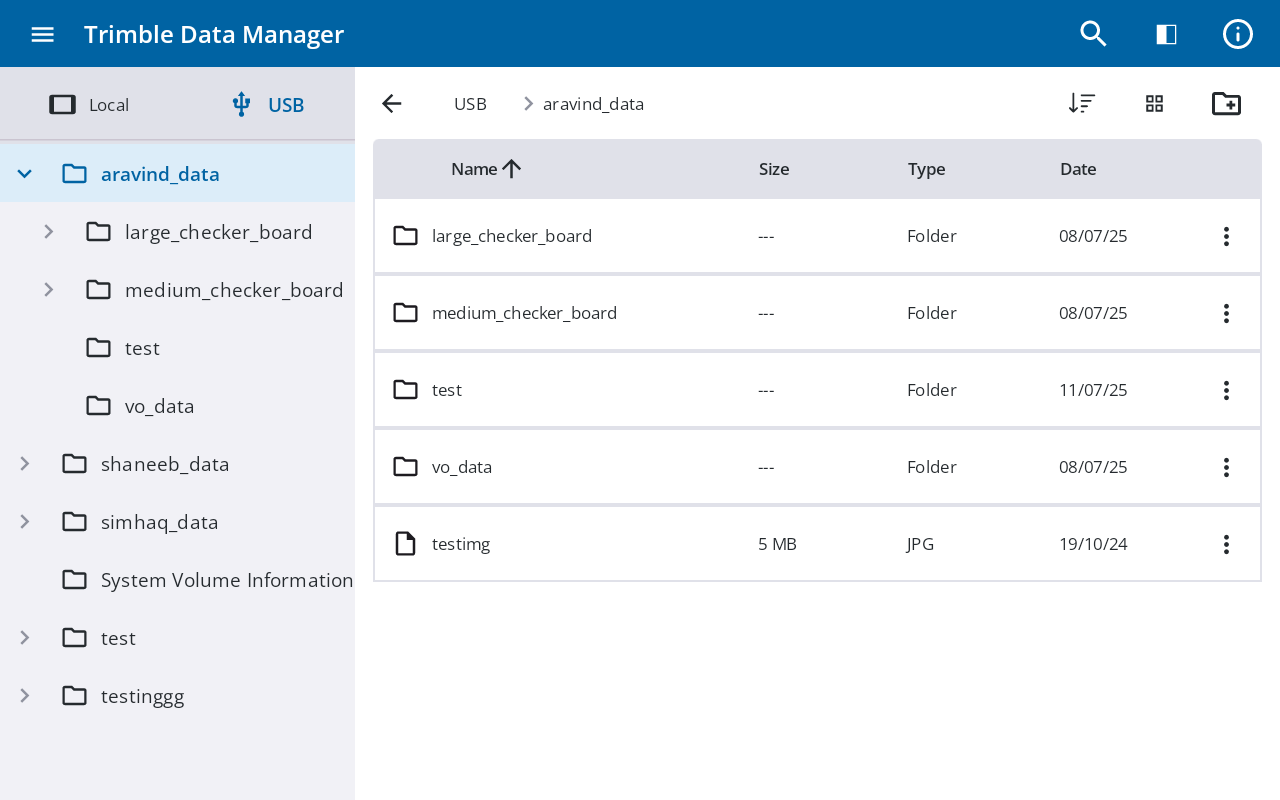
Accessing and navigating files on a USB drive
Trimble Data Manager provides full support for browsing and managing files on connected USB drives, allowing for seamless data transfer between your device and external storage.
When a USB drive is connected, tap the USB tab in the Sidebar to access its contents. The external drive icon will darken when it's ready for use.
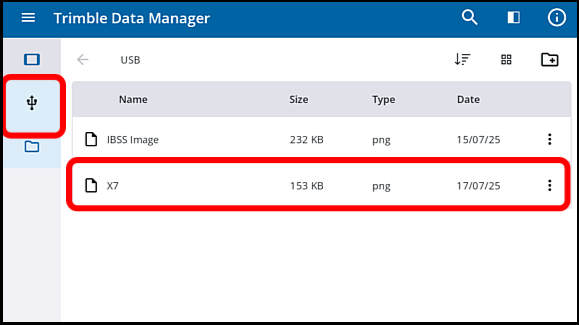
Trimble Data Manager makes switching between storage locations efficient. It remembers your last-visited location on both the local and USB drives. When you switch between these tabs, it automatically reopens the last directory you were working in.
NOTE – The first time you attempt to open or share a file from a newly connected USB drive, you are prompted to grant Trimble Data Manager access to it. See below.
Granting one-time permission for full access
For security reasons, Android requires you to grant Trimble Data Manager specific permission to open and share files on a USB drive. This is a one-time process for each unique USB device that you connect; you won't need to allow permissions each time you need to transfer files on a USB device that you have already granted permissions for. However, you will need to repeat the process below if you connect a different USB drive.
The first time you attempt to open or share a file from a newly connected USB drive, you are guided through the following permission steps:
-
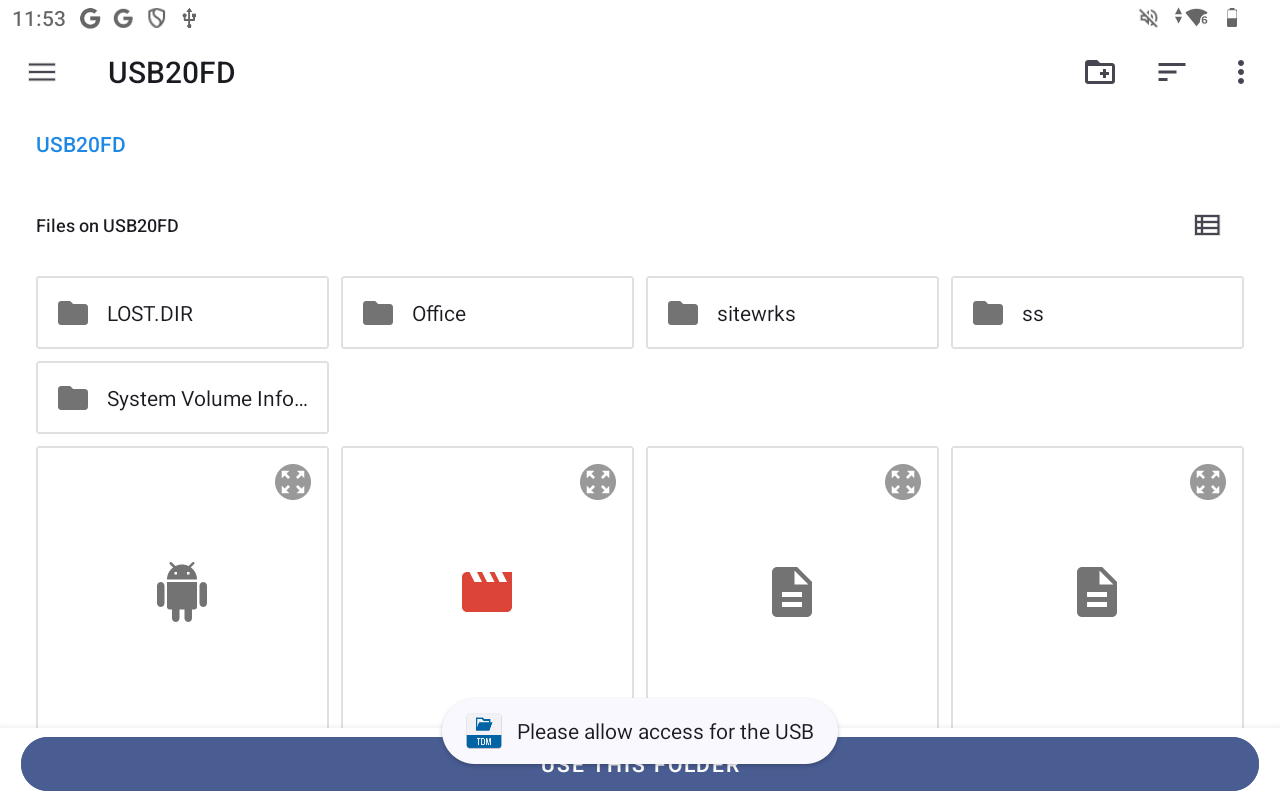
Tap any file on the USB drive. A system screen opens, taking you to the Android Files app.
-
At the bottom of the screen, tap USE THIS FOLDER.
-
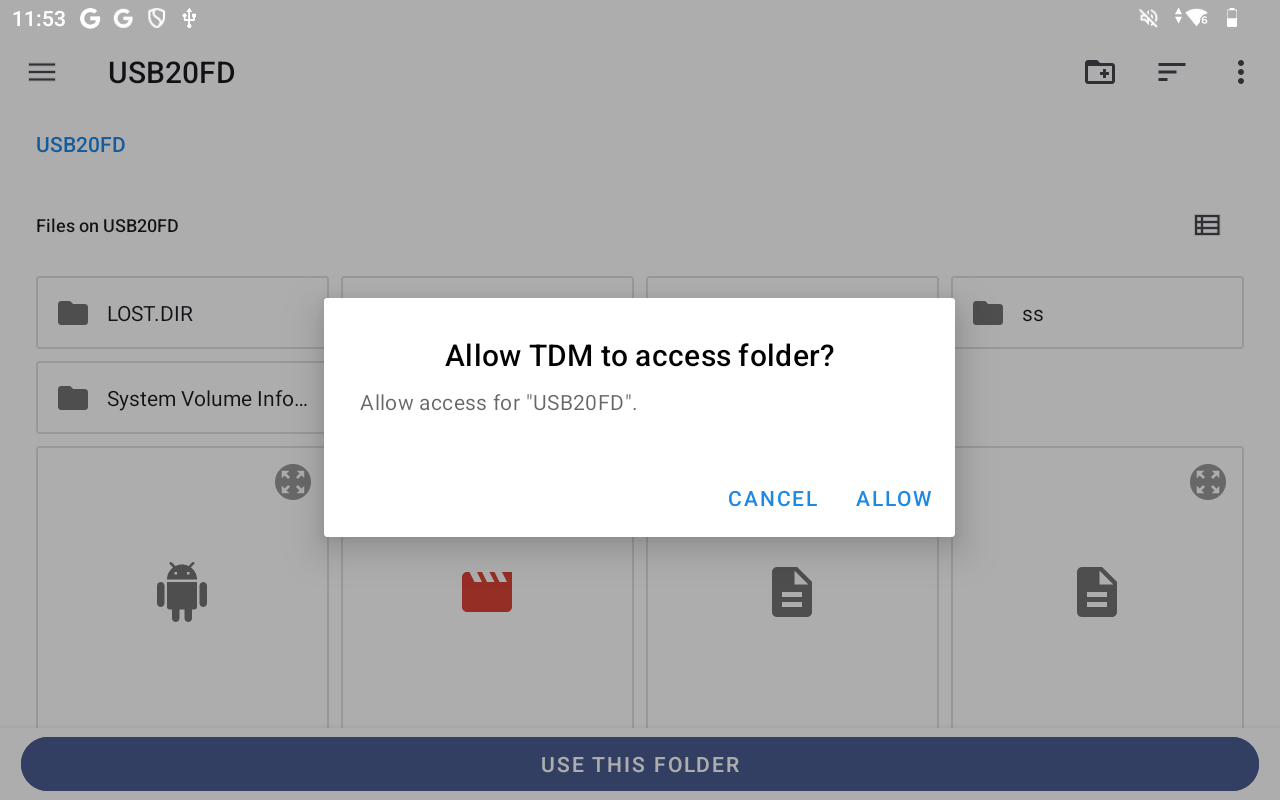
In the confirmation dialog, tap ALLOW to grant Trimble Data Manager access.