Using the Search feature
Use the Search feature to quickly find specific items within your directories. To begin a search, in the App bar tap  .
.
-
The search always begins within the folder that is currently open in the main panel.
-
The search will scan through the current folder and all of its subfolders, regardless of how deeply they are nested. Both files and folders that match your query will be included in the results.
NOTE – When you perform a search in a directory for the first time, there might be a slight delay before the initial results appear. This is because Trimble Data Manager builds a temporary index of the folder's contents to ensure a thorough search. Subsequent searches in the same session will be significantly faster once this one-time indexing is complete.
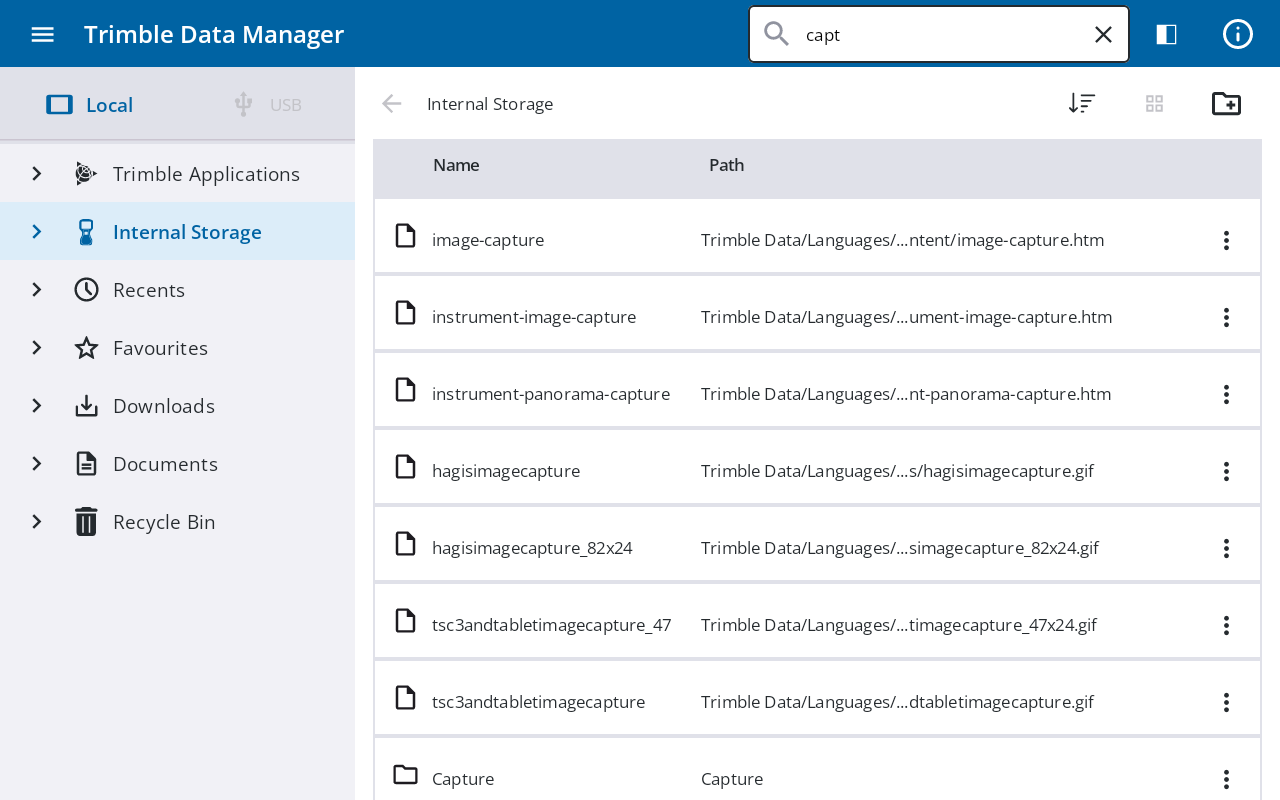
The files and folders matching your search query are displayed in a results list. To locate a specific item from this list within its original directory:
-
Tap
 to the right of the required file or folder.
 -
From the context menu, tap Open file location.
The search view closes and Trimble Data Manager navigates directly to the folder containing the selected item.
