Using Split Screen
The Split Screen feature enhances productivity by running two independent instances of Trimble Data Manager side-by-side, enabling you to work in two directory views simultaneously on a single screen. This is useful for managing files between two different locations (e.g., moving files from Local storage to a USB drive) without having to switch back and forth between folders.
To activate Split Screen, in the App bar, tap  .
.
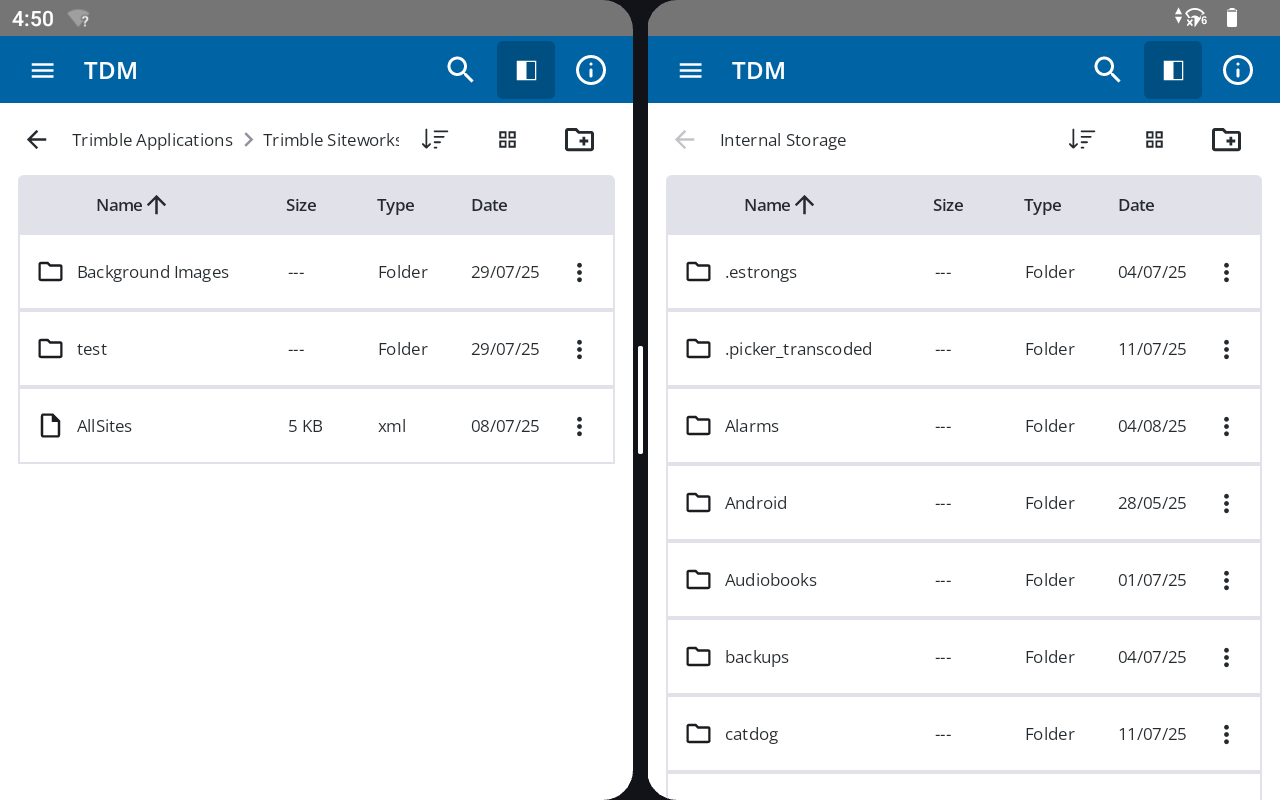
Split Screen is useful for:
-
Comparing directories: Easily view the contents of two different folders or drives (e.g., Local and USB) at the same time, eliminating the need to switch back and forth.
-
Transferring files: Seamlessly move or copy files between the two visible windows using drag and drop. This is the most efficient way to organize your files between different locations.
NOTE – In Split Screen, the two windows operate as two separate, independent instances of Trimble Data Manager. The only direct interaction between them is the ability to drag and drop files. All other functions (such as searching, sorting, copying, or creating a folder) are contained to the window in which the action is performed. The changes to the file system will be reflected in both the windows.
Closing Split Screen
To close one of the windows and return to a full-screen view, tap and drag the central divider bar all the way to the left or right edge of the screen — drag the bar over the window you want to close, leaving the other window active.
