Using the Battery settings
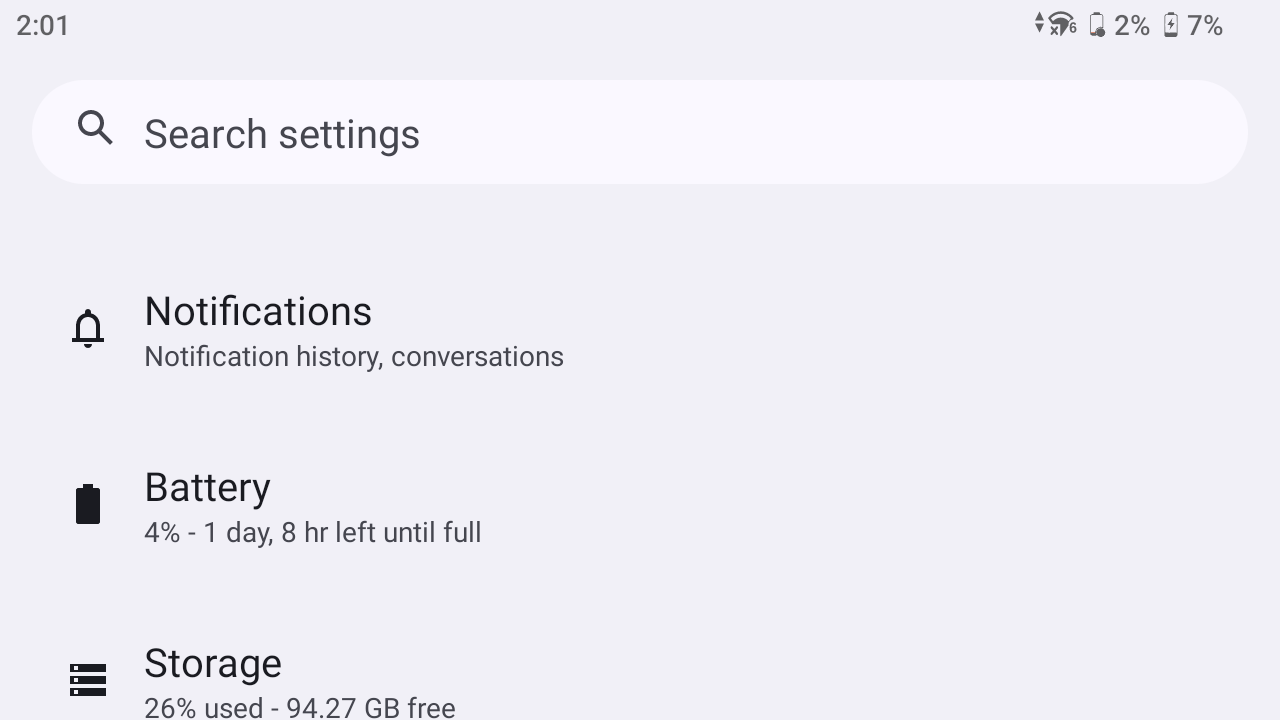
To access Settings, swipe down from the top of the display twice to show all Quick Settings options, tap the Settings icon in the bottom right corner, then tap Battery. Under Battery, the combined percentage charge of the internal battery and the accessory removable battery is displayed:
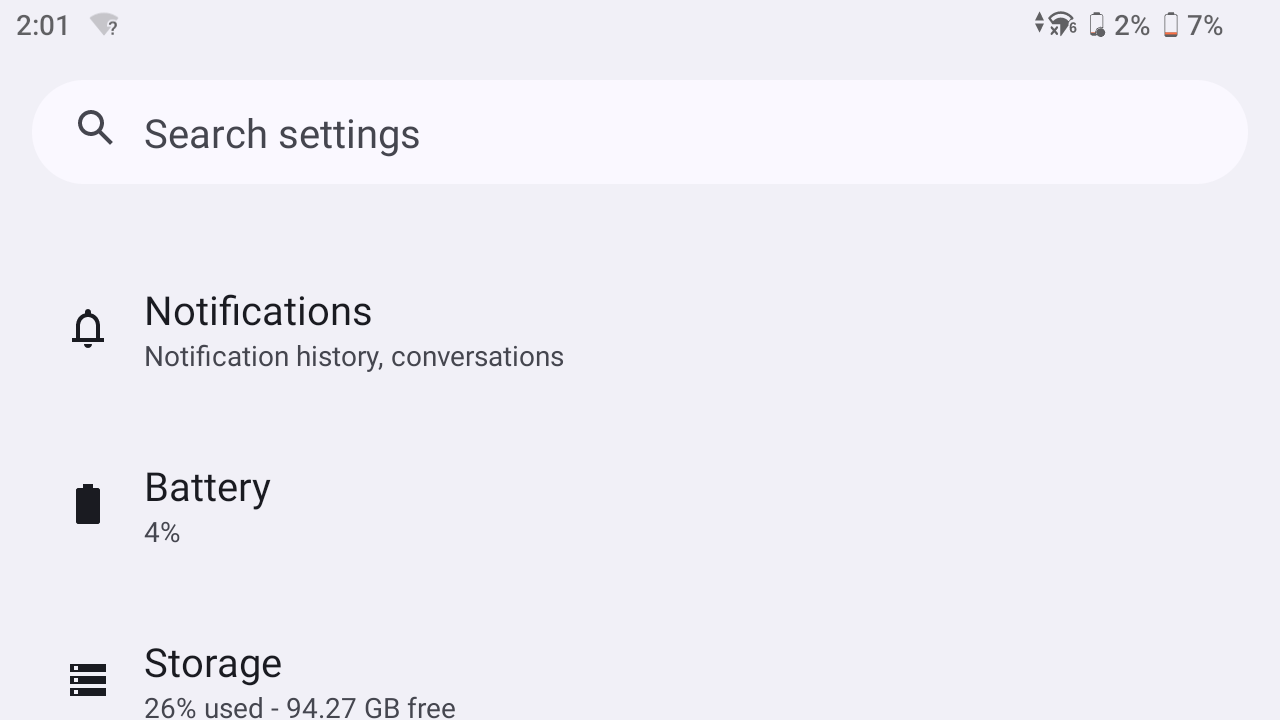
In the image above, at the top of the screen, the removable battery shows a 2% charge and the internal battery show a 7% charge. There is therefore a 4% combined total charge available.
Fully charged internal battery will run on average for approximately 9.5 hours (depending on workflow). A fully charged accessory removable battery provides an additional 9.5 hours of battery run-time. If the combined charge is 25%, this means that there is 25% available run-time from the combined estimated total battery run-time of 19 hours; that is, 25% would yield approximately 4.75 hours of typical run-time.
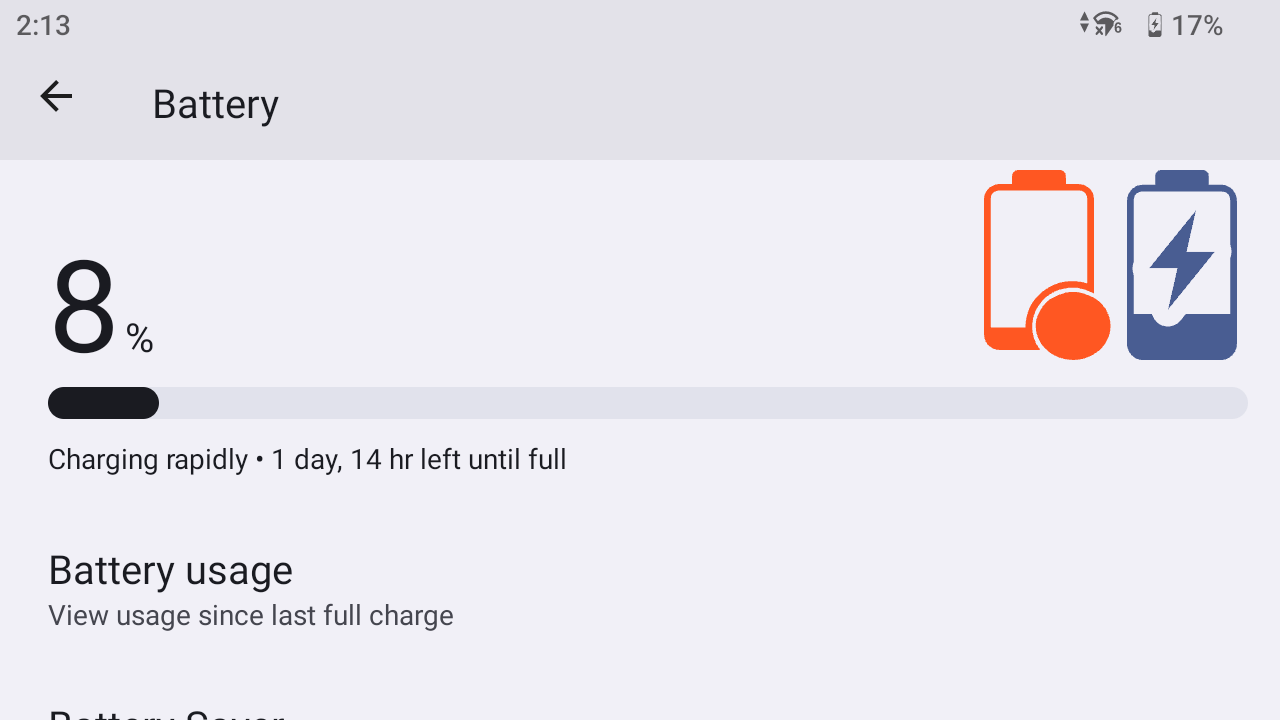
To access the Battery settings, tap Battery. The Battery settings screen shows the combined charge level of the internal and the accessory removable batteries and their charging status.
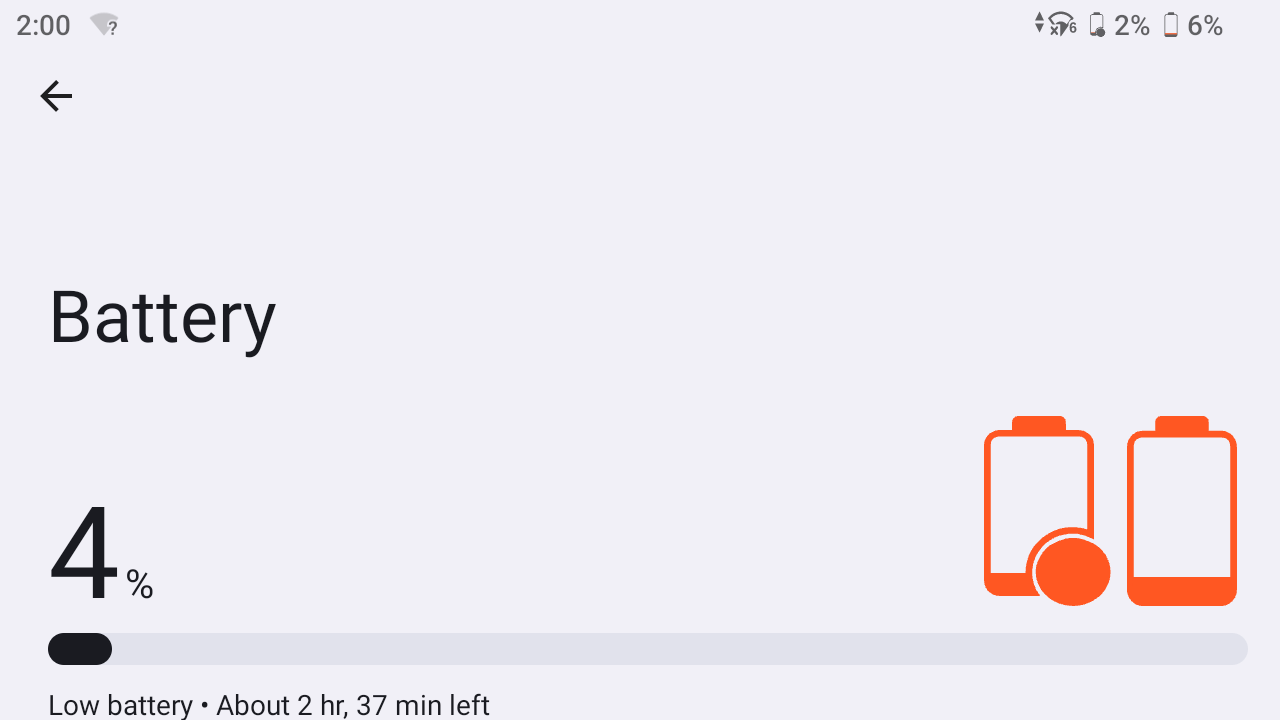
As on the Status bar, the battery icons are filled according to their charge level. For example:
-
the Battery settings screen below is showing (top right of the screen) 2% charge for the accessory removable battery and 6% charge for the internal battery, with a combined total charge of 4%:
-
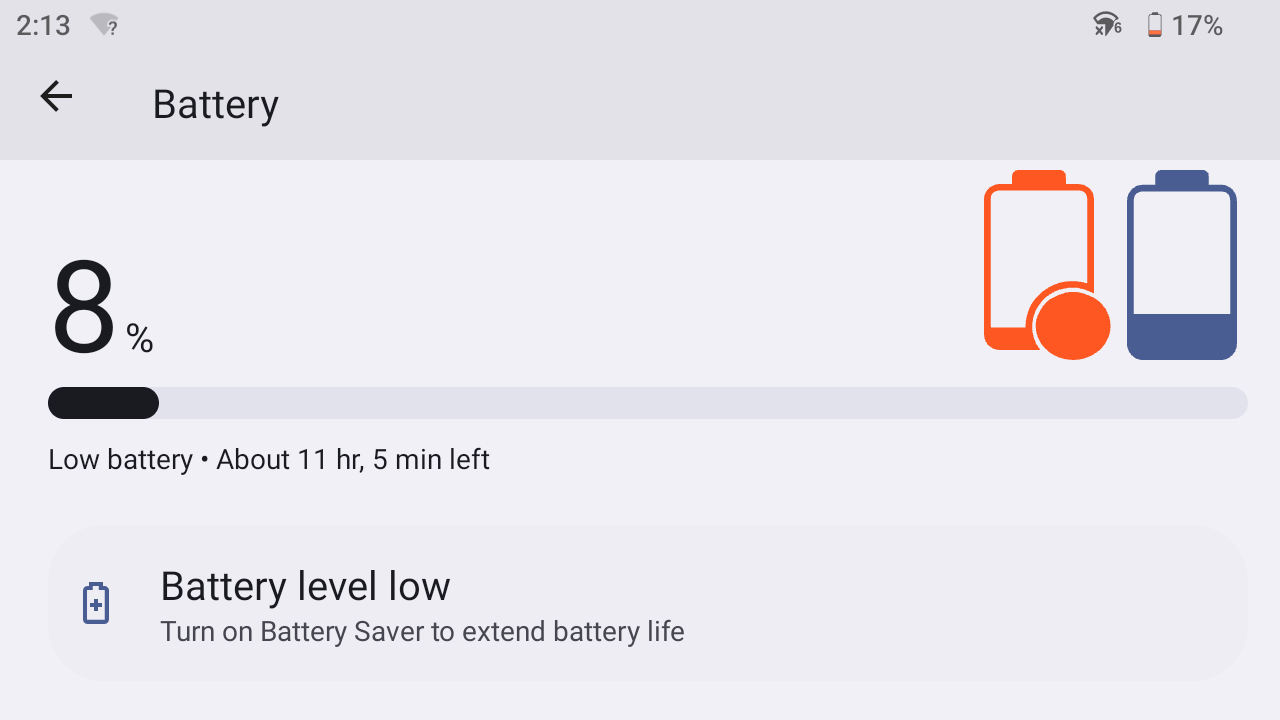
the Battery settings screen below is showing 0% charge for the accessory removable battery and 17% charge for the internal battery, with a combined total charge of 8%:
Scroll down to access other settings:
-
Battery usage
-
Battery Saver
-
Adaptive Battery
-
Battery percentage: Turn on to display the battery charge % level next to the battery icons on the Status bar for the internal battery and the accessory battery. This setting is off by default. When turned on, the Battery settings will still show the combined % charge of both the internal and the accessory batteries.
-
Internal Battery
-
Shelf mode enabled. This option will turn on Shelf Mode for the internal battery and the removable battery if it is installed.
Battery charging
-
The internal battery always charges first to 100%. Charging then switches to the accessory removable battery.
-
A lightning bolt displays on the battery icon while that battery is charging.
-
The accessory removable battery is always used first until drained to 0%; the device then switches to using the internal battery.
-
Under Battery, the charge percentage and charge status, including time remaining to full charge, is displayed.
NOTE – The "time remaining to full" value is for the battery which is currently charging; that is, when you have a removable battery installed in the device with a low charge, this value might be low as the internal battery is charging and is almost fully charged, but will then switch to a high value when charging switches to the removable battery with a low charge.
-
The following image shows that the internal battery is charging, as indicated by the lightning bolt on the internal battery icon. This same icon shows on the Status bar in the Battery settings and on the device's home screen.
-
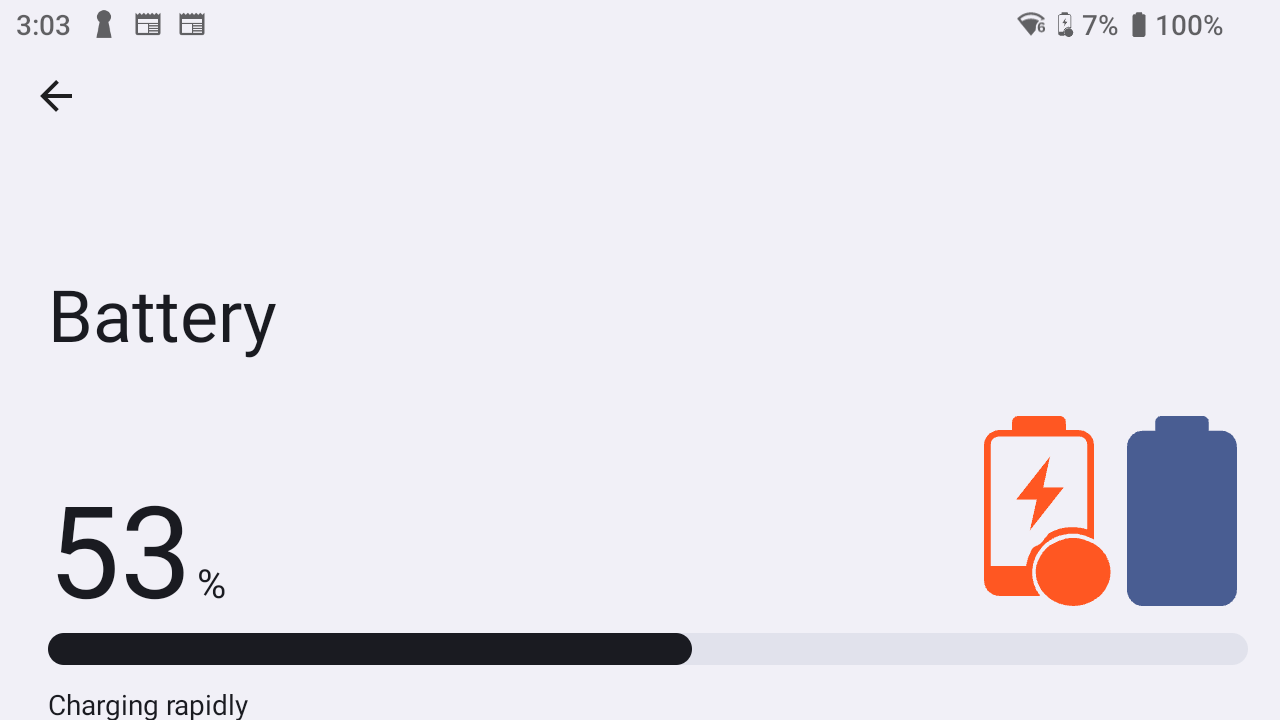
When the internal battery is 100% charged, the accessory removable battery starts charging. The lightning bolt appears on the removable battery icon:
-
When both batteries are 100% charged, both battery icons show as full.
Accessory removable battery: external battery error indicator
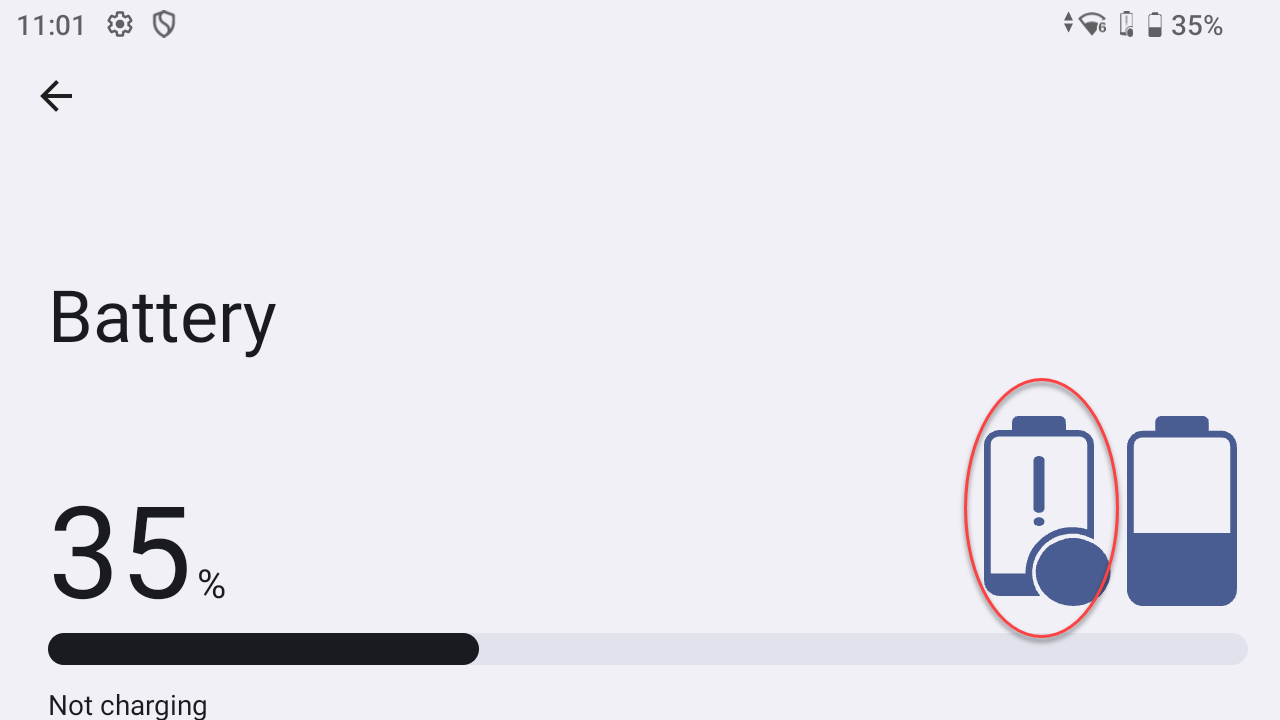
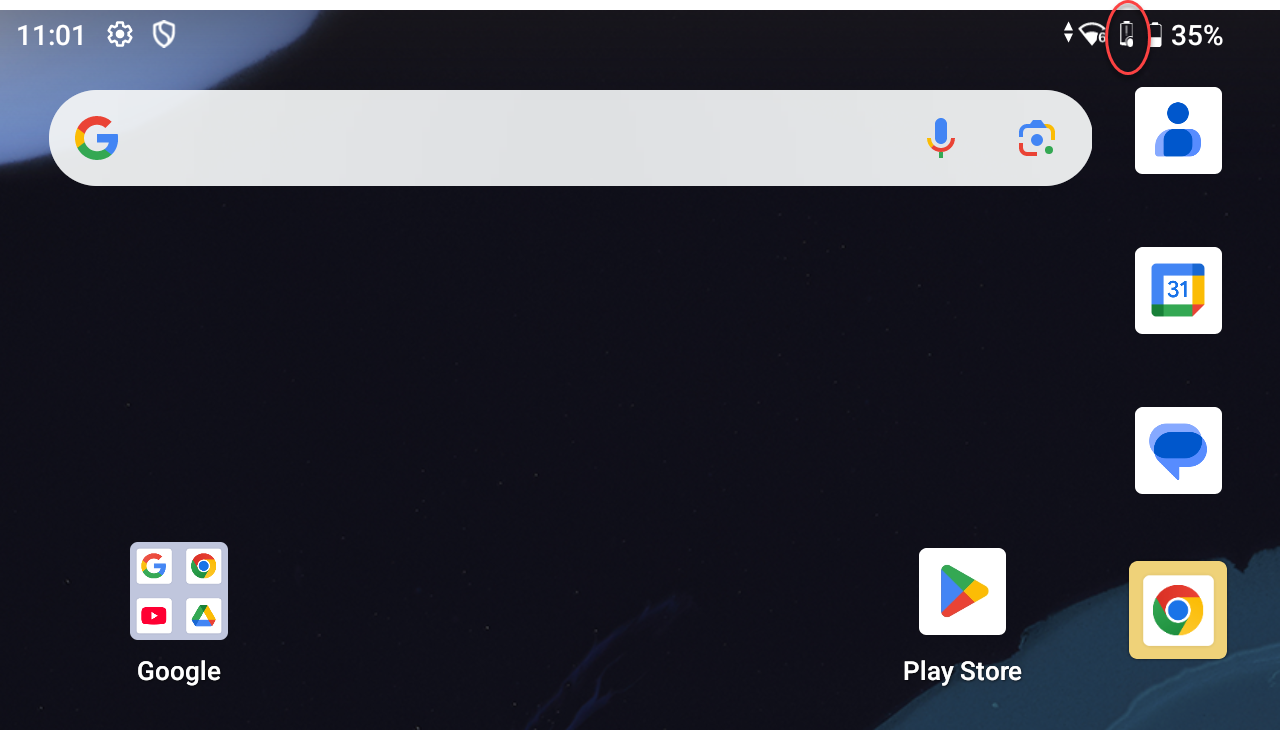
If a fault is detected in the accessory removable battery, the accessory removable battery icon alerts you in the Status bar, under Settings, and in the Battery settings.
-
in the Status bar:
-
in the Battery settings: