Connecting to USB accessories
CAUTION – Cellular, Bluetooth, Wi-Fi, and GNSS performance may be degraded while a USB 3 device is connected to the USB port.
The high data rates of USB 3 devices can produce radio-frequency / electronic noise that can possibly interfere with these other devices. This would typically be when copying data from the device to a USB 3 memory stick or via a USB 3 cable to a computer. To prevent this degradation, avoid connecting USB 3 peripherals while you want to use those systems.
The TSC510 controller has a USB type C port for connecting USB devices, such as a flash drive, scanner, printer, keyboard, or mouse, or for connecting to a computer for data transfer. The TSC510 controller has built-in support for mass storage devices and human interface devices.
Other types of USB devices may require specific applications to work.
To connect a USB device, plug the device cable into the USB (type C) port on the bottom of the TSC510 controller.
Protecting the USB port from moisture and debris
The USB port is designed to be protected against damage caused by water or debris contamination. If contamination is detected, a message notifies you that there is liquid or debris in the port, and it has been disabled to prevent damage.
To minimize the risk of water or debris contamination to the USB port:
-
Keep the USB port cover closed whenever the port is not in use
-
Do not open the USB port cover or try to use the USB port in wet conditions
-
Do not insert a wet or dirty USB connector into the USB port
-
If your USB port cover gets damaged, replace it (the port cover is user-replaceable)
If water does get into the USB port:
-
Dry the outside of the device thoroughly in the area around the USB port
-
Hold the port cover open and dry off as much as possible using a lint-free cloth
-
Hold the port cover open and shake as much water as possible out of the port
-
Hold the port cover open and leave the device in a warm dry place until the port dries out
If you need to charge a wet device or use a USB drive to transfer data:
-
Only work in a dry location
-
Thoroughly dry the outside of the device around the port cover
-
Open the USB cover
-
Thoroughly dry inside the port area using a lint-free cloth
-
Leave the device in a warm dry place with the port cover open until the port dries out
-
Once the port is dry, connect a dry USB connector
Because of the physical design of the USB-C port, once moisture gets into the port it can take some time for the moisture to clear. In the meantime, you can transfer data using Google Drive, via Bluetooth, or other USB-cable-free options, and although you cannot charge the internal battery, you can use a removable Li-35 battery (P/N 220200).
Using USB Type-C locking cables
If a locking USB Type-C cable is required, there are many 3rd party options available. Below are the required specifications for compatible cables with the TSC510 controller.
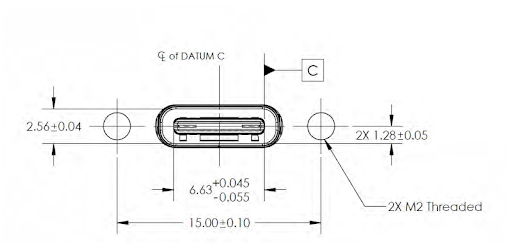
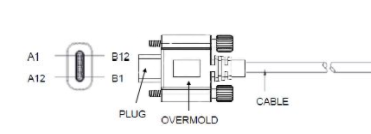
The Type-C connector should be the dual screw USB Type-C locking plug type, as specified by the Universal Serial Bus Type-C Locking Connector Specification Revision 1.0 March 9, 2016. The below figures are extracted from the above specification, highlighting the required critical dimensions for the locking plug:
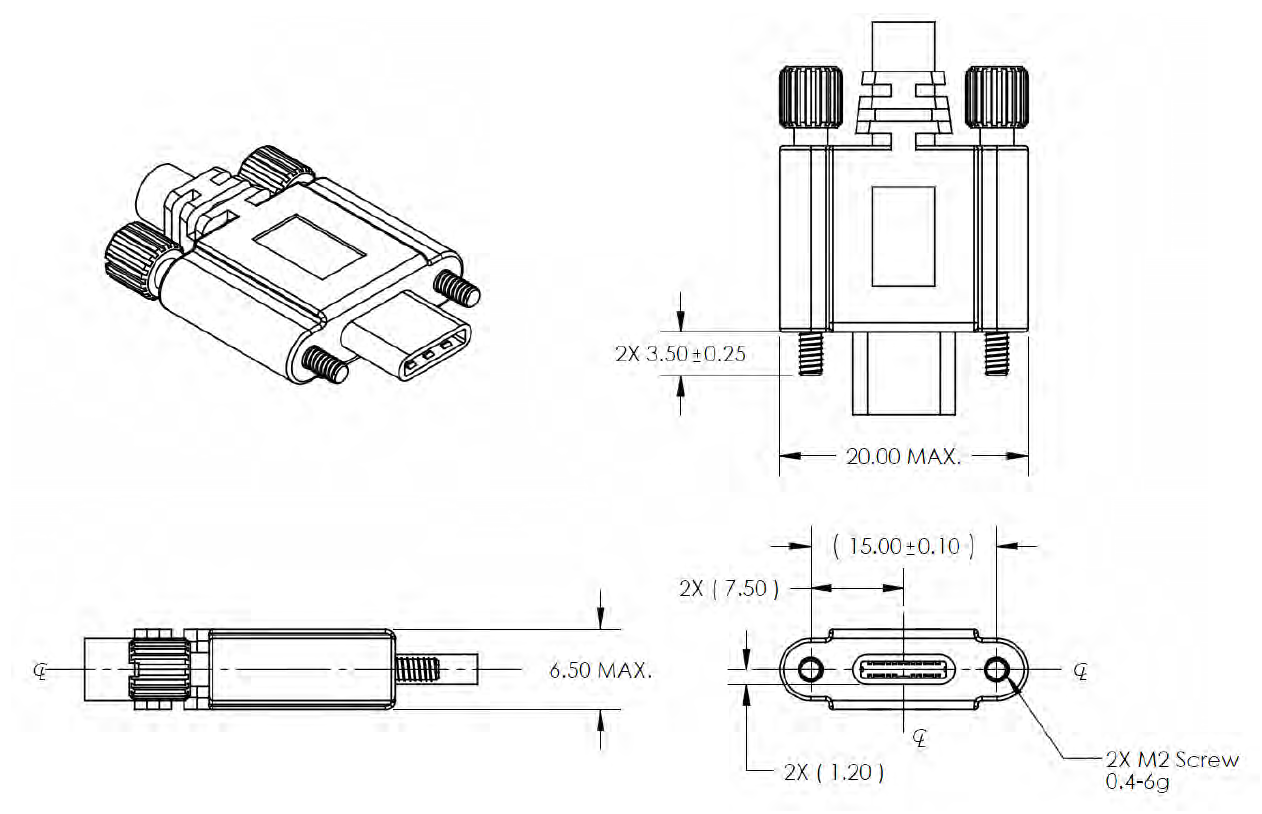
Threaded hole location relative to receptacle for the dual screw version: