Map View
View a device in the Map view
-
Click Devices in the Main menu (left pane).
-
Select a device in the Devices list.
-
In the info pane on the right, click the
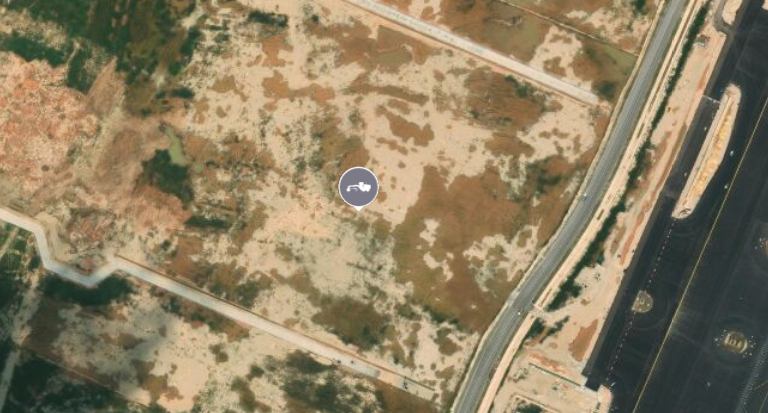
 View on Map icon (map pin). The Map view opens and zooms in to the location of the selected device.
View a project on the Map view
-
Click My Projects in the Main menu (left pane).
-
Select a project tile in the My Projects list.
-
In the info pane on the right, click View. The Map view opens and zooms to the location of the selected project.
Navigate the Map view
-
Click Map in the Main menu (left pane).
-
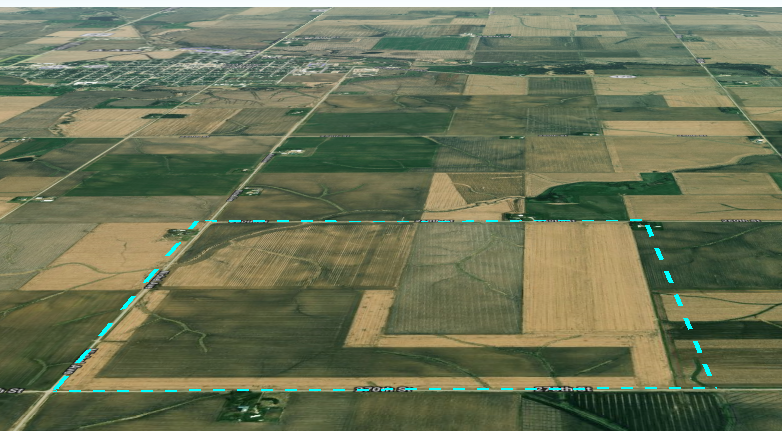
Use these keys and gestures to navigate the map:
-
Zoom in/out - Right-click and move the cursor up/down.
-
Move - Click-and-drag the cursor
-
Elevation -
-
Center - Click the Center icon in the top left of the map view.
-
2D/3D modes - Click the 2D or 3D button in the top left of the map view.
-
Rotate - Press Control and click-and-drag the cursor.
View all of your projects on the Map view
-
Click My Projects in the Main menu (left pane).
-
In the top right, click the View on Map icon (map pin). The Map view opens and zooms out to show the locations of all of your projects.
