Publish a Design
You can also publish directly from Trimble Business Center (TBC). Once a design is published, you can view the status of the recent publication in the info panel in the right side.
-
Click My Projects in the Main menu (left pane).
-
Select a project or click a project tile.
-
Click Designs in the Main menu.
-
Click
 Create Design (or + Add in the upper right).
 -
Add design files and click
 Publish.
 -
In the info pane on the right, review the publishing status.
Publish to all devices
Designs are sent to all current and future devices only when Publish to all devices is specifically enabled. If you manually select all devices in a project, WorksManager now treats that as a one-time selection and will not automatically send the design to devices added later. Additionally, if a project has no devices yet, you can still choose whether future devices should receive the design. For details, see Manage Devices.
-
Click Designs in the Main menu.
-
Select a design in the list.
-
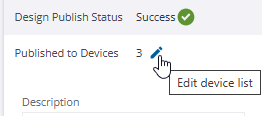
In the pane on the right side beneath the design preview, click the Publish to devices > Edit Device List icon.
-
On the Edit Device Assignment screen, toggle Publish to all devices on.
-
Click ACCEPT.
Publishing status color codes
-
Green - the design has been published successfully to all the assigned devices and it is now available to download for the field devices.

-
Yellow - the design has not been published yet; this indicates neither a failure nor a success, but a delay.
-
Red - the design publishing has failed; the file is not available to download for the field devices.
