Creating area scans
To create area scans, tap  then tap and drag on the scan to define an area. The area can be adjusted by moving the nodes at the corners. The area can also be moved by pressing in the center of the box and dragging to a new location. Tap Zoom in to help define the area more precisely.
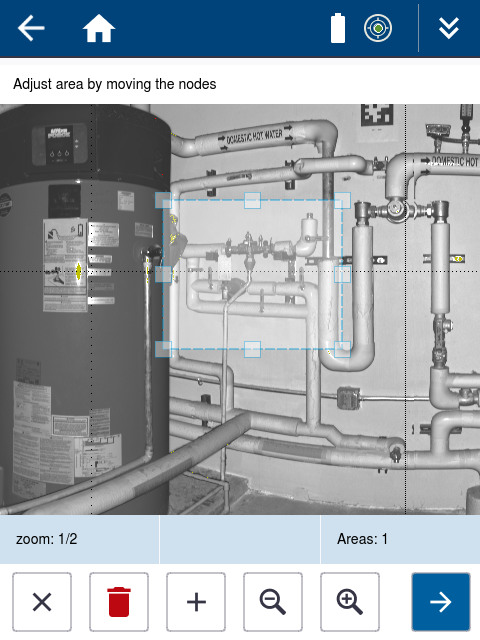
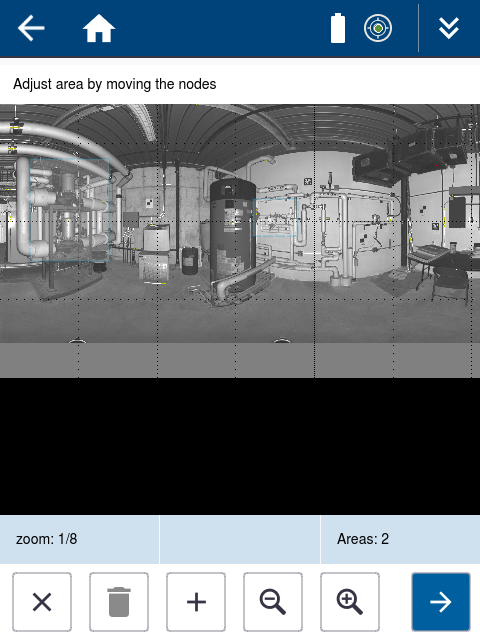
Tap:
-
 to add additional areas.
 -
 to delete an area.
 -
 to exit the area scans.
 -
 to set the scan parameters for the area scans, then tap Start to capture the areas.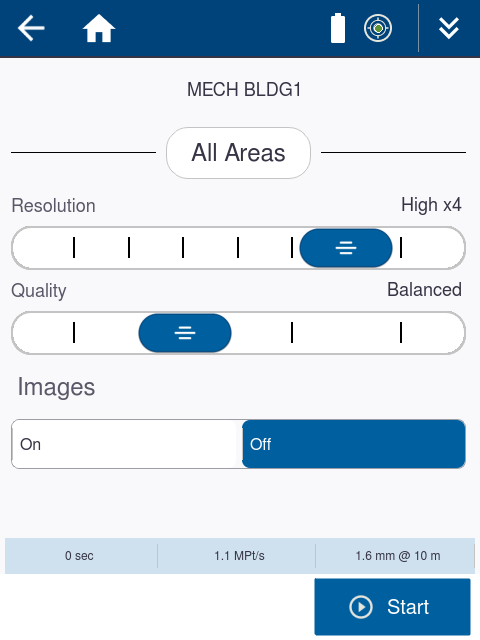
When an area scan is horizontally bigger than 180°, the scanner will scan it with one face.
The area scans will display when complete. You can select them from the area scans list and tap Zoom in to view them more closely.
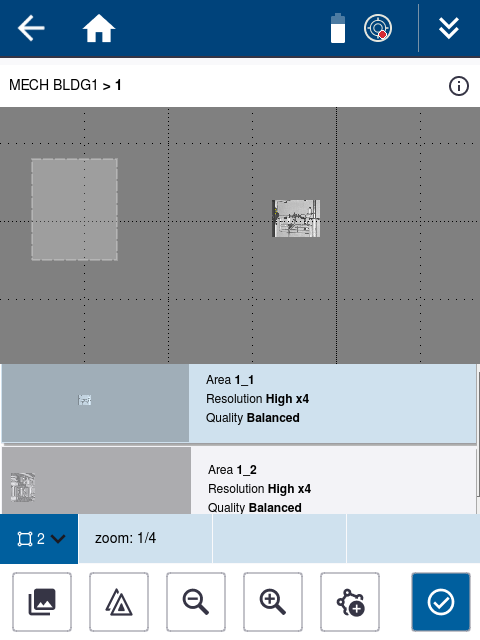
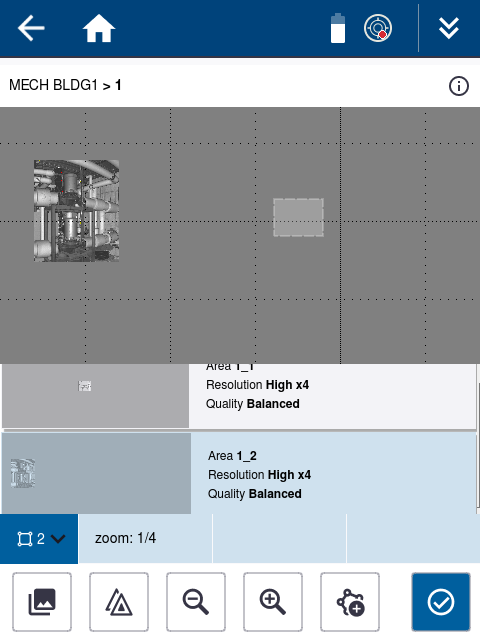
You have the option to create additional area scans, retake images or finish by tapping  . When finished, you will be taken back to the Scan Parameters screen and the station number will be incremented to start the next scan.
