Horizontal Guidance
You can receive horizontal guidance relative to the following design features:
- Lines within office designs or infield surfaces
- Design surface boundaries
Setting a horizontal offset moves the horizontal guidance away from the selected line. You add or subtract an offset square to the selected horizontal line.
Pass Shift
Pass Shift is another way of getting horizontal guidance to a line. Pass Shift moves the guidance line so that the overlap distance with the previous pass is achieved. Use Pass Shift where uniform coverage over an area is required.
Access the Horizontal Guidance screen
Perform one of the following actions to access the Horizontal Guidance screen:
- Open the Work Settings menu
 .
. - Touch and hold the Pass Shift shortcut key on the shortcut bar.
- Touch and hold the horizontal offset field in the guidance bar.
The horizontal offset icon on the guidance bar displays differently according to the value of the current horizontal offset:
| Offset type | Icon | Offset value |
|---|---|---|
| Negative |

|
Negative/left of line |
| None |

|
Zero |
| Positive |

|
Positive/right of line |
TIP – The arrows on the selected line indicate the direction of the line. A positive offset is to the right-hand side of the selected line, relative to the direction of the line. A negative offset is to the left-hand side of the selected line, relative to the direction of the line when you look along the line in the direction of the arrows.
The Horizontal Guidance screen
Use the Horizontal Guidance screen to:
-
Select a horizontal line to guide to
-
Optionally apply an offset
-
Optionally apply an overlap value for Pass Shift
Select a line for horizontal guidance
- Access the Horizontal Guidance screen.
-
If you have not already done so, select a line to guide to. Either select a line from the drop-down list or tap a line on the plan view.
- Tap Apply.
In the Horizontal Guidance screen, the plan view draws the selected line in red. Arrows indicate the direction of the line.
Alternatively, you can select a line for horizontal guidance from the context menu in the work screen. The options vary depending on which line types are present in the area you touch and hold:
-
From the plan view guidance pane, touch and hold anywhere near the line you want to select. A context menu displays.
-
Tap either Select 2D Line or Select 3D Line:
-
If only one line is available within the area you touched, it is selected automatically.
-
If there are multiple lines in the area you touched, a list displays. Select a line.
-
-
Tap Horizontal Guidance.
To use the context menu to stop guidance to the line, repeat this process and select this icon  .
.
If you selected a design in the Job Setup menu that contains 3D lines, from the work screen use the shortcut key  or Work Settings menu to select a 3D line for guidance.
If you change from one line to another for horizontal guidance, any horizontal offset is retained.
Apply a horizontal offset
NOTE – The Apply button saves values temporarily. The values are overwritten the next time you enter a different value. If you want to save the entered values as a memory, use the Save button.
The horizontal offset is the offset distance left (–) or right (+) of the selected line.
- Access the Horizontal Guidance screen.
- Optionally, select a line to guide to.
- Optionally, enter the value of the offset or tap the
 or
or  buttons to increase or decrease the value.
 - To save this as a memory, tap Save.
- Tap Apply.
When an offset is entered (other than zero), in the Horizontal Guidance screen, the plan view draws the original selected line in cyan. Arrows indicate the direction of the line. A positive offset is to the right-hand side of the selected line, relative to the direction of the line. A negative offset is to the left-hand side of the selected line, relative to the direction of the line when you look along the line in the direction of the arrows.
The guidance line is drawn in red, it is offset from the selected line by the offset value and is the line guidance is provided to.
Tap Memories to select an existing horizontal offset memory or to create the new offset memory values that the system saves for later use.
Applying a horizontal increment
-
Access the Increments screen from the System Settings menu
 .
. -
Optionally, enter the value of the increment in the Horizontal Distance field.
-
Tap Apply.
The horizontal increment value is the amount the horizontal offset changes each time the or buttons are tapped in the Horizontal Guidance screen.
If the optional horizontal offset remote switch is installed, each time the rocker switch is pressed the horizontal offset value increments or decrements by the horizontal increment value on the guidance bar.
Applying an overlap value
- Access the Horizontal Guidance screen.
- Optionally, enter the value of the overlap required as either:
- The distance in meters
- A percentage of the drum width
- Tap Apply.
Using Pass Shift
When you are in the work screen a pass shift can be applied by using the shortcut keys or by using the optional remote switch if it has been installed.
The shortcut keys
When you are in the work screen, you can use the shortcut keys to shift the guidance line. The system creates a new guidance line so that the current pass overlaps the previous pass with the overlap value entered in the Horizontal Guidance screen:
-
Tap
 to shift the guidance line right of the direction of the guidance line.
 -
Tap
 to shift the guidance line left of the direction of the guidance line.
If no guidance line is selected, tap either shortcut key to open the Horizontal Guidance screen.
You can also touch and hold either shortcut key to open the Horizontal Guidance screen.
The remote switch
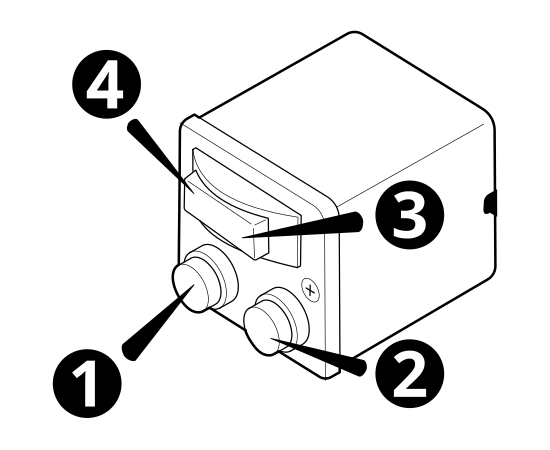
| 1 |
Decrement Pass Shift count switch. |
2 |
Increment Pass Shift count switch. |
| 3 | Increment horizontal distance offset switch. | 4 | Decrement horizontal distance offset switch. |
Horizontal position information
The center lightbar provides horizontal guidance from the focus to the guidance line. For more information, refer to the On-screen Lightbars guide or the External Lightbars guide.
In addition to the lightbar, the following text items are also useful:
- Offline: Shows the horizontal distance from the drum edge with focus to the guidance line.
- Pass Shift: Shows the number of Pass Shifts made from the guidance line. A negative value means the line was shifted to the left of the direction of the guidance line.
- Total Horizontal Offset: Shows the sum of total Pass Shift distance plus the horizontal offset shown in the guidance bar.
Creating, editing or deleting memories
In the Horizontal Guidance screen:
-
Tap the Save button to save an entered offset value as a memory.
-
Tap the memories button
 to open the Horizontal Offset Memories screen.
In the Horizontal Offset Memories screen:
-
Tap the overflow icon
 to edit or delete a memory.
 -
Tap the Create button to create a new memory.
-
Touch and hold on a memory to select multiple memories for deletion.
