Tilt Autos Setup on Cat NGH mini/micro machines
NOTE – If you want to use Depth and Tilt Autos together, see Depth and Tilt Autos Setup on Cat NGH mini/micro machines.
Tilt Autos performs best when grading a finish surface. After you finish bulk excavating and approach final grade, engage Autos. The system automatically controls movement of the attachment tilt, while you manually control movement of the rest of the front linkage.
NOTE – Tilt Autos is only supported via certain models of tiltrotator.
TIP – For optimum performance when using Autos features, avoid connecting the Operator App device to the system via Wi-Fi. Ensure that you use a wired connection.
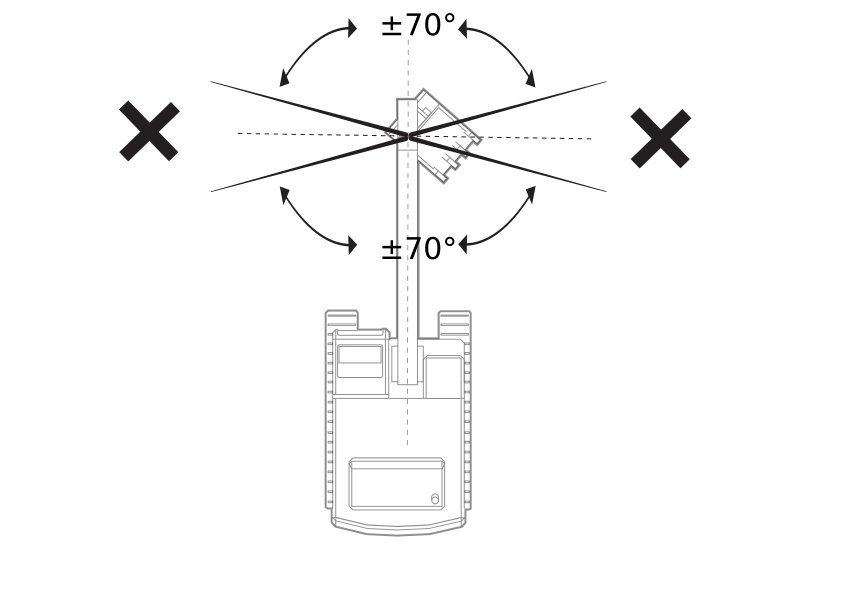
Tilt Autos can automatically move the tilting attachment at rotation angles 70° from forward and 70° from backwards. The tilt cylinders do not rotate with the attachment, so outside of this range the cylinders drive attachment dump/curl instead of tilt. If the attachment falls outside this range, you get the message: Attachment tilt is outside of measurable range.
NOTE – This does not apply if you have an integrated engcon tiltrotator or an engcon tiltrotator with protocol ePS 2.0.
TIP – For information on best practices, see Best Practices When Using Tilt Autos
Tilt Autos status indicators
The Tilt Autos status indicators at the bottom left–hand corner of the work screen show you what state Autos are currently in.
| Status indicator | Status |
|---|---|

|
Manual Tilt Autos is enabled, but not engaged. |

|
Manual interlock Tilt Autos is enabled but cannot be engaged. Possible reasons: Hydraulic lockout engaged, other menus or apps are obscuring the Autos icon. |

|
Tilt Autos ready Tilt Autos is enabled and engaged, but is not active because the attachment is outside the control range. |

|
Tilt Autos engaged Tilt Autos is enabled, engaged and active with the attachment inside the control range. In this state the system controls movement of the attachment. |
|
|
Tilt Autos not ready Tilt Autos is enabled and engaged but cannot be active so Autos is temporarily suspended. Possible reasons: GNSS precision is outside tolerance, attachment is off design. |

Enable and Engage Tilt Autos
WARNING – When Tilt Autos is engaged, the system will control movement of the attachment tilt. These movements could cause injury to anyone near the attachment, or damage to the machine. Always put the attachment on the ground and engage the hydraulic lockout before you leave the machine.
Do not use Tilt Autos when somebody is working near the attachment or if the ground conditions are unstable. Only use Tilt Autos to grade a finish surface. Disarm Tilt Autos when you perform other applications, such as lifting.
To use Tilt Autos:
-
If you are in Depth and Slope mode, bench the machine before you use Tilt Autos.
If you are in Design mode, load a design before you use Tilt Autos.
- Position the machine on solid, stable ground to prevent rocking.
-
Make sure the machine’s hydraulic oil reaches its normal operating temperature (55°C/130°F).
-
Select High Power mode and turn the throttle up to maximum revs.
NOTE – You can use the auto idle function on your machine.
-
Position the attachment within the control range.
TIP – Use the lightbars, cut/fills and buzzer to guide the attachment.
- If you are using a non‑integrated tiltrotator:
- Toggle off Grade Enable via the Cat Machine Display.
- Access the Autos Setup screen via the Work Settings menu.
- In the Autos Setup screen, toggle Arm Tilt Autos on and tap Apply.
- To engage Tilt Autos: Press and hold the Tilt Autos switch as the attachment cutting edge approaches the design elevation. If the attachment is in the controls range it will start automatic movement of the attachment as you move the stick lever.
- If you are using an integrated tiltrotator:
- Set the Grade Configuration to Tilt Only and toggle on Grade Enable via the Cat Machine Display.
Press the Grade Auto switch and acknowledge the Grade Enable message on the Cat Machine Display.
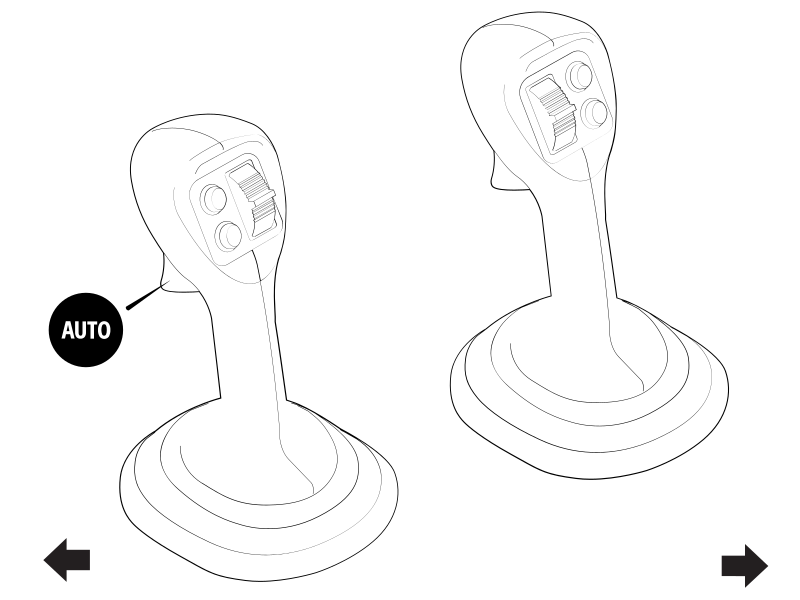
To engage Tilt Autos: Press and hold the Grade Auto switch as the attachment cutting edge approaches the design elevation. If the attachment is in the controls range it will start automatic movement of the attachment as you move the stick lever.
To temporarily disengage Tilt Autos: Let go of the Grade Auto switch. Be aware that while Tilt Autos is disengaged you can cut beneath the design. Sometimes you may purposefully want to dig below design, however if this is not the case make sure that you monitor your cut/fills and lightbars. Press and hold the Grade Auto switch again to re‑engage Tilt Autos.
You can manually override Tilt Autos at any time by moving the attachment.
Select and Apply a Preset
You can select and apply the active preset via the Autos Setup or Autos Optimization screen. You can access these screens via the Work Settings menu. There is always at least one preset stored which is the Default preset set by your technician in the Web Interface. This cannot be edited or deleted.
Select the active preset that you require and tap Apply.
You can create, edit or delete a preset via the Autos Optimization screen. For more information, see Tilt Autos Optimization on Cat NGH mini/micro machines.
Troubleshooting
The table below lists some of the error messages that may appear when you use Autos. You may need to enlist the help of your technician to resolve the error states.
TIP – There is additional troubleshooting information in the Configuration Guide contained in the technician's commissioning manuals.
| Error Message | Possible cause(s) |
|---|---|
| Auto State Not Visible | Suspect that other menus or apps are obscuring the Autos icon. |
| Machine Control System Error | Check the machine display for faults. |
NOTE – When using an integrated tiltrotator, the tilt bucket angle values on this system and the Cat monitor may show a slight difference in values. This is because the data is coming from different sensors.
TIP – When using an integrated tiltrotator, if the bucket tips do not drive to the correct grade try performing a 360 degree revolution of the tiltrotator. This executes an internal calibration that resolves the driving to grade issue.
