Touch Point
You can use Touch Point to transfer a bench elevation via a common hard point when you use Depth and Slope mode without a laser catcher.
Touch Point is only available after you bench the system and requires a common feature, such as a rock, that you can easily access from both your original working position and your new working position.
The following diagram shows the typical workflow:
- Bench elevation.
- Set the initial Touch Point (common point from the original working position). This becomes the reference elevation.
- Move the machine and regain the Touch Point (common point from the new working position). The elevation of the machine is now re‑benched to the original bench elevation.
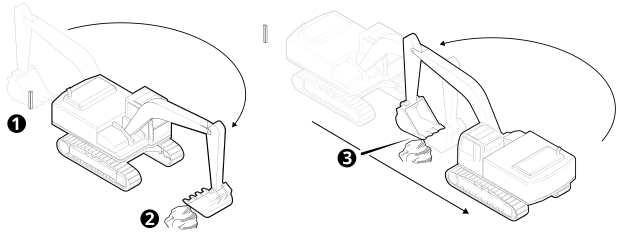
| 1 | Bench elevation | 2 | Set the initial Touch Point | 3 |
Regain the Touch Point |
Rotation limitations
If you do not have a heading sensor you cannot rotate the cab when you move from one working position to another and must reach the Touch Point in the digging orientation of the excavator front linkage.
Using Touch Point
You can access the Touch Point screen via the Work Settings menu or the shortcut bar.
NOTE – If you tap the Touch Point icon  the reference elevation is automatically set. However, if you touch and hold it , you will need to manually set the reference elevation.
NOTE – The machine should already be benched.
NOTE – If you have a laser catcher, when there is a valid laser strike the Accept Laser Strike  or Decline Laser Strike
 icons will temporarily replace the Touch Point icon in the shortcut bar.
-
Select a common point to transfer the bench elevation to. This point should be:
- Within reach of both your current working position (and bench elevation) and your new working position.
- A stable point that will not move, for example a large rock.
- If you do not have a heading sensor and you are on a slope, position the front linkage parallel to the mainfall of the slope (do not rotate the cab). The machine should be in its as benched orientation.
- Position the attachment focus on the Touch Point (common point).
-
Tap the Touch Point icon
in the shortcut bar to set the common point as the reference elevation. The reference elevation is automatically set and the Touch Point Set notification message displays.
-
Move the machine to your new working position and place the attachment focus on the same Touch Point (common point).
NOTE – If you do not have a heading sensor, ensure that you do not rotate the cab. You must reach the Touch Point in the digging orientation of the front linkage.
-
Tap the Touch Point icon
 in the shortcut bar again to regain the Touch Point.
The reference elevation is transferred and the Touch Point Confirmed notification message displays.
- You can now work the surface relative to the original bench. Do not move the tracks. Only rotate the cab if you have a heading sensor.
NOTE – You can repeat these steps every time you move the machine. However, each time you use Touch Point there is a chance that you lose accuracy. The more times you use it without benching, the greater the chance that you introduce error.
Alternatively:
- Touch and hold the Touch Point icon in the shortcut bar to open the Touch Point screen.
- Position the attachment focus on the Touch Point (common point).
- Tap Set. The common point becomes the reference elevation.
- Tap Next.
-
Move the machine to your new working position and place the attachment focus on the same Touch Point (common point).
NOTE – If you do not have a heading sensor, ensure that you do not rotate the cab. You must reach the Touch Point in the digging orientation of the excavator front linkage.
- If required, select the attachment focus position; or you can use the attachment focus switch or the Focus icon
 to change the attachment focus.
 - Tap Regain. The reference elevation is transferred.
- Tap Done. You can now work the surface relative to the original bench. Do not move the tracks. Only rotate the cab if you have a heading sensor.
Text items
Text items display information on the work screen. When you use Touch Point the following text items can be helpful:
- Cut/Fill center
- Attachment Slope
- Heading
- Rotation (heading sensor only)
