Bench Elevation
NOTE – These instructions apply to both blade slope and cross slope systems. Use these instructions for either system configuration:
- Blade slope systems measure - blade slope only
- Cross slope systems measure - blade slope, blade rotation and machine mainfall
Until you bench, no guidance information is available, and the Bench Elevation message displays.
To bench, use either of the methods described in the following table:
| Bench method | Description |
|---|---|
| Bench with a relative elevation |
Place your blade focus on any point. This sets Cut/Fill to 0.00 at that position and you can enter an offset above or below the benched height to get guidance to. |
| Bench with a reference elevation (known elevation) |
Place your blade focus on a benchmark with a known elevation. This sets Cut/Fill to 0.00 at that position and you can then enter a known elevation to get guidance to (instead of an offset away from the benched position). |
NOTE – You need to bench the heading before you can bench the elevation.
Bench with a relative elevation
Using the Bench Elevation screen
You can access the Bench Elevation screen via the Work Settings menu or the shortcut bar.
Once you have positioned your machine, in the work screen:
Tap the Bench Elevation icon  in the shortcut bar to bench the blade focus directly. This sets Cut/Fill to 0.00 and you can enter an offset above or below the benched height to get guidance to.
Alternatively:
- Touch and hold the Bench Elevation icon in the shortcut bar to open the Bench Elevation screen.
- Select the Guidance Focus.
- Tap Bench.
Select a bench point
The bench point can be any arbitrary point, it does not even have to be a physical object.
If you use a physical object as the bench point, use something that is solid and will not move when you touch it with the blade.
Position the machine
Place the machine so that it is within reach of the bench point and the surface to work.
If using a section, orient the machine perpendicular to the mainfall of the section.
If using a slope, orient the machine parallel to the mainfall of the slope.
Position the blade
Position the blade focus on your bench point.
Bench with a reference elevation (known elevation)
Using the Bench Elevation screen
You can access the Bench Elevation screen via the Work Settings menu or the shortcut bar.
Once you have positioned your machine and blade, in the work screen:
- Touch and hold the Bench Elevation icon in the shortcut bar to open the Bench Elevation screen.
- Select the Guidance Focus.
- Toggle Clear Offset on Bench off to keep your previous elevation offset after benching. The system remembers your selection for future use.
- Toggle the Reference Elevation on and enter the value.
-
Tap Bench.
This sets Cut/Fill to 0.00 at that position and you can then enter a known elevation to get guidance to.
To use the previous reference elevation value to re‑bench the blade focus, tap the Bench Elevation Reference icon  in the shortcut bar.
Select a benchmark
The benchmark is a known or absolute point in the system. Select a benchmark with a known elevation e.g. get a surveyor to measure the elevation of the benchmark.
If possible, the benchmark should be something solid that will not move when you touch it with the blade.
Position the machine
Place the machine so that is within reach of the benchmark and the surface to work.
If using a section, orient the machine perpendicular to the mainfall of the section.
If using a slope, orient the machine parallel to the mainfall of the slope.
Position the blade
Position the blade focus so that it is touching your benchmark.
If your benchmark is a survey peg or something that could move when touched, position the blade on the ground, as close to the peg as possible.
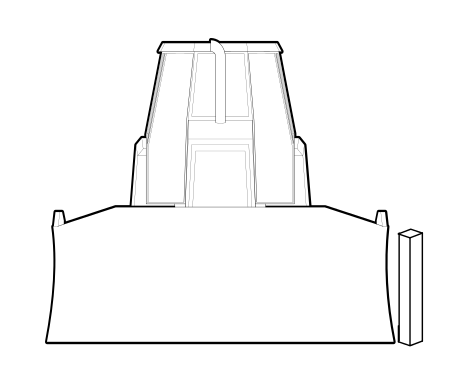
Alternatively:
- Position the blade focus above your benchmark.
- Measure the height from the benchmark to the blade focus.
- Add the measured height to the height of the benchmark.
- Use this measurement as the Reference Elevation.
Placement of sections at the bench point
If you have created a section on the target mainfall or target cross slope, the system locates the placement point of the section at the benching point.
Useful text items
Text items display information on the work screen. When you bench the elevation the following text items can be helpful:
- Cut/Fill <Center/Left/Right>
- Distance from bench
- Height from bench
