Autos Setup on Cat D5 machines
When you engage Autos the system automatically controls lift and tilt movement of the blade.
NOTE – If you are in Cross Slope mode, the system only controls tilt movement of the blade. You will need to manually control the lift.
NOTE – These instructions apply to both blade slope and cross slope systems. Use these instructions for either system configuration:
- Blade slope systems measure - blade slope only
- Cross slope systems measure - blade slope, blade rotation and machine mainfall
TIP – For information on how to get the most out of Autos, see Best Practices when Using Autos.
TIP – For optimum performance when using Autos features, avoid connecting the Operator App device to the system via Wi-Fi. Ensure that you use a wired connection.
Autos status indicators
The Autos status indicators at the bottom corners of the work screen show you what state Autos are currently in. The Blade Lift status indicators are on the left–hand corner and the Blade Tilt status indicators are on the right–hand corner of the screen.
| Lift and tilt status indicator | Status |
|---|---|

|
Manual Autos is not engaged. |

|
Manual interlock Autos cannot be engaged. Possible reason: The park brake is on. |

|
Autos ready Autos is engaged, but is not activated. Possible reason: The blade is being manually controlled by moving the joystick. |

|
Autos engaged Autos is engaged and activated with the blade inside the control range. In this state the system controls movement of the blade. |
|
|
Autos not ready Autos is engaged but cannot be activated so Autos is temporarily suspended. Possible reason: GNSS precision is outside tolerance, or the blade is off design. |

|
Autos interlock Autos is engaged but the system has either:
NOTE – To change out of this state, press the auto switch to return to the Manual state. |







Engaging Autos
WARNING – The cutting edge may move without warning when Autos is engaged. These sudden movements could cause injury to anyone near the cutting edge, or damage to an unattended machine. Always put the system in Manual and engage the machine's park brake before you leave the machine, or when somebody is working near the cutting edge.
To use Autos:
-
Load a design or have a benched surface to guide to.
- Make sure the machine’s hydraulic oil is at its normal operating temperature.
- Turn the throttle up to maximum revs. If equipped, turn off Eco‑mode.
-
Position the blade within the control range.
TIP – Use the lightbars, cut/fills and buzzer to guide the blade.
-
Engage Autos: Press the auto switch as the cutting edge approaches the design elevation.
NOTE – Each press of the auto switch will cycle between Auto and Manual.
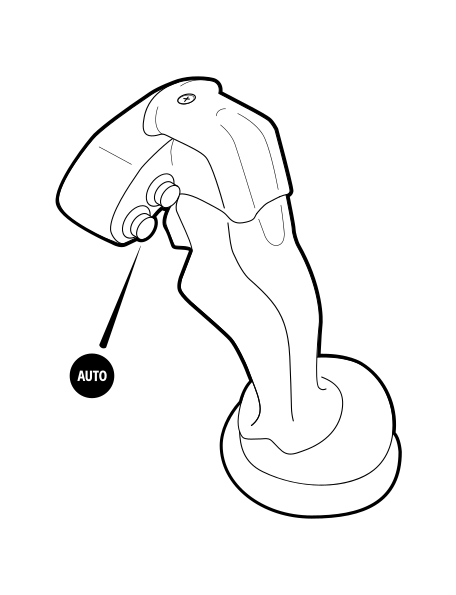
To switch Autos off and return to Manual, press the auto switch or you can temporarily over‑ride Autos by moving the joystick while you are in the Autos control window. Be aware that while Autos is disengaged you can cut beneath the design. Sometimes you may purposefully want to cut below design, however if this is not the case make sure that you monitor your cut/fills and lightbars.
To re‑engage Autos, press the auto switch again or if you temporarily over–rode Autos then return your joystick to the neutral position.
Select and Apply a Preset
You can select and apply the active preset via the Autos Setup or Autos Optimization screen. You can access these screens via the Work Settings menu. There is always at least one preset stored which is the Default preset set by your technician in the Web Interface. This cannot be edited or deleted.
Select the active preset that you require and tap Apply.
You can create, edit or delete a preset via the Autos Optimization screen. For more information, see Autos Optimization.
Troubleshooting
The table below lists some of the error messages that may appear when you use Autos. You may need to enlist the help of your technician to resolve the error states.
| Error Message | Possible cause(s) |
|---|---|
| Unable to Enter Autos. No Valve Calibration Available. | Suspect that the valve calibration has not been completed in the Web Interface. |
| Auto State Not Visible. | Suspect that other menus or apps are obscuring the Autos icon. |
