Set up a UTS
To grade with a high level of precision you need to connect a Universal Total Station (UTS) to the Trimble MT900 machine target on your machine. This will give you 3D guidance.
Watch the video
Watch an expert operator set up a UTS.
Step by step
-
Tap the Machine Set-up tile on the Dashboard.
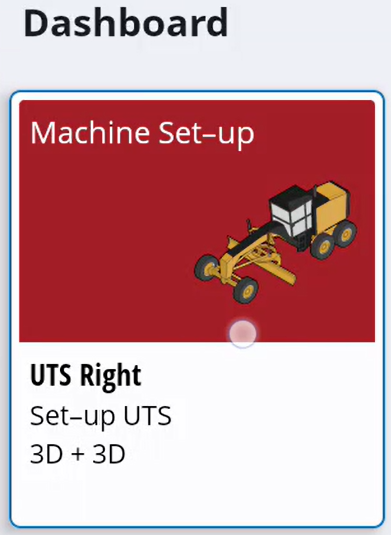
-
To set up the UTS, tap the new window
 icon.
icon.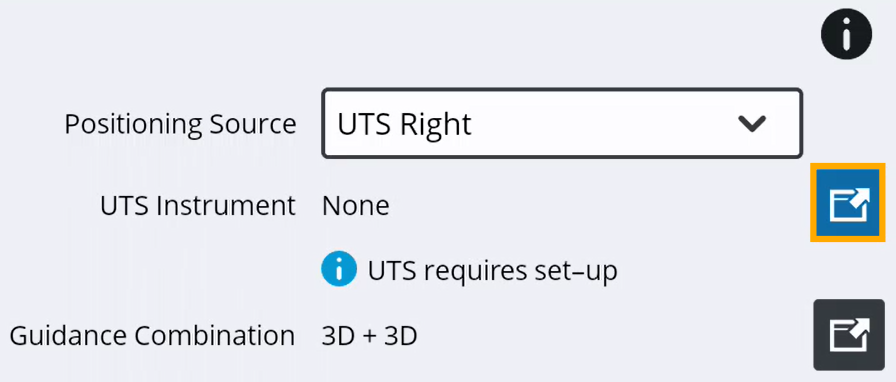
-
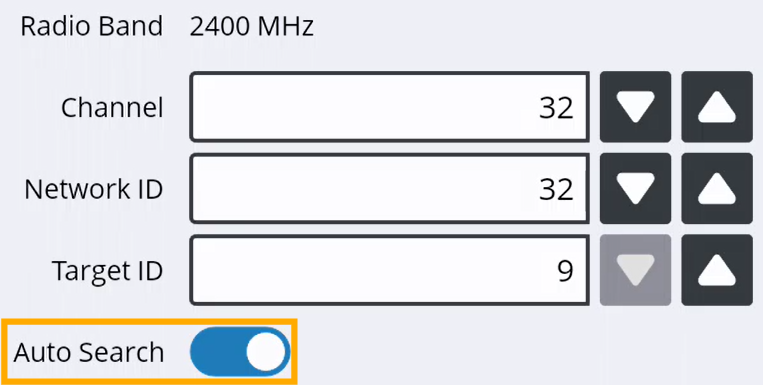
Specify your channel and Network ID.
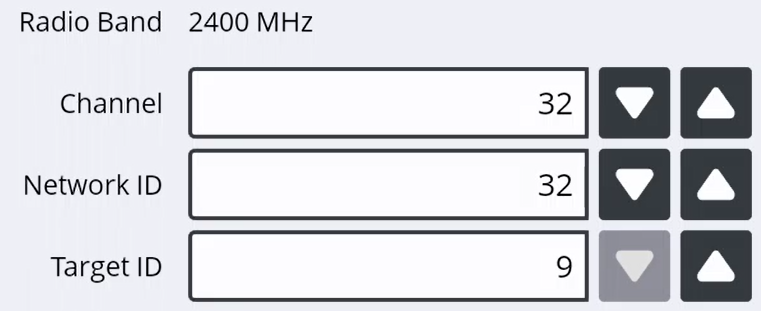
NOTE – The data in these fields needs to match what your UTS is set to.
-
To have the UTS and target automatically reconnect if they lose touch, switch on Auto Search.
-
When you've specified your channels, tap Next.
-
Tap Done.
-
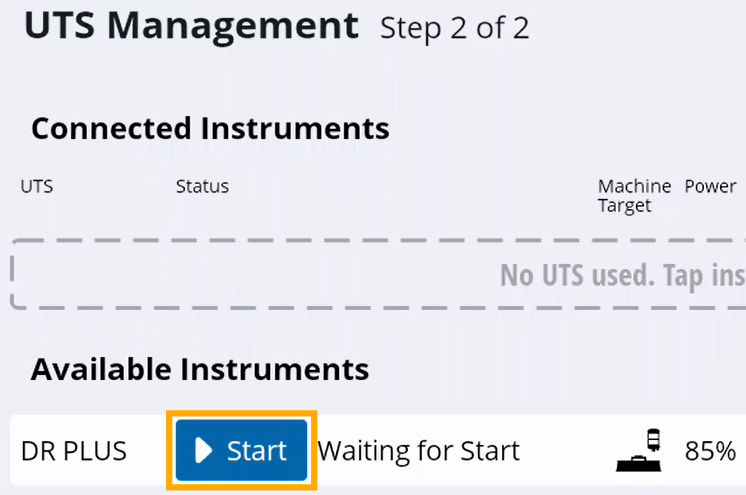
Under Available Instruments, tap Start beside the UTS you want to connect to.
NOTE – There might be more than one UTS on the site.
-
Wait for the UTS to connect to the Trimble MT900 machine target.
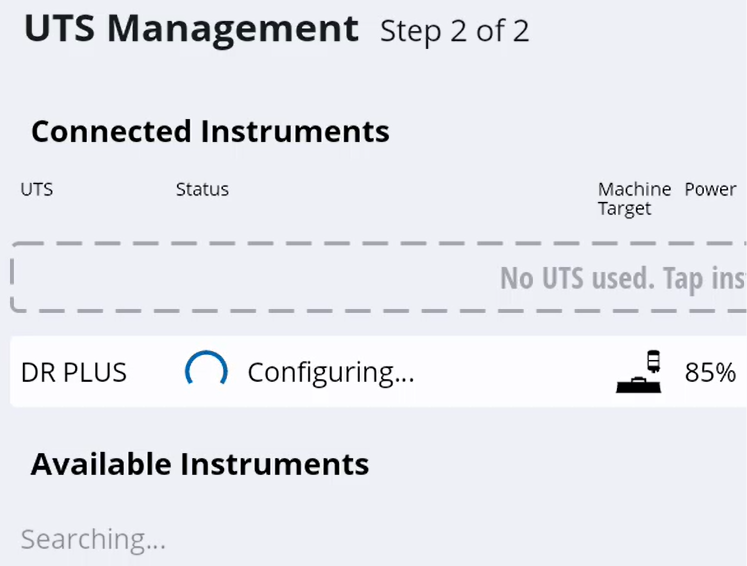
NOTE – When the UTS has connected it will say 'tracking'. This means the total station is tracking the target and it's available to use.
-
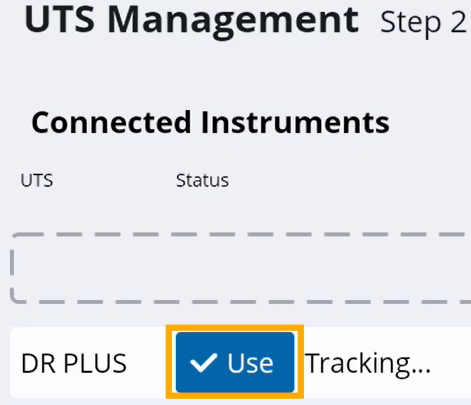
To confirm this is the UTS you want to use, tap Use.
-
To go back to the Machine Setup screen, tap Done.
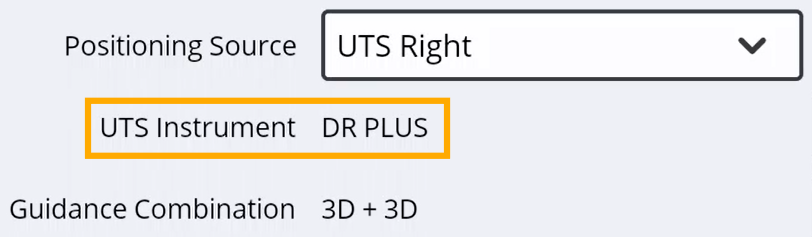
NOTE – You'll see which UTS you've selected in the UTS Instrument field.
-
To go back to the Dashboard, tap Apply.
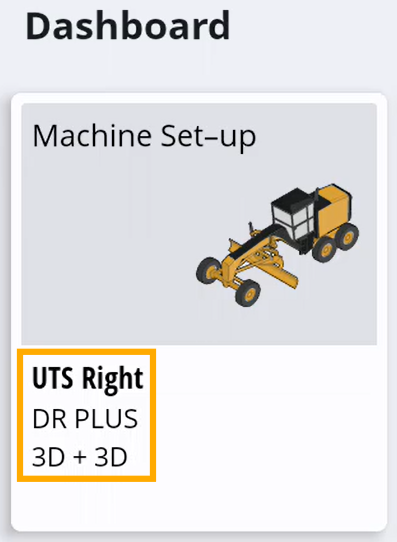
NOTE – You'll see which UTS you've specified on the Machine Setup tile.
-
When you're ready to start grading, tap Start.
