Set up the Text Ribbon
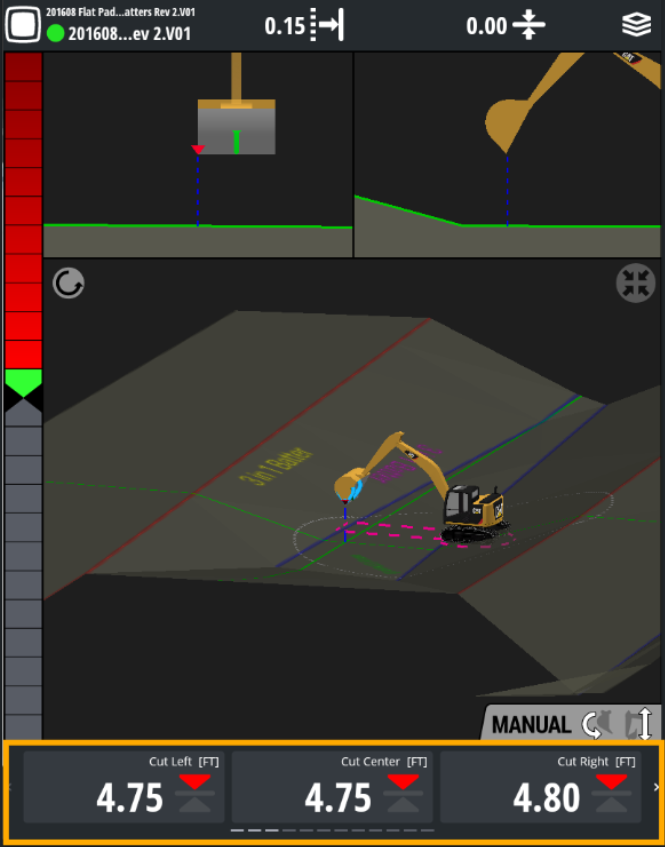
The Text Ribbon shows you key information like how high you are above sea level. You can set it up to show the options you use most – like Cut left and Cut right, for example. You an also rearrange the options you use most in an order that matches your workflow.
Customizing the Text Ribbon makes it quick and easy to get jobs done because you don't have to slide the ribbon to get to the options you use most.
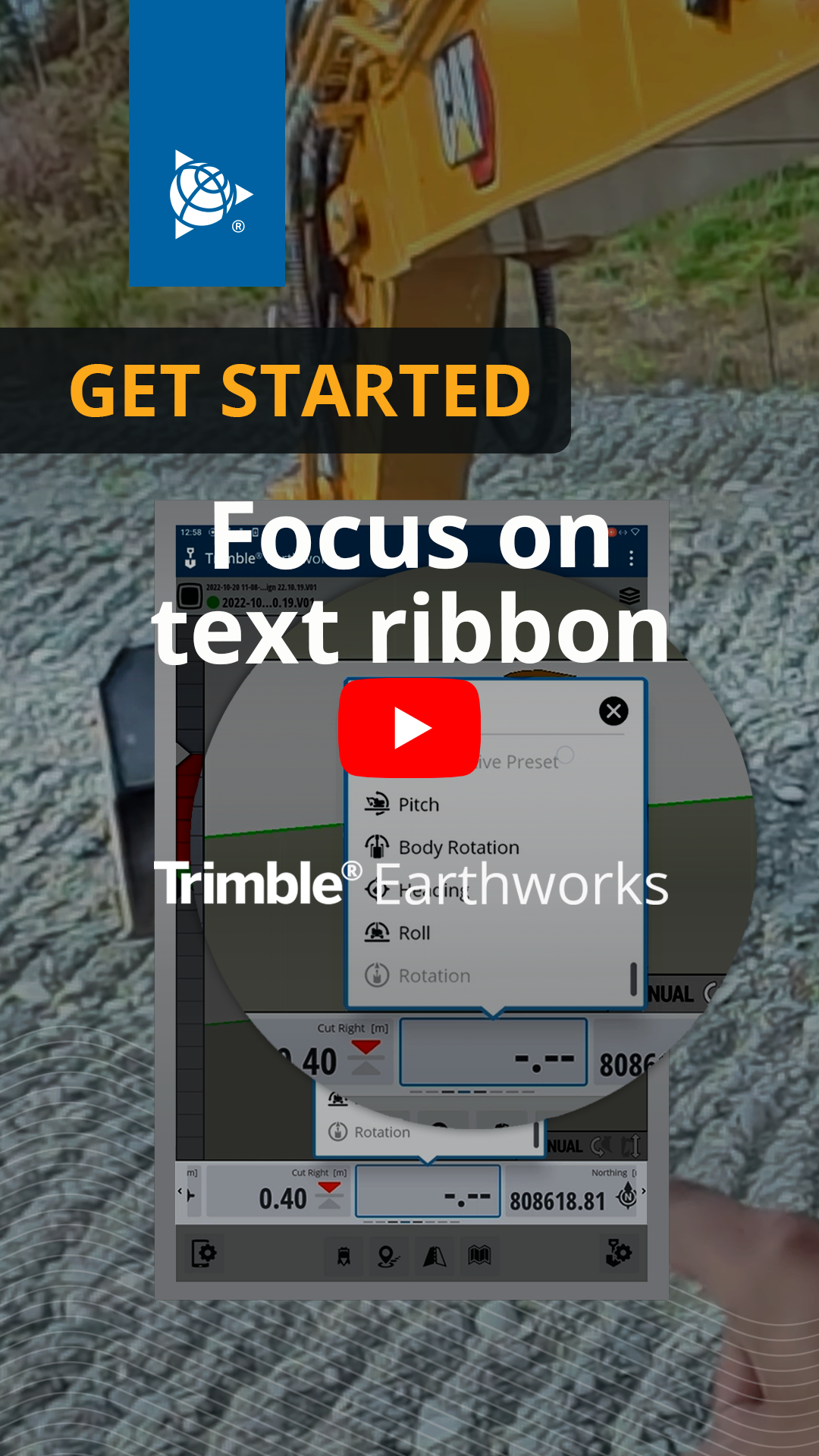
Watch the video
Watch an expert operator customize the Text Ribbon.
Step by step
-
Swipe the Text Ribbon left to see all the options currently set to display.

-
To change the options you see:
-
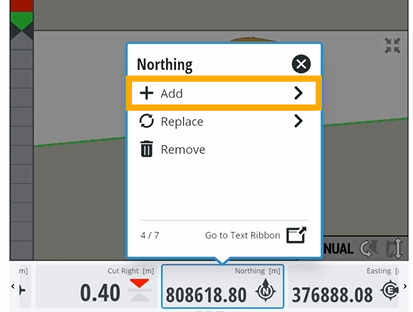
Tap and hold anywhere on the Text Ribbon > Tap Add.
-
Tap an option that isn't greyed out to add it to the Text Ribbon and tap Apply.
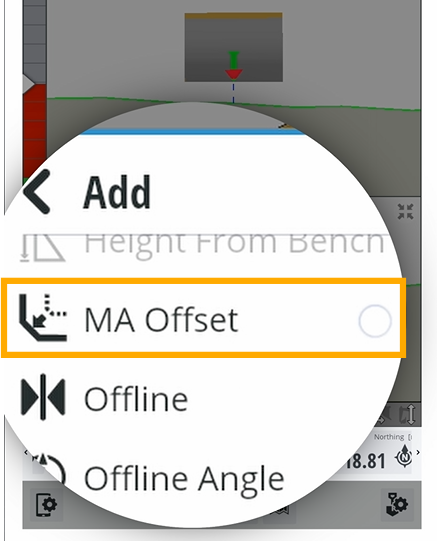
NOTE – You'll see a list of options. If an option is already showing on the Text Ribbon it will be grayed out.
-
-
To rearrange the options on the Text Ribbon:
-
Tap and hold the option you want to move.
-
Drag it to where you want it to show.
-
