Focus on offsets
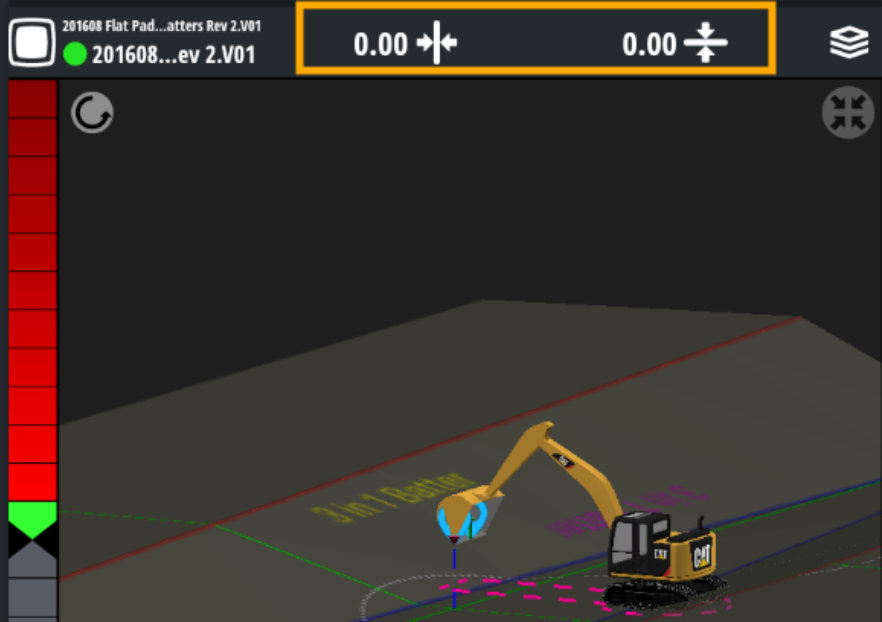
You can find the vertical and horizontal offset buttons at the top of the TD5x0 screen.
Watch the video
Learn how to use vertical and horizontal offsets in Trimble Earthworks.
Step by step
VERTICAL OFFSETS
EXAMPLE – You can create a vertical offset above or below your finished level line. For example, you could enter an offset of -300 ml.
-
Tap and hold the elevation offset
 icon.
icon. -
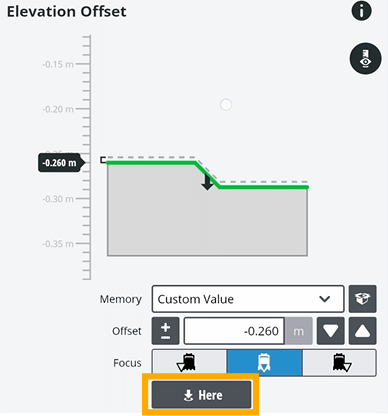
To enter your offset, tap the Offset field.
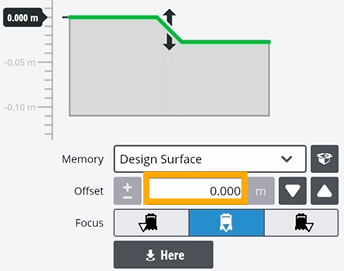
TIP – You can also drag the green line to specify your offset.
-
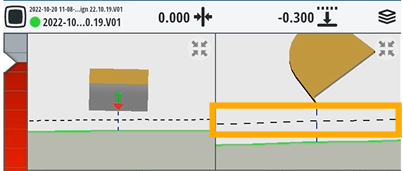
Tap Apply – The dotted line shows your finished level line.
-
To specify where the focus point of your bucket is, tap Here.
-
When you've set up your offset, tap Save.
-
Tap Apply.
-
To toggle through offsets you've saved, tap the elevation offset
icon.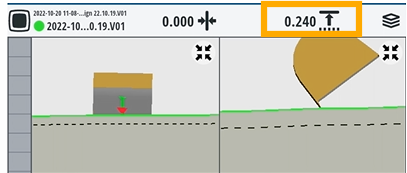
TIP – You can create as many offsets as you like.
HORIZONTAL OFFSETS
EXAMPLE – You might want to create a horizontal offset for a boundary fence that's 3 meters from the road.
-
Tap and hold the horizontal offset
 icon.
icon. -
Tap the line you want to offset from.
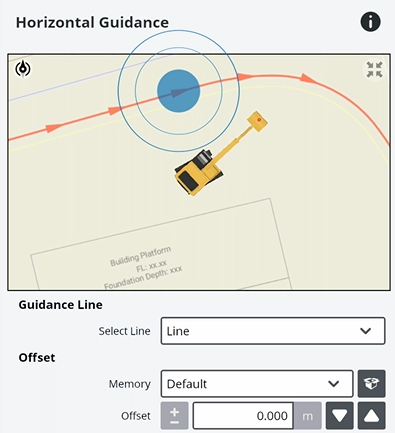
-
In the Offset field, specify a value for your offset.
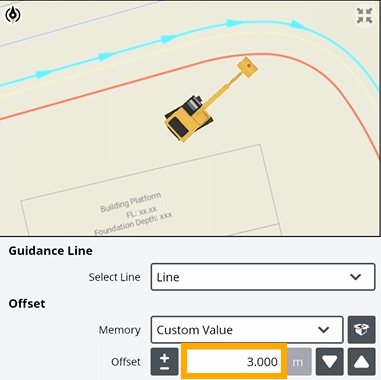
-
Tap Apply.
