Managing a Project
-
Tap More
 and then tap Projects.
 -
Tap Manage.
-
Tap the Filter (Contains) search bar to search for a project in Favorites, Local, Trimble Connect, or USB. Enter a keyword and tap Apply to pull up the search results. Select a project and tap Open.
NOTE – A search only applies to projects within the selected location.
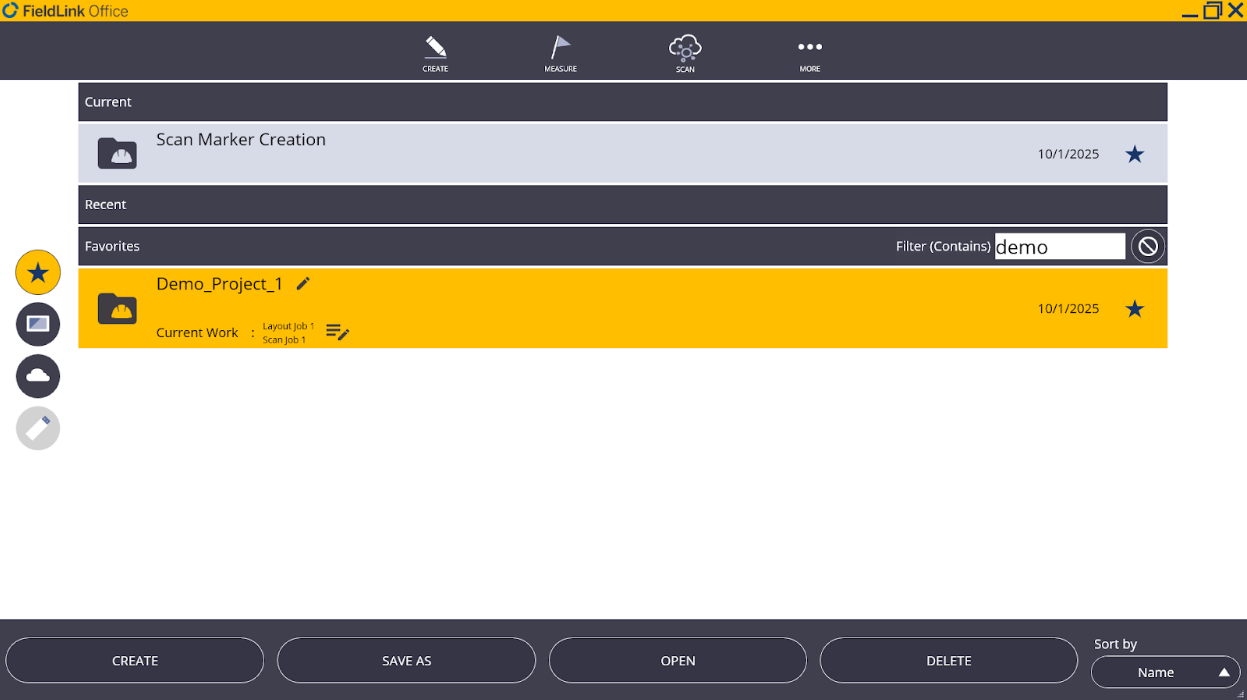
-
Create or add point, scan, and model job files.
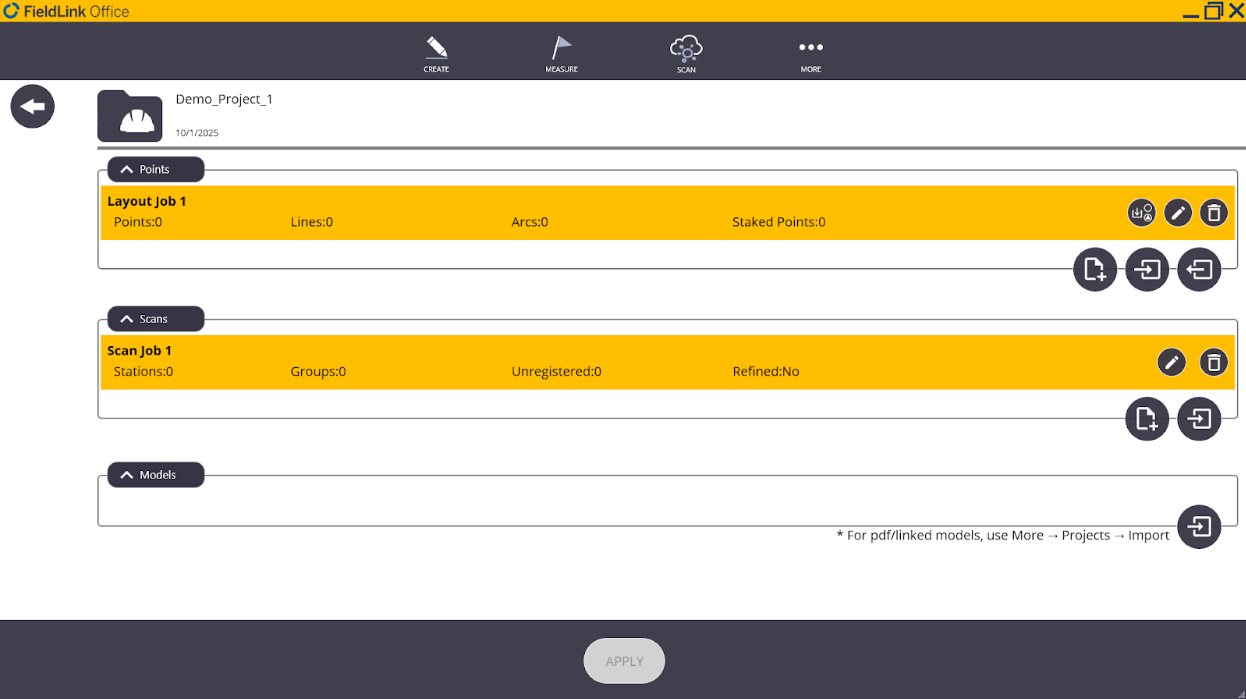
- To Create
 or Import
  a points file, select the appropriate icon.
 - The created points file is a .tflx and can be found in the project’s Points folder (see Importing Files).
- Once files are added, tap Open.
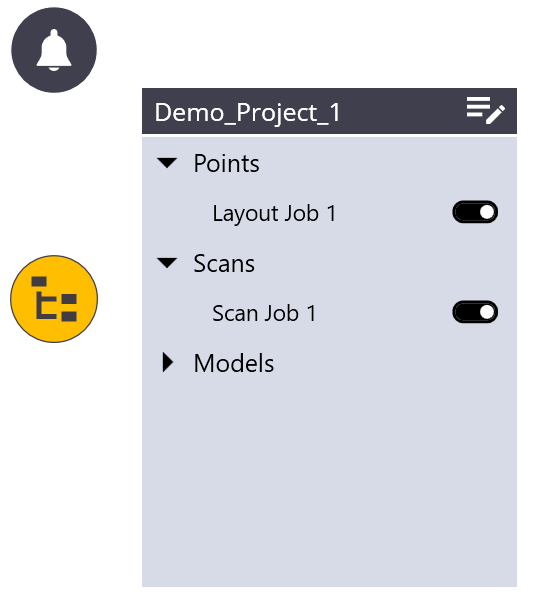
- Points, scans, and models can be accessed using the Tree icon
 on the left side of the screen.
Deleting Job Files
To delete either a points, scans, or models job file, make sure the job is not highlighted yellow (meaning it is not active in the project) and once grayed out, a trash can will appear on the far right side of the job file. Tap the Delete icon and then tap Yes to confirm.
