Add Images to Subgrade Surfaces
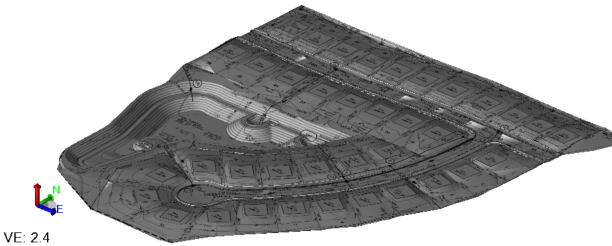
Use the Add Image to Subgrade Surface command to drape one or more georeferenced images onto any of these 'subgrade' suface types: finished design with subgrades adjusted, overexcavation, subgrade, and topsoil. Adding an image, such as a PDF site plan, onto a surface lets you see topographic or design information in the context of the 3D terrain.
Note: To add an image to a generalized surface, use the Add/Remove Surface Members command.
Prerequisites:
- Computed subgrade surface (finished design with subgrades adjusted, overexcavation, subgrade, and topsoil)
- Georeferenced images or PDF sheet to add
- Licensed module, See the Subscription Plans page. For a license matrix by command, see the License page in the TBC Community. Also see View and manage licensed features.
To access the command:
- Select Add Image to Subgrade Surface in Surfaces > Edit.
To add an image to a surface:
- Select a subgrade Surface from the list.
- Select the image in the Image to add or remove box.
- Click Add. The effect is shown in the Results group.
- To remove an image, use the same steps with the Remove button.
- To see which image has been applied to a surface, click the Select button.
- Click Close.
Scenarios:
- Adding an image to a layer which is not depending on members is temporary. If the layer is reconstructed the image will be detached.
- You can add images and PDFs to general surfaces using the Add/Remove Surface Members command.
Dependencies:
- The added image is trimmed in the view to the extents of the surface (uncheck the image in the View Filter Manager to hide its extents beyond the surface's edge).
