Merge Lines
 The Merge Lines command enables you to select one linestring and a new linestring, then remove the section of the original line where the new line is located.
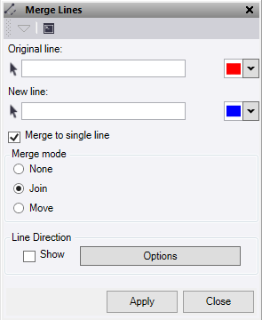
- Select a linestring to use as the Original line to be merged into. Optionally, change the selection highlight Color.
- Select a linestring to use as the New line to merge into the original line. Optionally, change the selection highlight Color.
- Check the Merge to single line option to join the final line together into one line. This new line adopts the attributes and properties of the original line.
Note: This option only works with the Join and Move modes.
- Select a Merge mode:
- None – Removes the section of the original line that is replaced by the new line.
- Join – Removes the section of the original line and replace it with the new line, then connect it to the end of the new line.
- Move – Removes the section of the original line and replace it with the new line, then move the last node of the original line onto the end of the new line.
- Click Show to turn on the direction arrows. Click Options to open a shortcut to the line direction options. See Show Line Direction Options for more details.
- Click Apply to create lines and keep the Merge lines command pane open, or click Close to close the Merge lines command pane.
Note: Lines must overlap for this command to work. If they do not, use the Join command.
