Plan View Rotate
 The Plan View Rotate command enables you to rotate the current plan view using the direction of text objects and lines, or by manually entering a bearing.
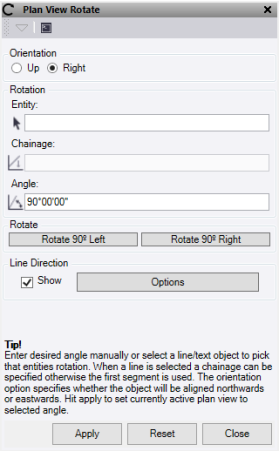
- Select the Orientation. Up aligns the object northwards. Right aligns the object eastwards.
- Click in the Entity field, then in a graphic view select the line or text object.
- For a line, select or enter a Chainage from which to use the bearing.
- Enter or use the calculated Angle to rotate the current view.
- Optionally, use Rotate 90º Left or Rotate 90º Right to quickly rotate the current view.
- Check Line Direction - Show to turn on the direction arrows.
- Click Options to open a short cut to the line direction options. See Show Line Direction Options for more details.
- Click Apply to rotate the current plan view.
- Click Reset to set the current plan view back to the default.
Note: This will not work on CAD Blocks or observations.
