Choosing to upload or download only some files
Usually when downloading projects from or uploading data to Trimble Connect you will download or upload all modified files to ensure that all of the latest information is on both the controller and in Trimble Connect.
Occasionally, you may choose to skip downloading or uploading individual files, for example if you have large files, such as a large scan file, that you do not want to transfer from the field and will update once you return to the office.
Skipping files when downloading or uploading jobs
To select the files to download from or upload to the cloud:
-
In the Jobs page, select the job and then tap
 and select Download or Upload. Alternatively, tap the Download
  or Upload icon next to the job.
The Download or Upload screen appears, showing the name, type, and size of each file that will be synchronized.
-
To skip downloading or uploading a file, tap the name of the file and select Skip this file. The icon next to the file changes from
 or
or  to
to  or
or  , to indicate that the file will be skipped. You can download or upload the file later when you have returned to the office.
 A file conflict icon
 indicates there is a conflict between the file you have on the controller and the version of the file in the cloud. Files in conflict are not synchronized until you choose to do so. See Managing file conflicts.
 -
Tap Download or Upload to update the selected files.
File sync status
The cloud icons next to the file names in the Download or Upload screen indicate the sync status of each file. If you do not want to automatically sync all files, or if there are file conflicts to resolve, tap the name of the file and then select the most appropriate action.
indicates the file is ready to be downloaded to the controller.
indicates you have selected to skip this file and it will not be downloaded to the controller.
indicates the file is ready to be uploaded to the cloud.
indicates you have selected to skip this file and it will not be uploaded to the cloud.
 indicates the file is being synchronized with the cloud.
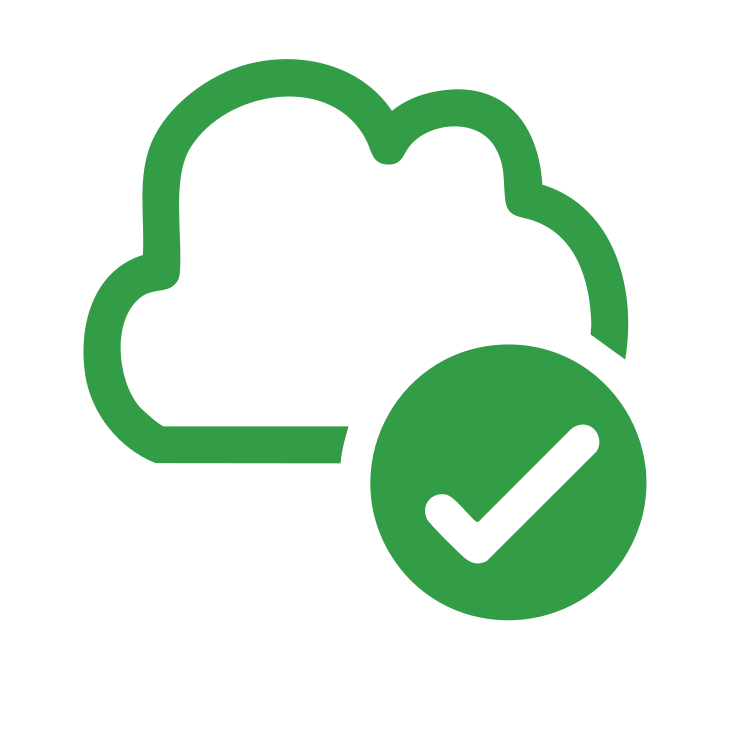 indicates the file on the controller is exactly the same as the file in the cloud.
indicates there are changes to the file in the cloud that conflict with the local file and action is needed. See Managing file conflicts.
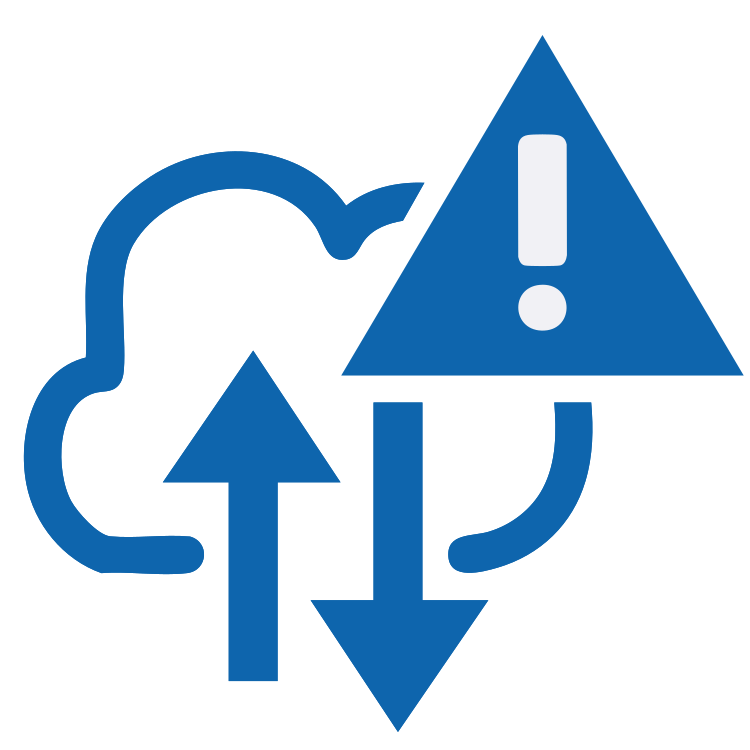 indicates the file conflict has been resolved (because you have chosen to overwrite the file or keep the local file).
