Using Drag and Drop to copy items
Drag and Drop provides a fast, visual way to easily copy files and folders to a new location.
Note that this feature always performs a copy operation; it does not move or delete the original files.
To copy items using Drag and Drop:
-
Select your file / files. To select multiple files, tap-hold a required file, then tap any additional files you want to select.
-
Initiate the Drag. If you selected a single item, begin dragging to the location you want to copy it to. If you selected multiple items, tap-hold any part of the selected items and begin dragging. You will see a representation of the files moving with your finger.
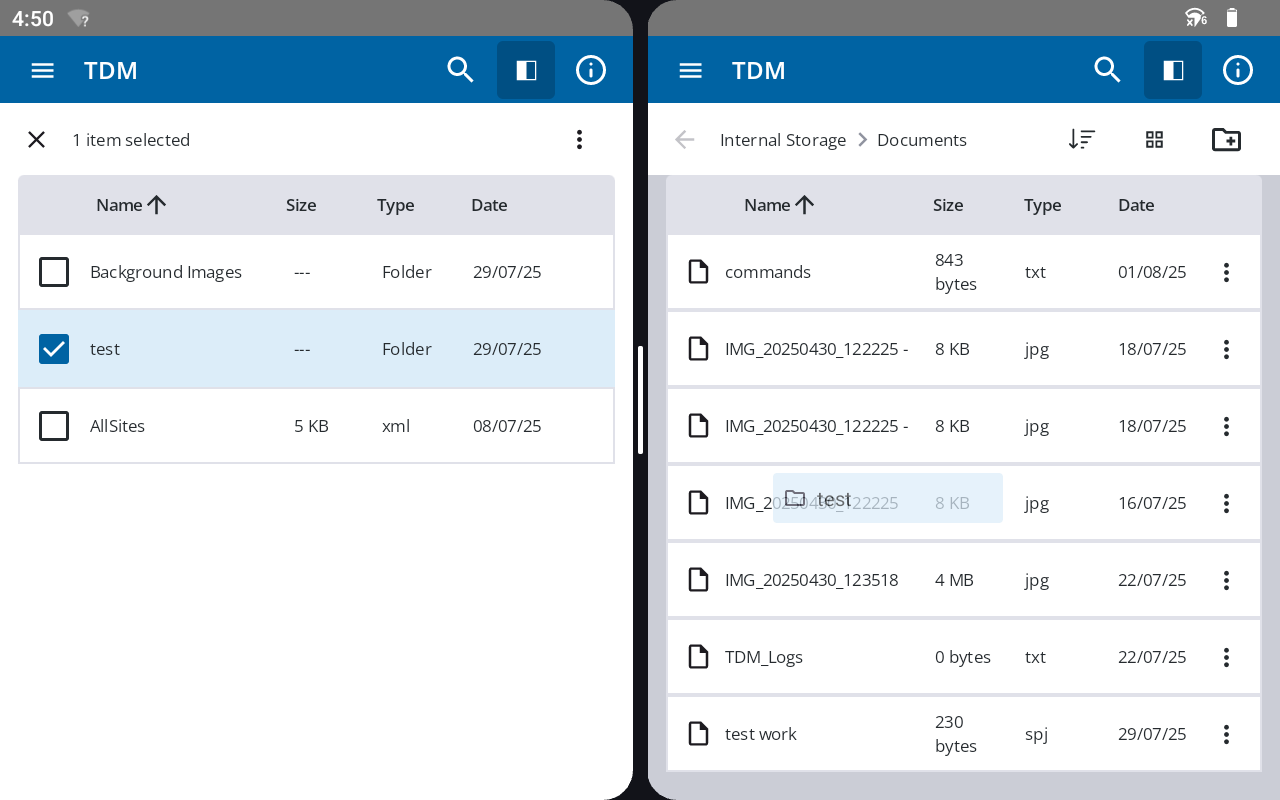
As you drag your selection across the screen, valid drop locations are highlighted with a gray overlay. This provides clear feedback on where you can successfully drop your files. The valid drop zones are:
-
any folder listed in the Sidebar except the volumes itself.
-
any subfolder visible within the main panel.
-
the empty whitespace of the main panel — this copies the files into the currently open directory.
-
-
Drop to copy: Move the items over a valid drop zone and release your finger. The selected files will be copied to that location.
Canceling a Drag and Drop
If you start a drag and decide to cancel it, drag the items up to the App bar at the top of the screen. This aborts the Copy operation without making any changes.
Recommended best practice
For the most efficient workflow, Trimble recommends using the Drag and Drop feature while in Split Screen view. This allows you to have your source folder open in one window and your destination folder in the other, making the process of copying files between locations seamless and intuitive.
