Main keyboard keys
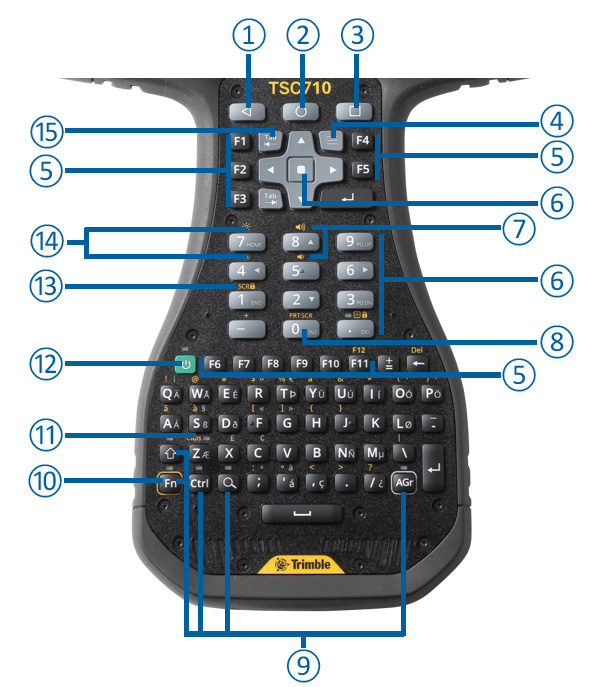
|
1 |
|
|
2 |
|
|
3 |
|
|
4 |
App Menu: App-specific, this launches the menu for the active app; it performs the same function as the |
|
5 |
Function keys F1-F12 These can be configured in the Trimble software according to your requirements. Refer to the Trimble software documentation. |
|
6 |
Numeric Keypad, Numeric Keypad Enter key, and Cursor Lock / Num Lock key:
|
|
7 |
Volume keys: Use to adjust the device's speaker volume.
|
|
8 |
Print Screen (Fn+0). Capture a screenshot of what is currently visible on the screen. Screenshots are saved to the Files / Images / Screenshots folder and can also be accessed under Photos / Screenshots. |
|
9 |
Modifier Keys: Fn, Shift , Ctrl, and AGr Modifier keys are keys that modify the action taken when other keys are pressed while the modifier key is held down or are in sticky mode. Modifier keys can be used in combinations with more than one key pressed at the same time. To make the keyboard easier to use, the modifier keys can be configured as sticky keys. When sticky keys are enabled the modifier keys “stick down” when pressed so that you do not need to press-hold a modifier key while you press the other key. See See Modifier keys and Sticky keys: modes and settings for more information. The Search key ( To see a list of Search key modifier shortcuts, press Search + /. A list will be displayed. |
|
10 |
Fn Key (Function Select key). Use the Fn key to access a key's alternate function, as printed above the key in yellow.
|
|
11 |
Caps Lock = Fn+Z: locks the keyboard alphabetic keys to capital letters. The Caps LED will illuminate when Caps Lock is on. |
|
12 |
Power key. Turn the screen on / off. Press-hold the Power key for a couple of seconds to quickly access settings to power off or restart the device, or place the device into Shelf mode (see Turning the device on or off, Power modes, Doze mode). |
|
13 |
Screen Lock = Fn+1. Use to temporarily disable the touchscreen. Press Fn+1 again to unlock the touchscreen. In this mode Quick Settings are still accessible, and you can still operate the active application using the keyboard. TIP – You can also use the Power key to place the device in Doze mode to clean the display; press the Power key briefly. Press the Power key again to wake up the device. |
|
14 |
Screen Display Brightness: Adjust the display's backlight brightness:
You can also set the display brightness to adjust automatically when the ambient lighting conditions change. See Display settings: adjusting the backlight. |
|
15 |
Back Tab key. The back tab key performs the same function as pressing the Shift key and the Tab key. For many applications this will move the focus to the previous control in the sequence, as opposed to the Tab key which moves the focus to the next control. For applications that use the Tab key for text entry, the Back Tab key typically performs the same as the Tab key. |


 menu key that most apps have (giving options for help, about, exit, etc.). It is supported in Trimble Access, but for 3rd party apps it may not do anything.
  ) is used as a non-modifier key to open the Android Search function. The Search key can be made into a Sticky key using the settings; see