See your Device Locations and Status
The Device Status pane in the 3D Viewer provides near real-time situational awareness through a pane where you can see the map location and latest reported status of each of your devices assigned to this project. Click on any device to get its information. Review where your devices are in relation to the project boundary. Also see Devices.
Click the  Device Status icon on the left side to open a pane where you can use:
-
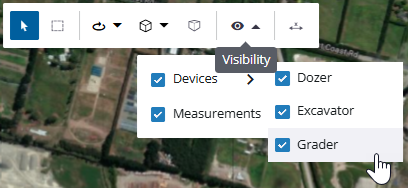
Visibility controls - You can manage visual clutter in the map by using a ‘master’ toggle to show/hide all devices or by using individual toggles to show only specific machine types, such as dozers, excavators, or compactors. The visibility state of machine icons updates instantly on the map and persists for the duration of your current session.
-
Real-time status summary - The Device Status pane categorizes devices by their connectivity state, such as Connected, Not Connected, or reporting a Warning. Identify any devices/machines that have lost "radio contact" (connectivity).
-
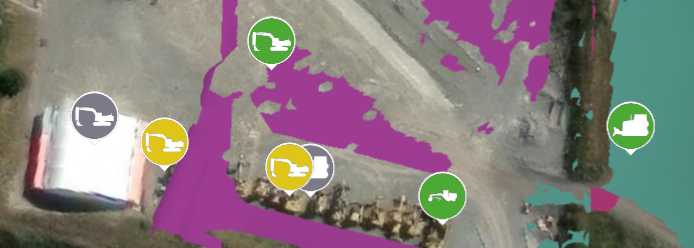
Dynamic color-coding - Device icons on the map are color-coded based on their status, allowing you to quickly identify issues on machines without opening the details of every device.
-
Machine-specific data - When you click a specific machine icon in the 3D Viewer, the pane displays detailed real-time information for that asset, including its direction of travel, current connectivity status, and the design file it is currently using.
Prerequisites
-
WorksManager Pro license
-
Devices assigned to the project; these can be survey controllers or machines
Show/Hide Machines and Devices on the 3D Map
See icons representing your field devices at their accurate 3D locations (including elevations) overlaid on the site model or background map, displayed in near real-time. You can toggle the visibility of all machine icons or specific machine types to manage visual clutter.
-
On the left side, click the
 3D Viewer icon.
 -
At the top of the view, click click the drop-down arrow next to the Visibility icon and make sure the device boxes you need are checked.
-
Click the
Device Status icon. Device icons are shown in the view and the left pane shows a summary of the fleet’s current status.
See Device Status on the Map
-
Review the device status icons in the view.
-
 Connected - The device is actively communicating with the system and reporting its current location and data.
 -
 Not connected - The device is offline, not currently reporting its location, or may not be correctly licensed within the project.
 -
 Warning - The device is still reporting, but may have an issue that requires attention, such as an on-machine design error or a need to recheck specific status rules.
See Device Status and Properties
-
Select a device in the view or in the Device Status pane’s list.
-
Review the device properties in the pane.
-
If needed, click the drop-down arrow
 below the Views icon to access the Technician, Remote, or Operator View.
 -
Click Dismiss when you are done.
