Measure Overhead Line Clearance
Use the Measure Overhead Line Clearance command to select one or more extracted overhead utility line features in a graphic view to automatically make a vertical measurement from the lowest point on each selected line to the classified point cloud region(s) of your choice (for example, Ground and/or High vegetation) and store that measurement. You can select to flag vertical clearance measurements that are less than a specified distance (for example, they are too close to the ground), and you can generate a CSV (.csv) report showing the results of the measurements.
Prerequisites
- See the Subscription Plans page. For a license matrix by command, see the License page in the TBC Community. Also see View and manage licensed features.
- Classified point cloud regions to which you want to make measurements (see step 1 below).
- Extracted overhead line features that you want to measure (see step 2 below)
To measure overhead line clearance:
- If one or more appropriate classified point cloud regions to which you want to make measurements from the overhead line feature (for example, Ground) have not been extracted, extract them now as described in Extract Ground-Level Point Cloud Regions (Ground classification only) and Extract a Classified Point Cloud Region.
If there are no classified point cloud regions in your project, each measurement will be made to the first found scan point in the Default point cloud region (within the specified Search radius distance; see step 7).
- If the overhead line features you want to measure have not already been extracted from the point cloud as linestrings, extract them now as described in Extract Overhead Line Features from a Point Cloud.
- Select Measure Overhead Line Clearance in Point Clouds > Measure to display the Measure Overhead Line Clearance command pane.
- In the Layer drop -down list, select the layer on which to display the measurements, or select <<New Layer>> to create a new layer.
- Click in the Line selection field, then, in a graphic view, select one or more (use Shift + click) extracted overhead line feature linestrings you want to measure.
- In the Point cloud region selection drop-down list, select one or more classified point cloud regions that have been extracted in the project to which you want to make measurements from the selected overhead line(s).
- In the Search radius field, enter a distance within which the search will be conducted for a scan point near the targeted measurement position(s) in the selected region(s).
If a scan point is not found within this radius on one of the selected classified regions, no measurement is made for the selected line.
- Optionally, in the Flag clearances less than field, enter a clearance distance that will cause a flag to display on each measurement that is less than this distance (for example, the line is too close to the ground or vegetation).
These measurements will also be "flagged" in the CSV (.csv) report file, if you select to create one.
- Click the Measure button to start the measurement process.
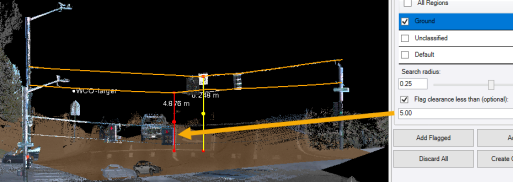
In the following example, the lowest point for each of the two overhead line features was measured to the Ground point cloud region. Because the lower line feature is less than the distance specified in the Flag clearances less than field, it is colored red.
- When processing is complete, click any of the following buttons:
- Add Flagged - Save only flagged measurements.
- Add All - Save all measurements.
- Discard All - Remove all measurements.
- Create CSV Report - Create a CSV (.csv) report file that includes all saved overhead line clearance measurements, with flagged measurement identified.
Note that even after measurements are saved in the project using one of the two Add buttons, you can at any time include any or all of them in a new Measure Distance CSV Report as described in Run a Measure Distance CSV Report.
Saved clearance measurement nodes are displayed in the Project Explorer nested beneath the parent Stored Measurements node. Flagged measurements are identified by their names
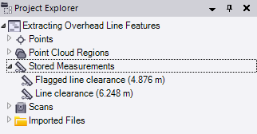
To view information about any stored measurement, right-click it in the Project Explorer and select Properties.
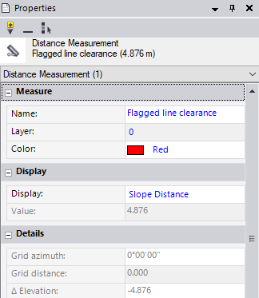
To delete a measurement from your project, right-click it in the Project Explorer and select Delete.
