Run an International Roughness Index Report
As a Mobile Mapping or Terrestrial Scanning user, run the International Roughness Index (IRI) Report command to get enhanced IRI deliverables that can simplify your workflow. Based on point cloud data, this IRI report can be generated without the extra steps of creating corridors or manually draping wheel path lines on a surface. The report includes left and right lane scores (along with other results) that can be exported to Trimble AgileAssets and as a MicrosoftⓇ Excel sheet.
Also see International Roughness Index as defined by Wikipedia and The World Bank.
Prerequisites:
- License; See the Subscription Plans page. For a license matrix by command, see the License page in the TBC Community. Also see View and manage licensed features.
- One or more paths (alignment, trajectory, or linestring)
For this report, you need data collected by a mobile mapping or directional scanning system. For terrestrial scans, you need to provide a path as there are no mobile mapping trajectories. Lines drawn for left and right wheels along the trajectory are draped on the point cloud data. TBC calculates the roughness index from the vertical deviations (wheel vibration values). You can also run this report on just a road surface design. - Point cloud
Note: Unlike the Roughness Report in TBC, this IRI report does not require paving (.pav) files as 'scallops' (specific defects in the road) are not calculated (only the IRI score is computed). If you have a mobile mapping solution, this report’s approach makes it cheaper; you can scan a road and then extract how uneven the road is from the scan; you do not need input from an expensive paving machine.
To access the command:
- Select International Roughness Index Report in Point Cloud > Measure.
Options:
- Lane Definition
- Path - Select one or more trajectories/alignments/linestrings from which to create offset left and right wheel paths and IRI analyses.
- Stationing Options - Define the stationing of the trajectory/alignment/linestring so it matches the alignment design. Either option enables Stationing by post marker below.
Note: This group of options is disabled if you select more than one path.
- From geometry - Take stationing directly from the selected path. If your path is a linestring, this is a ‘distance along’ value beginning at 0.00 using your project units.
- From reference - Take stationing from a selected reference line, such as a reference alignment. Then select the reference line.
- Post marker - Shows the current post marker location and station value (e.g., 0+010.00 at 50.000 m) when the selected alignment has a post-marker defined (via station equation).
- Define post marker location and value - Check this box to optionally select an arbitrary point along the selected path or reference alignment and set a custom station value there. For example, if you set a post marker with a station value of 0+250.00 at the start of a bridge path, TBC creates a new alignment called Post markers and shifts your stationing as specified.
- Post marker location - Enter or pick the point at which you want to set the station value; this is similar to using a local coordinate system when you just need relative stationing.
- Station value at post marker - Specify the station value at the post marker.
- Invert direction - Flip the direction of the alignment when a post marker is added.
- Set post marker - Once you have set the location and station, click this to create the post marker and relative stationing. If the selected path does not support this stationing method, TBC will offer to create the new post marker’s alignment.
Note: Only alignments can have custom stationing. If you pick an alignment that already has station equations, you are prompted to either override the equations or create a new alignment. Any new custom stationing you create is listed in the report.
- Custom Station Ranges
Note: This group of options is disabled if you select more than one path.
- Edit IRI Report Station Ranges - With a path specified above, click this to specify one or more station ranges to include/exclude in the report by adding, removing, or merging ranges.
(The read-only box shows the custom range or ranges (if any) that you have defined.)
- Edit IRI Report Station Ranges - With a path specified above, click this to specify one or more station ranges to include/exclude in the report by adding, removing, or merging ranges.
- Wheel path offsets
- Left/Right - Enter the distance to offset the wheel path linestrings from the selected alignment/trajectory/linestring path. Once you enter offsets and run the report, you will see the wheel paths in your Plan View (there is no preview before running the report).
Note: A wheel path to the left of the selected path has a negative value by default. To generate both paths to the right, remove the minus sign from the Left value.
Note on Setting persistence: Many values you specify are saved not with the project, but as an application setting with your user profile; the next time you run the command on a different project, your preferred settings will be populated.
- Left/Right - Enter the distance to offset the wheel path linestrings from the selected alignment/trajectory/linestring path. Once you enter offsets and run the report, you will see the wheel paths in your Plan View (there is no preview before running the report).
- Draping Options - Choose whether to drape both the path and the offset wheel paths on a Point cloud or a Surface. (see the Drape Objects on Point Cloud help also.)
- Point cloud regions - Select a portion of a point cloud in a graphic view. See Add Scan Points to Point Cloud Region and/or View and Edit Point Cloud Regions for details.
- Search strategy - See the identical options in Drape Objects on a Point Cloud.
Your selection determines the elevation change to be applied to the CAD point or each of the line's vertices based on all scan points found within the specified Search distance (see step 5) when projected along the Z-axis through the point cloud.- Minimum elevation - Move each CAD point or vertex to the elevation of the lowest scan point found.
- Low average elevation - Move each CAD point or vertex to the average elevation of the lower 50% of the scan points found.
- Average elevation - Move each CAD point or vertex to the average elevation of all scan points found.
- Median elevation - Move each CAD point or vertex to the median elevation of all scan points found.
- High average elevation - Move each CAD point or vertex to the average elevation of the higher 50% of the scan points found.
- Maximum elevation - Move each CAD point or vertex to the elevation of the highest scan point found.
- Search distance - Specify the horizontal radius distance around each vertex to use in the computation. For this use case, approximately the tire width would be appropriate.
- Maximum interval between points - Enter a distance to maintain a valid density of scanned points for the analysis.
- Surface - Select this option to perform calculations based on a surface so that the IRI score can be calculated for road designs before doing any actual paving work in the field. This allows you to run the International Roughness Index Report on surfaces that represent either designs of new roads or models of existing pavement. If wheel paths have been draped on a surface, the surface name appears in the summary sheet:
- Surface - Select the surface on which to drape the paths.
- Analysis Options
- Analysis type - Select the method required to report the IRI:
- Overall - Calculate one IRI value over the entire path.
- Continuous - Calculate IRI values separately for each measurement.
- Fixed distance - Calculate IRI values for each segment’s length you defined (~90% of the time, this option is appropriate and gives the most detailed report).
- Segment length - Enter the distance you want each separate IRI value calculated over. The segment length will affect the IRI value as it determines the amount of data that is averaged.
This option (default = 1/10th mi Imperial/1 km metric) is enabled only for the Fixed Distance analysis type to control what is reported (average of IRI within the 1/10th of a mile segments, separated by commas). - Warning threshold - Enter the maximum acceptable IRI value for the surface, which typically depends on the units and road type: gravel, paved, highway, etc. Values above this will appear in yellow in the report. This option is not applicable for the Overall analysis type.
- Failure threshold - Enter the maximum acceptable IRI value for the surface, which typically depends on the units and road type: gravel, paved, highway, etc. Values above this will appear in red in the report. This option is not applicable for the Overall analysis type.
- Apply filter - Check this box to eliminate spikes in the results based on anomalies like loose rocks on the road surface. Once applied, this filter can remove vibration ‘noise’ that should not influence the IRI value. Then enter a filter size.
- Filter size -The default size is based on a typical scanner used to capture this type of data.
- Analysis type - Select the method required to report the IRI:
- Deliverables
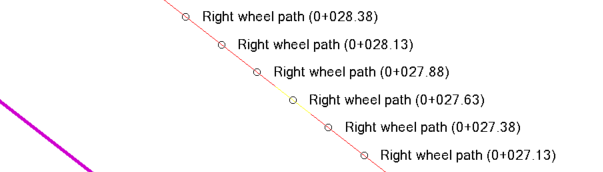
- Create CAD lines - Check this box to create two linestrings (one per virtual wheel path) when you click Calculate. The linestring colors (red, green offset from the magenta path) are based on the specified thresholds. Normally your mobile mapping trajectory is at a car height (e.g., 2m/6’ above the ground level) which you can see if you view the lines in the 3D View. The created ‘CAD lines’ are draped on the point cloud, so they use real elevation values to determine the roughness of the road.
Tip: Each time you run the report with this option enabled, new linestrings are created. To avoid creating multiple linestrings, uncheck this box on subsequent runs.
- Layer - Select the layer on which you want any created CAD lines to reside.
- Maximum length - Unlike the analysis Segment length setting above, this setting allows you to later export smaller line sections to Trimble Access to mark a road. For example, if you have a 500 ft analysis segment length, but you want a surveyor to mark the road for a grinding crew, this maximum length can specify points to paint every 10 feet.
- Create points at segment ends/midpoints - Add survey points (of Unknown quality) at the selected locations on generated linestring segments.
- Color by IRI values - Line colors are affected by the quality of your data. If, for example, you set a threshold of 100, any segment with an IRI value above that will be red; from 80 to 99, the line will be yellow, and below that the line is green.
- Create Excel report - Open the IRI report as a Microsoft Excel sheet (.xlsx) after calculating the analysis along the virtual wheel paths.
Note:If you do not have Excel installed, TBC will still create a simple report that you can open directly in Google Sheets or another spreadsheet viewer.
- Open after creating report - Open the report in Excel after creating the report. Leaving this box unchecked allows you to create the .xlsx file without TBC trying to open it in Excel.
- Save segment scores in:
* New sheet - Write results for each selected path segment on two separate tabs (sheets; one Summary and one Detailed Results) in a single Excel file (workbook).
* New workbook - Place Summary and Detailed Results for each selected path segment in a separate Excel file (workbook).
- Display units - Set labels for IRI units to m/km or mm/m in the Excel report.
Note: This setting is disabled for projects that use US Survey Feet or International Survey Feet.
- Export to AgileAssets - Create a .csv file which you can then import into Pavement Express or Pavement Analyst. With this box checked, an Export dialog (same as Save As) opens to allow you to name the exported file and navigate to the save location.
- Format - For proper file syntax, select the AgileAssets product you intend to import the .csv file into.
- Map segment ID to - Select an AgileAssets attribute (e.g., ROUTE_ID) to map the IRI values in the exported .csv back to the same road sections as in the Shapefile imported from AgileAssets. This attribute is also shown in the Properties pane for the Path selected in the command. This mapping enables you to see reported IRI values as a property of a path back in AgileAssets.
- Save segment scores in:
* Single document - Place all results for each selected path segment in a single .csv file.
* Multiple documents - Place results for each selected path segment in a separate .csv file.
- Create CAD lines - Check this box to create two linestrings (one per virtual wheel path) when you click Calculate. The linestring colors (red, green offset from the magenta path) are based on the specified thresholds. Normally your mobile mapping trajectory is at a car height (e.g., 2m/6’ above the ground level) which you can see if you view the lines in the 3D View. The created ‘CAD lines’ are draped on the point cloud, so they use real elevation values to determine the roughness of the road.
- Calculate - Generate the deliverables you selected above.
- CAD lines using the results of the IRI Report so you can export it to Trimble Access or other software to stake out must-grind locations in the field. Lines are color-coded to indicate the IRI value.
- Excel report - If you opted to create and open an Excel report, it opens with Summary and Detailed Results tabs:
Overall analysis
- Shows one IRI value over the entire path using a line graph with MRI and left/right wheel path IRI values. Values above the threshold are color-coded.
Continuous analysis
- Shows IRI values separately for each measurement using a line graph with MRI and left/right wheel path IRI values. Broken down into station-based segments with IRI values, sections above the threshold value are color-coded.
Fixed distance analysis
- Shows IRI values for each segment’s length you defined using a line graph with MRI and left/right wheel path IRI values and the quantity of lane feet above a value. Values above the threshold are color-coded.
