Manage Design Data Packages
The Data Packages pane in the 3D Viewer enables you to visualize and inspect design packages, giving you the ability to view multiple designs in a holistic project context, moving beyond single-design preview capability. This feature integrates published designs into the 3D environment, allowing you to load, view, and interact with multiple design packages simultaneously, alongside survey surfaces and other project data, providing a comprehensive tool for design review, quality assurance, and site planning. Then, you can efficiently dispatch new model revisions to field devices.
Text embedded in designs is also viewable in designs. This text visualization is supported for VCL, SVL, DXF, and DWG files, which brings critical design and linework annotations into view, helping you better understand your design's specific details. Also see Designs.
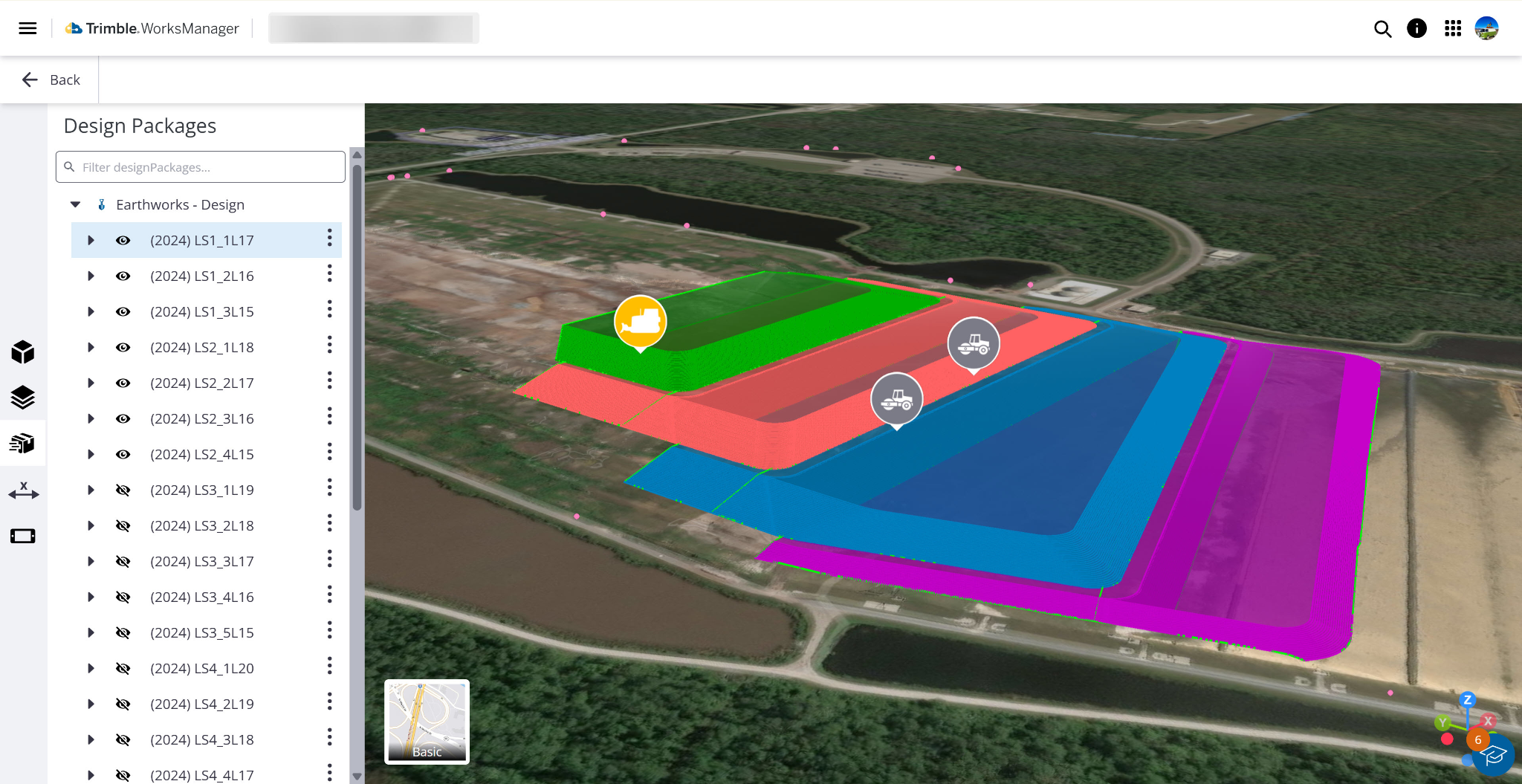
Click the  Data Packages icon on the left side to open the pane with categorized data sets, where you can:
-
Review design data by category - Expand these sections to see which data sets you have of each type.
-
Earthworks
-
Groundworks
-
Survey
-
-
Toggle visibility - Show/hide any design data package in the view and when dispatching to a machine.
-
View and manage all loaded design packages (e.g., earthwork, survey, groundwork, mobile scan, release packages) in the Data Package pane within the 3D Viewer. See everything in a single view.
-
Select specific packages for editing - Click the arrow next to any to expand the designs and again to see what a design contains.
-
Click the
 More icon next to any design to:
-
Fit to View - Zoom to the extents of the visible data. This option is useful when design data is outside of the site boundary.
-
Show only - Hide all other data other than the selected package.
-
See details - Review details like who modified the design last and its version, surface details like file type, creation, modified, and imported dates, and the file owner’s email address. See the design’s publishing status and to which devices it was published.
-
At the top of the Details pane, you can also:
 Archive a version of the design,
  Edit the design version on the Design edit screen,
  Delete the version, or
  Download the version.
-
-
Edit - Add or modify data to create the next version of the design.
-
Download - A compressed design file (.zip ) is downloaded.
-
Archive - Remove the design from the Active Designs list. To unarchive a design, choose Unarchived Designs, select the design, and click the Unarchive icon in the Design info panel.
-
Delete - Discard the design version.
-
Validate design issues - See if there are conflicts, such as device incompatibilities, in the Info pane.
See Archive, Edit, Delete, and Download a Design for details on the options above.
-
-
Save updated site models - Dispatch revisions of designs to field systems, ensuring modifications are synchronized and accessible to other team members in real-time.
Prerequisites
-
WorksManager Pro license
-
Project data
-
Project editing permissions (if you want to create and edit drafting data)
Show/Hide Data Packages and Review their Properties
Show/hide any data package in the view and when dispatching to a machine.
-
On the left side, click the
 3D Viewer icon.
 -
Click the
 Data Packages icon on the left side.
 -
Expand the design category you need to edit.
-
Earthworks - Design - Contains design files intended for bulk earthmoving and machine control systems. Superintendents use these to create or modify designs for temporary works, such as emergency stormwater management, or to track exactly where material has been placed on a site. These designs ensure machine operators are working off the most current and usable data for their specific tasks.
-
Groundworks - Design - Associated with specialized foundational tasks, such as drilling and piling. It is used to manage design data for these specific workflows, allowing users to evaluate productivity and progress at a granular level (for example, checking status on individual piles) against the intended construction plan.
-
Survey - Design - Contains design data used by survey crews and site engineers for progress tracking and site setup. It typically includes designed surfaces (TIN meshes representing the intended site state) that surveyors import to perform visual comparisons between planned conditions and the actual, as-built site data captured in the field.
-
Toggle the
 Visibility icon for a design package.
 -
Click the
More icon next to the visible design and select See Details to review who modified the design last and its version, surface details like file type, creation, modified, and imported dates, and the file owner’s email address. See the design’s publishing status and to which devices it was published.
Access Drafting Creation and Editing Tools
Add or modify objects to create the next version of the design.
-
Do the steps above.
-
Click the
More icon next to the visible design and select Edit to enter the creation mode. You can only edit one design at a time. -
Editing appears next to the design package name and the Drafting toolbar appears vertically (shown horizontally here) on the left side of the view.


Download, Archive, and Delete Data Packages
-
On the left side, click the
 3D Viewer icon.
 -
Click the
Data Packages icon on the left side. -
Expand the design category you need to edit.
-
Click the
More icon next to the design package and select:
-
Download - A compressed design file (.zip) downloads to C:\Users\<yourname>\Downloads.
-
Archive - Remove the design from the Active Designs list. To unarchive a design, choose Unarchived Designs, select the design, and click the Unarchive icon in the Design info panel.
-
Delete - Discard the design version. You are prompted to confirm because this design removal cannot be undone.
See Archive, Edit, Delete, and Download a Design for details on the options above.
Validate Design Issues
Check for issues like:
-
Zero Elevation Lines - Linework that has an elevation value of zero, often resulting from 2D data that has not been properly elevated for 3D machine control. Validation rules explicitly state that lines should have non-zero elevations to be valid for processing.
-
Crossing Lines - Lines within the design intersect or cross one another. The validation logic includes a specific check to ensure that "line[s] should not be crossing one another".
-
Crossing Line Horizontal Projections
-
Lines Too Close - Lines are positioned closer to one another than a specified tolerance allows. The design validator checks against a "particular tolerance" to identify lines that fail this proximity rule.
-
Lines Too Close in Plane - Lines are positioned closer to one another than a specified tolerance allows. The design validator checks against a "particular tolerance" to identify lines that fail this proximity rule.
-
On the left side, click the
3D Viewer icon. -
Click the
Data Packages icon on the left side. -
Expand the design category you need to validate.
-
Toggle the
Visibility icon for a design package. -
Click the
More icon next to the visible design and select Validate to see if there are conflicts, such as device incompatibilities, in the Info pane.
-
Check designs against a set of rules upon upload to WorksManager, identifying issues like duplicated or disconnected lines.
-
Receive warnings and lists of issues, raised as BCF topics.
-
Manually update issues or eventually use automatic fixes.
Dispatch Design Revisions
These capabilities provide a streamlined experience for basic design creation and modification, reducing the need for complicated CAD software.
-
Once you have made design package edits using the steps in Create and Edit Drafting Data, click Publish on the toolbar at the top of the view.

-
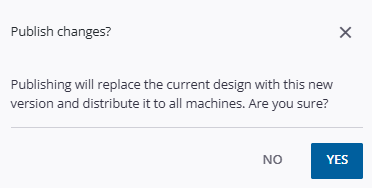
Click Yes in the confirmation dialog to push the changes to assigned machines.
Publish to all devices when toggled on - The design publishing workflow in WorksManager has been updated so that designs are sent to all current and future devices only when Publish to all devices is specifically enabled. If you manually select all devices in a project, WorksManager now treats that as a one-time selection and will not automatically send the design to devices added later. Additionally, if a project has no devices yet, you can still choose whether future devices should receive the design. For details, see Manage Devices.
