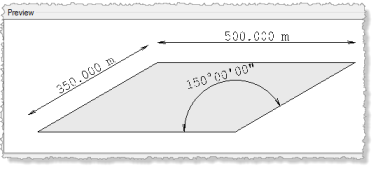
dimension properties (angular and linear)
Note: This topic describes just the more important, confusing, or complex properties.
|
CAD Dimension |
|
|
Appearance |
|
| Dimension type |
Shows whether the selected dimension is Linear or Angular.
|
| Dimension style |
Shows whether the dimension label style is Standard or user-defined and lets you select <<New style>> to create a different dimension style. |
| Draw lines and arrows |
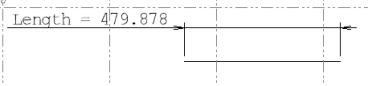
Show/hide any lines and arrows for the dimension, leaving only the dimension value. |
| Arrow 1 direction Arrow 2 direction |
Set a direction for the arrow at the end of the dimension. Select the direction and relative location of the arrow at each end of the dimension, or select Automatic to specify that the software determines the direction.
|
| Arrow 1 type Arrow 2 type |
Select an arrow head style for the start and end of the line. Choose None to show no arrow heads. |
| Arrow 1 size Arrow 1 size |
Specify the arrow head size by entering a distance or picking two points in the Plan View. |
| Draw extension line 1 Draw extension line 2 |
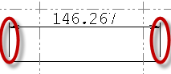
Show/hide the lines that connect the dimension to the measured locations.
|
| Extension line offset |
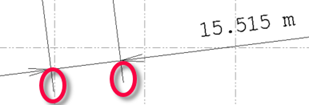
The offset value between the extension line and the locations/object being dimensioned. Positive values add a gap between the dimension location and the extension lines. |
| Extension line stretch |
The length of the extension lines beyond the dimension line.
|
| Extension line oblique angle |
Specify a degree between -85 and 85 at which to angle the extension lines. |
| Dimension line length |
Set the length of the dimension line when it appears outside of the extension line. |
| Dimension line stretch |
Specify the length of the dimension line beyond the dimension text when it is placed outside the extension line. |
| Edit text |
Allow/prevent the dimension text from being changed. Selecting No disables the next box. |
| Dimension text |
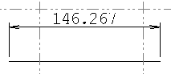
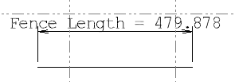
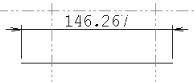
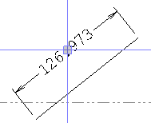
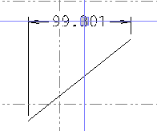
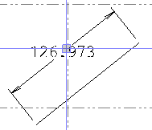
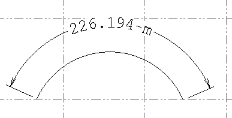
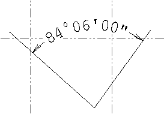
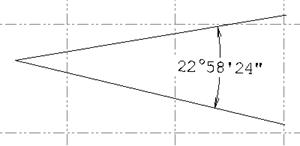
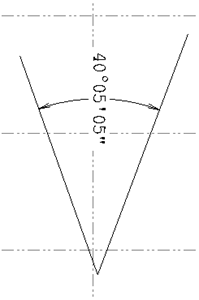
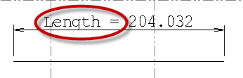
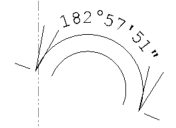
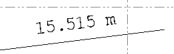
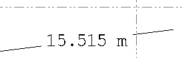
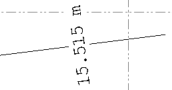
Select a text style or select <<New Style>> to display the Text Style Manager where you can create a new text style. Also, select the position for the text (relative to the dimension line), and its orientation. Following are orientation examples.
Note: Dimension text aligned with its dimension arc will be divided into individual characters when the project is exported to a DXF/DWG file.
|
| Independent text |
Locate the text separate from a dimension object. Select Yes to pick and move the dimension text away from the dimension lines. |
| Text orientation |
|
| Text position |
Shows the position of the dimension text, which positions on the dimension lines. |
| Selection sets |
Shows which set this dimension is a member of. |