Understanding Connected Projects and Workspaces
Prerequisites
To use Connected Projects and Workspaces in TBC, you need a combination of apps, utilities, account credentials, specific licensing tiers, and background services.
Credentials, Accounts, and Licensing
- Trimble ID (TID): A valid Trimble ID login is required to sign in through TBC and authenticate with Trimble cloud services. Accessing Connected Workspace requires signing in to TBC with a valid Trimble ID (TID) connected to a Trimble Connect account.
- Trimble Connect Account: You must have an active Trimble Connect account associated with your Trimble ID.
- Trimble Connect Project Access & Permissions: Authorized access to the specific Trimble Connect project is managed through Connect. For instance, administrator privileges in Connect are required to push TBC coordinate systems to the cloud.
- TBC Subscription License: Accessing full Workspace capabilities—such as converting projects and checking out/in .vce files in the Workspace tab—requires an active TBC subscription license. Sharing full TBC project files within the Workspace tab requires an active TBC subscription license. Using complete cloud collaboration, project sharing, and field data services requires a Trimble Connect Business subscription (or higher) rather than the restricted free Personal tier. Each valid TBC subscription and perpetual license under active warranty includes one seat of Trimble Connect Business per seat.
- Perpetual License Handling: If you run TBC with a perpetual license without an active subscription entitlement, the cloud-based connected project and workspace commands are disabled.
Applications, Utilities, and Background Services
- Trimble Business Center (TBC): TBC desktop software (with integrated Connected Workspace workflows starting in versions v2025.10 / v2026.20).
- Trimble Connect: Trimble Connect is a cloud-based common data environment (CDE) and collaboration platform designed for the construction, engineering, architecture, and geospatial industries. It acts as a central hub connecting project teams, from the office to the field, to accurate, up-to-date project data.
Key Features and Capabilities
- Centralized Storage: Store and organize project files in the cloud, supporting over 45 file types (including BIM models, CAD drawings, PDFs, and geospatial data).
- 2D and 3D Model Viewing: Review, measure, and annotate models and documents directly in a web browser, desktop app, or mobile device without needing heavy separate software.
- Team Collaboration: Share versioned data packages, assign and track tasks, add comments to 3D elements, and manage issues across various stakeholders.
- Cross-Device Access: Available via web browsers, desktop applications, mobile apps (iOS and Android), and mixed-reality devices.
- Trimble Desktop Utility/File Service: A desktop background service that handles continuous, automated file synchronization between your local TBC environment and the cloud Workspace container.
- Field Software (optional): Connected field systems such as Trimble Access, Trimble Siteworks, Trimble Perspective, or Trimble FieldLink used for exchanging field jobs, work orders, or 3D scans.
Overview
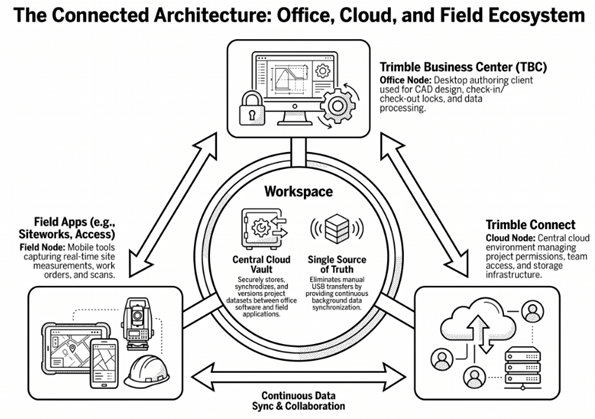
The Moment of Connection: What it Means to be Connected
In previous versions of TBC, a project was a siloed entity residing on a local drive. With the release of v2026.20, this paradigm shifts. Clicking Convert to Workspace fundamentally restructures your project’s data. Regardless of your entry point, every project manager, regardless of their preferred workflow, is prompted to establish a cloud connection immediately.
Concept at a Glance: The Connected TBC Project
A connected TBC project is a formerly local project file that has been associated with a Trimble Connect Project and thereby converted into a workspace. This connection establishes a live pipeline to Trimble Connect in the cloud, requiring the selection of a specific Trimble Connect region (e.g., North America) to ensure regulatory compliance and optimal data latency.
The primary value-add of this connection is the establishment of a ‘Source of Truth’. By bridging the local environment to the cloud, you move from importing files to syncing data. This change allows TBC to leverage cloud-based processing and real-time field updates, while ensuring that the office and field are always operating on the same versioned dataset.
The Architecture Triad: Roles and Relationships
To manage this pipeline effectively, look at the specific roles of the three core entities (triad) within the system architecture. Understanding the distinction between their "front-end" appearances and "back-end" realities is critical for troubleshooting and workflow optimization.
The Connected Architecture
|
Component Name |
Primary Function |
The 'Behind-the-Scenes' Reality |
|
Local TBC
|
Local Authoring & Design |
Acts as the primary client for CAD, surfaces, alignments, and more. It manages local cache and coordinate transformations. |
|
Trimble Connect project |
Cloud Storage & Collaboration |
As the ‘root’ for your office and field workflows, the Connect Project allows for collaboration on your TBC projects, field data synchronization, and project data storage. |
|
Workspace |
Data Exchange & Compliance |
As the ‘hidden vault’, this TBC workspace allows for user-to-user collaboration of TBC projects, as well as support of upcoming AI and Cloud-based workflows. |
The Invisible Engine: Trimble Desktop Utility
If the TBC project is the interface, the Trimble Desktop Utility is the Session Manager and Data Orchestrator. It is a minimalist service responsible for the movement of data the moment the TBC < > Trimble Connect association occurs.
The Instant Sync Sequence
- Association & Region Selection: You define the project's geographic home (e.g., Europe or North America) to set the data residency.
- TID Authentication: The Trimble Desktop Utility validates your subscription and permissions via Trimble Identity.
- Workset Generation: TBC triggers the background creation of a unique Workspace.
- Service Handshaking: The Data Orchestrator begins moving project metadata and field data between the local drive and the cloud services.
The Workspace: The Hidden Vault
A common point of confusion is the "invisibility" of the Workspace within the standard Trimble Connect web file browser.
Frequently Asked Question:
- "Why can't I see my Workspace in Trimble Connect?" The workspace is a specialized container. Its current invisibility is a deliberate UI abstraction implemented to ensure Trimble systems and security compliance.
The Logic of Invisibility: The workspace is not a general-purpose storage folder; it is a system-to-system "handshaking" vault for complex instructions and workflow extensions. To prevent you from making errors, such as the accidental deletion of critical cloud-processing instructions, it is hidden from the standard file explorer.
Navigating Your Command Centers: the Connected Workspace and Connected Project Explorer
The Connected Workspace and Connected Project Explorer are your primary tools for managing cloud project content. The Connected Workspace is a more fully featured, modal dialog and the Connected Project Explorer is a more conveniently docked pane positioned next to your standard Project Explorer.
The Connected Tree Hierarchy: The standard tree structure in each reflects the cloud-source hierarchy:
Connected Workspace/Connected Project Explorer
- Connected Projects (The Cloud Hub)
- [Connect Project Name]
- Imported Files (Traditional local imports)
Layers/Feature Schemas
- Field Data (Siteworks/Access jobs)
- Imported Files (Traditional local imports)
- [Connect Project Name]
Primary Command Actions
- Discover: Identify Trimble Connect projects made available to your account profile.
- Sync: Perform manual Pull (latest from cloud) or Push (office edits to cloud) operations, with clear status indicators for stale or pending data.
Licensing and The Future of Connectivity
The entire ecosystem is gated by your Trimble ID (TID) status and subscription level.
⚠️ Warning: Subscription Maintenance: If your subscription expires, access to the Workspace data will be restricted. However, Trimble provides a notification window to retrieve TBC Models before the workspace data is locked. Ensure that renewals are processed before this window closes to avoid data downtime.
Synthesis: The Magical Lifecycle of a Data Point (example)
To understand the power of this architecture, follow a single point of data, such as a Siteworks point, through the pipeline:
- The Field: A surveyor records a point in Siteworks.
- The Cloud Mediation: The data is pushed to the Field Data Service (FDS).
- The Architecture Reality: Behind the scenes, the system handles a complex Schema Hurdle: both Siteworks and Trimble Access utilize the "Survey" schema. The Field Data Service manages the permissions to ensure the correct office user sees this specific data.
- The Orchestration: The Trimble Desktop Utility (Session Manager) identifies the update in the FDS and pulls it into the local TBC project's workspace.
- The Office: The office professional sees a colored "Update Available" border around file names in the Connected Project Explorer and pulls the point directly onto their screen, synchronized and transformed.
Note: The Unified Source of Truth This architecture eliminates the "disconnected" nature of traditional file-based transfers. By utilizing the Field Data Service (FDS) as a unified mediation layer, TBC ensures that whether a data point was created in the field or the office, it remains part of a singular, authoritative project record across the entire Trimble ecosystem.
Core Concepts
Connected Project
A connected project is a local TBC project that has been converted to create a shared workspace with a cloud-based Trimble Connect project. The term “connected project” is also used for projects in other apps that sync data with Trimble Connect, such as Trimble WorksManager, WorksOS, Access, and Quadri.
Core Characteristics & Functionality
- Cloud Container Architecture: When a TBC project is connected or converted, a cloud-managed workspace container is automatically created behind the scenes. Project data begins synchronizing continuously between TBC and the cloud via the Trimble Desktop Utility or File Service.
- Unlocking Connected Capabilities: Associating a project with Trimble Connect (by converting to a workspace) activates cloud-powered commands and tools within TBC. Unconnected projects have these features grayed out, whereas connected projects unlock cloud processing operations, and live data exchange tools.
- Central Repository & Data Exchange: Connected projects act as a ‘single source of truth’ for all office and field team members. They facilitate round-trip sharing of point clouds, surfaces, CAD linework, and job data between TBC and field software such as Trimble Access, Trimble Siteworks, and Trimble Perspective.
- Multi-user Collaboration: Authorized team members can check out the project .vce file, work on it locally with single-user edit locks, and check in their updates to keep the central cloud version synchronized.
- Creation and Setup: A project can be established as a connected project by using the Convert to Workspace option in the TBC Start Page and from the Connected Workspace.
Workspace
- In TBC and Trimble Connect, a workspace is a centralized, cloud-hosted environment used to manage, store, and automatically sync project datasets between office engineers and field crews.
- Rather than working off local computer drives or transferring files via USB thumb drives, a workspace acts as a secure, shared space where geospatial, construction, and survey data is stored exclusively for collaborative use within the Trimble environment.
Check In/Out and Versioning
When multiple team members work on a connected project in a workspace, check-in, check-out, and file versioning are managed through TBC's Connected Workspace interface (specifically within the dialog’s Workspace tab).
Check-Out & Single-User Edit Locking
- Checking Out a Project: An authorized user opens the Connected Workspace dialog in TBC, selects the project, and checks out (opens) the .vce file. TBC downloads the project and associated data to your local working directory.
- Exclusive Single-user Lock: To prevent conflicting or overwritten edits, checking out applies an exclusive single-user lock so that only one you at a time can edit and make local changes to the project .vce file.
- Background Syncing: While checked out, project files and local edits continuously sync with the cloud workspace via the Trimble Desktop Utility or File Service.
Check-In & Cloud Version Control
- Checking In Changes: When work is complete or ready to share with the team, you execute a Check In command.
- 100% Sync Gate: Before another you can access or check out the project, the synchronization process must reach 100% completion in the cloud.
- Releasing the Lock: Once checked in, the central cloud repository updates with the new master version, releasing the lock so other team members can check out the updated project.
Visual Sync States & Conflict Detection
TBC displays the status of projects to give team members real-time visibility into sync and versioning states:
- Checked In: Indicates that the project is available for you to check out to make edits.
- Checked Out: Indicates that another user currently holds the project lock to make edits, which prevents you from checking it out.
- Syncing (locally): Indicates the project is temporarily unavailable as changes are synchronized between TBC and Trimble Connect.
- Locked/Access Restricted: Indicates that you lack access permissions or that subscription requirements are unfulfilled.
User Permissions & Connect Management
- Access Permissions: Project permissions managed in Trimble Connect determine which team members are authorized to discover, open, check out, or check in the shared TBC project.
TBC Commands/Functions
Convert to Workspace
The Convert to Workspace command converts a local TBC project into an online, dedicated workspace shared with a Trimble Connect project ‘behind the scenes’.
Key Functions and Effects
- File Relocation & Background Syncing: Converting the project transfers the local .vce file and its associated project assets into the cloud container, removing the file from its original local path on your computer. The Trimble Desktop Utility or File Service immediately begins syncing project data between TBC and Trimble Connect.
- Access via Connected Panels: Even though the .vce file no longer resides in its original local folder, you retain full access to your project data, models, and reference files directly inside TBC through the Connected Workspace and Connected Project Explorer panels.
- Unlocking Cloud Capabilities: The conversion serves as the key trigger to activate TBC's "connected" tools and commands. While unconnected projects have these features grayed out, converting unlocks cloud processing operations (such as photogrammetry/APM cloud processing), Map Workspace streaming, and field data sync status (in sync, out of sync) .
- Enabling Multi-user Collaboration: Converting a project turns the workspace into a shared cloud repository. Team members can check out the .vce file to work locally under single-user edit locks and check in their changes to update the master cloud version.
Note: Workspaces are coordinated under the TBC VCE; this is hidden from the user.
- Irreversible Permanent Action: Because conversion to a workspace restructures how project files, dependencies, and versioning are managed in the cloud file service, the conversion cannot be reverted back into a standard, local .vce file.
- Transparent Container Architecture: The workspace operates as a backend structure designed to remain largely hidden within standard Trimble Connect > File Explorer views to prevent file system clutter.
Key Functions of a Workspace
- Centralized Data Storage: When a project is moved into a workspace, the physical files are transferred from your local hard drive directly to the Trimble Connect cloud platform. The data becomes securely visible and editable strictly within your Trimble software (like TBC or Trimble Access).
- Automated Office-to-Field Synchronization: It replaces manual data transfers. An office technician can generate field-ready files (such as .job, .vce, designs, or control points), save them to the workspace. Field crews can then download them instantly onto their data collectors.
- Automatic Field Data Return: Once field surveys or 3D laser scans are completed, field operators upload the results back to the workspace. Office staff can immediately import them back into TBC to pull the raw fieldwork, coordinate system attributes, and point datasets straight into their office project.
- Ensuring a ‘Single Source of Truth’: By locking data to a synchronized cloud workspace, all stakeholders work off the exact same revisions. This minimizes setup discrepancies, incorrect coordinate system deployments, and human errors.
Common File Types Maintained in the Workspace
Workspaces handle rich, multidimensional datasets including:
- Survey & Scan Data: 3D point clouds, points, linework, and total station scan data.
- Design Models: Surface models, corridor surfaces, and tunnel designs.
- GIS Schema & Imagery: Esri Shapefiles, CSV coordinates, and georeferenced aerial maps.
Connected Workspace
In Trimble Business Center (TBC), Connected Workspace is the primary command and digital bridge that enables seamless, round-trip data synchronization between TBC desktop software and field systems or cloud repositories via the Trimble Connect platform.
It serves as the central hub for managing cloud-connected projects, replacing older manual or desktop-based transfer workflows like Trimble Sync Manager.
Core Functional Areas
When you open the Connected Workspace dialog in TBC, it organizes project cloud operations into four primary work areas:
- Workspace: Manages full TBC projects (.vce files) stored in the cloud. Authorized team members can check out a project file to work locally under an exclusive edit lock and check in updates to synchronize with the cloud master version.
- Field Data: Displays, filters, previews, and imports field-captured data packages—such as points, 3D laser scans, images, and work orders—from field software including Trimble Access, Trimble Siteworks, and Trimble Perspective.
- Explorer: Provides a cloud file browser to view, upload, download, and import design assets (including CAD linework, TTM surfaces, LandXML corridors, and point cloud files) directly between local drives and the cloud project.
- Settings: Manages project-level cloud configurations. It allows you to compare and synchronize coordinate systems (projections, datums, and site calibrations) between TBC and Trimble Connect, as well as manage shared Feature Code Libraries (.fxl).
Connected Project Explorer
In TBC, the Connected Project Explorer is a dockable pane and project explorer tree designed to bring the same Connected Workspace cloud-hosted project data directly into the main program window. Rather than requiring you to jump between separate windows, floating command dialogs, or web browsers, it establishes a single, durable location to discover, inspect, and synchronize cloud project data.
Key Capabilities & Interface Design
- Connected Workspace Jobs: Allows you to discover field data packages and job files (e.g., from Trimble Access or Siteworks), inspect job metadata (owner, crew, date, sync state), and import them directly into TBC.
- Workspace & Project Context: Displays active cloud project sharing states, File Service context, team membership, and access permissions.
- Sync State: Uses visual cues to immediately signal the status of cloud assets, including "up-to-date" and "out-of-date" status indicators for field data and reference data and synced, checked out, checked in, and locked (i.e., checked out by someone else) states for workspaces.
Create a Field Data Assignment
A field data assignment is a centralized "container task" within Trimble Connect that organizes and manages survey job data (such as points, stakeout reports, and design files) exchanged between office software like TBC and field controllers.
Core Components and Capabilities
- Office-to-Field Preparation: Using the Create Field Data Assignment command in TBC, project managers can set up job parameters, share required design data, and assign tasks to field staff before operators ever arrive on site.
- Packaging Design Assets: Office users can select and remote-save various project object types directly into the assignment package, including:
- Points and CAD linework
- Terrain and corridor surfaces (along with corridor alignments)
- Tunnel designs and alignments
- Metadata & Task Assignment: Each assignment includes:
- Unique Name & Description: Distinguishes the job for field crews.
- Assignee: Specifies the field staff member responsible for managing and completing the job.
- Tags: Shared metadata keywords used to label, categorize, and filter assignments and files across Trimble Connect.
- Real-Time Synchronization: Transfers field-captured data automatically to the cloud for office review and enables field crews to download updated job files in real time.
- Field System Terminology: A survey job assignment created for Trimble Access operates similarly to a work order in Trimble Siteworks.
