2026.10
Version 2026.10 of the Trimble® Access™ software is available from June 2026.
These Release Notes describe the new features and changes available in this release of the Trimble Access software.
New features and enhancements
Filter tool for BIM files
The Filter tool introduces a search-based workflow that replaces the previous selection-only method. You can now instantly isolate specific components by querying a model's properties and attributes - for example, to quickly locate a specific welding plate on a large I-beam. You can also now instantly isolate a specific part of a object, for example highlighting specific welds within a frame model by ID number or property value.
-
Use the All category to scan every property in the model, or restrict searches to specific categories such as material, pipe diameter, or assembly marks.
-
You can now Star specific attributes during model reviews to create Favorite searches for repetitive tasks.
-
Once a Filter is applied, the map automatically hides non-matching objects, leaving only relevant items visible for stakeout or inspection.
-
Access the tool directly from the 3D Map view via the BIM toolbar.
The image below shows how using the Filter tool enables selection of a specific part of a object, for example highlighting specific welds within a frame model by ID number or property value.
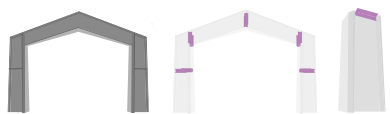
For more information, see the topic Filtering BIM models using properties in the Trimble Access Help.
User coordinate system and deviation check
Designed primarily for fabrication environments, this new workflow enables "as-built vs. as-designed" feedback relative to the object itself rather than the instrument. This allows for the precise, iterative adjustment of heavy components before permanent welding.
The image below shows a practical example of how a User coordinate system (UCS) might be placed to assist accuracy when conducting a weld on a beam. UCS enables a temporary, movable grid that is visible in Trimble Access which acts as a custom "center of the world" by placing the center origin to the beams corner and aligning the X-axis to its length.
NOTE – The stakeout deviation check and user coordinate system features are available with the Object Oriented Setup software option. To purchase a license, contact your local Trimble Distributor.
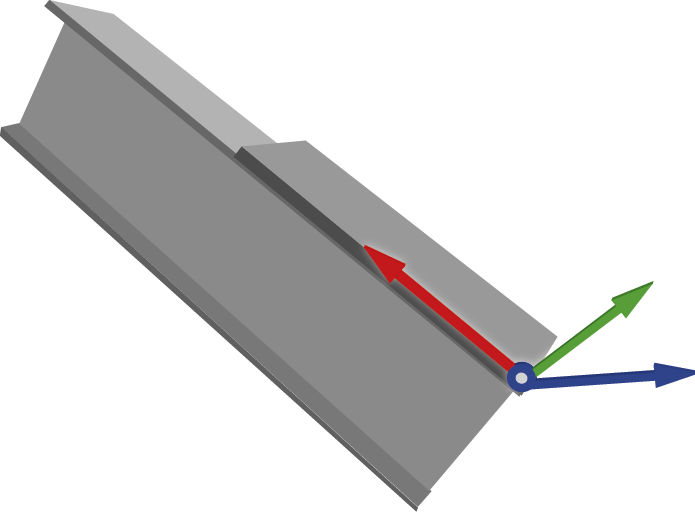
-
You can now set a temporary, movable grid by defining an Origin (0,0,0) and orientation using Points, Lines, Manual coordinate entry, or by loading a previously saved UCS.
-
When measuring elements like bolt holes or plates, you now receive immediate delta values (Delta X, Delta Y, Delta Z) relative to the UCS.
-
To ensure components meet strict tolerances, the map now shows movement directions relative to the specific piece being handled, eliminating the "direction problem" often associated with instrument-relative measurements.
-
When checking points from a list, the instrument can now automatically turn to and track the target or laser for the selected location.
For more information, see the topic Stakeout deviation check in the Trimble Access Help.
Key in a circle using a center point and radius
You can now key in a circle from the map. Select the point in the map to use as the center point, and from the tap and hold menu select Key in circle. Enter the radius and if required enter the Start station and Station interval.
This function is also available from the Key in arc form. Select the Center point and radius method.
Enhancements
Project and job enhancements
-
The very first time you download a cloud project using Trimble Access 2026.10, the software prompts you to select the template file to use for project settings that are not defined as part of the coordinate system or feature library, including units, COGO settings, and point and image naming preferences.
The selected template is used for all cloud projects. To change the template used, or to reset the software to display the prompt when downloading a cloud project, use the Additional settings group box in the Cloud settings screen.
-
When downloading projects from Trimble Connect all details of site calibrations and custom coordinate systems are now downloaded correctly. The software no longer warns when the project coordinate system is defined as a custom or site calibration. Note that cloud projects do not currently support Scale factor-only coordinate systems.
-
The current coordinate system settings for the job are now shown in the Select coordinate system screen so that you can review them more easily without accidentally changing them.
-
We have added a warning when downloading a job from Trimble Connect that will overwrite a job on the controller.
This scenario can occur when multiple field crews have downloaded the same job. If this happens it is important that only one crew is adding data to the job. You should always upload the active job to Trimble Connect. Do not allow the active job to be overwritten by another version of the job from Trimble Connect.
The new warning appears as "Please confirm: Downloading <jobname> will overwrite the file on your controller of the same name. All data in the local file will be lost and cannot be recovered if you continue. Overwrite?".
-
Tap No to cancel the download and avoid overwriting the job.
-
Tap Yes to overwrite the file on the controller with the version of the job from Trimble Connect.
-
Point stakeout enhancements
-
The stakeout list now includes a Sort by field at the top. Sort by Order added, Name, Shortest path or Custom.
NOTE – Shortest path is only available when the stakeout list contains only points.
-
To minimize travel time between points, sort the Stake out items list by the Shortest path, where the Trimble Access software orders the points in the list based on the shortest distance from point to point.
-
The Closest point feature now updates dynamically as you move across the site, so that the software is always directing you to the nearest point in the Stake out items list based on your current position.
-
You can now drag and drop items in the Stake out items list to reorder them. When you move items around in the list, the sort method at the top of the list changes to Custom and the map view updates so that you can review your custom path through the points on site.
-
We have removed unnecessary steps from the stakeout workflow. When you store a measurement, the software now automatically navigates you to the next point in the Stake out items list rather than returning you to the list view.
Line, arc, and polyline stakeout enhancements
-
To simplify the stakeout method list, we have merged the Stake station on method into the Station/offset from method. To stake a station on the line, polyline or arc, set the Offset fields to 0.
Map enhancements
-
You can now set the Trimble Access software to color staked out points in the map to indicate whether they meet the required stakeout tolerance values. To set this up, enter the Horizontal tolerance value and/or the Vertical tolerance value in the Color stakeout symbol group box in the Map settings screen. Points within tolerance are shown in green and points outside of tolerance are shown in red.
-
To help optimize the display of crowded map areas, you can now independently show or hide Line names and Line codes in the Map settings screen. For better clarity, we’ve also renamed the original Names and Codes settings to Point names and Point codes.
-
When using a web map for background map data, you can now check for and apply any updates from the service. To do this, open the Web maps screen, select the configured web service and then tap Test.
For more information, see the topic Map settings in the Trimble Access Help.
Layer manager enhancements
-
If you manage project data by storing a job and its design files in a subfolder of the project folder, you can now set the Layer manager to show design files that are in the same folder as the current job in addition to the files listed in the Project data page of the Project screen. To do this, tap Options and then select the Show project data in current job folder option.
When this option is selected, the design files shown in the Layer manager automatically updates when you open a job in a different folder.
-
The Auto update softkey is now an option named Update map when file is selected.
This option remains enabled by default, so that changes made in the Layer manager are automatically reflected in the map
-
In response to customer requests we have reinstated the Modified column to the Project data tab in the Layer manager so that you can sort files by the last modified date or time.
Import and export enhancements
-
When importing files to the job in Trimble Access, if you are working in a cloud project and the controller is connected to the internet, you can now select files from Trimble Connect when you tap
 next to the File name field.
 -
Files exported from the job are now exported to the <job name> Files folder by default.
If you select a different folder then that folder will be used as the default location for all exports until you select a different folder. To restore the default location, select the <job name> Files folder again.
-
When exporting to ESRI shapefiles, you can now include photos in the export.
To include photos attached to features in the job, select the Include photos in Zip check box.
Compute point using distance-distance intersection now supports vertical offsets
We have enhanced the Compute point by Distance-Distance intersection cogo method to support vertical offsets.
You can now define the Vertical distance from Point 1, from Point 2, or from both points during the calculation.
If one vertical distance value is provided, the new point inherits the adjusted height from that reference value. If two vertical distance values are provided, the new point is assigned the average height of both adjusted reference values.
Vertical offsets are now stored in the JXL and automatically applied to exports (such as Pregeo), eliminating the need for manual post-processing of height codes.
Taped distances enhancements
We have enhanced the JXL (Job XML) file format to better support field-to-office workflows for building measurements. By storing tape distance misclosures directly in the job file, users can now use the information in other software.
Improved attribute editing
When updating attributes, if there is a mismatch between the attributes stored and the feature code library, which can occur when using a WFS or SHP files, now only the mismatched attributes cannot be edited. Attributes that match the feature code library can now be edited.
Additional auto attributes in feature library files
Trimble Access 2026.10 adds support for additional auto attributes added to point feature types in feature library files created using version 9.6 of the Feature Definition Manager. When measuring or working with features in jobs, auto attributes assigned to that feature type are automatically filled with data from the measured point or calculated data.
Auto attributes now supported for point feature types are: Device, Device serial number, Satellite count, Epoch count, Correction source, Correction status, Estimated accuracy, Est. vertical accuracy, PDOP, HDOP.
These attributes are read-only in Trimble Access and Trimble Business Center. Values are recalculated if a point or feature is changed.
Trimble Access starts with last used target
When starting a conventional survey, Trimble Access now selects the last used target by default. Previously the software always selected Target 1.
GeoLock enhancements
GeoLock is paused by initiating a turn using the Joystick, the Map, or the Video. GeoLock now resumes automatically 15 seconds after the turn is completed.
GNSS signal tracking in survey styles
To make it easier to use only one GNSS survey style with multiple GNSS receivers that have different GNSS constellation tracking abilities, Trimble Access no longer changes the GNSS Signal Tracking settings when the antenna type is changed. Instead, Trimble Access 2026.10 enables tracking of only the GNSS constellations and signals that are supported by the selected GNSS antenna when a survey is started.
Previously, Trimble Access would disable tracking of GNSS constellations that were not supported by the selected GNSS receiver. This would result in sub-optimal tracking settings when a more capable GNSS antenna type was selected and tracking of now-supported GNSS constellations remained disabled.
Measure point options for GNSS surveys
We have improved the terminology used and the layout of the point measurement options:
-
The group box previously named Tilt is now named eBubble to better indicate that it pertains to when the eBubble is in use to ensure the pole is vertical. For a GNSS receiver with an IMU this is when the IMU is disabled or not aligned.
-
The Auto measure check box is no longer included in the eBubble group box and instead now appears near the top of the screen.
This change makes the Auto measure option more obvious and indicates that the Auto measure setting also applies to IMU tilt compensation measurements when the eBubble is not being used.
Ionospheric activity level in GNSS surveys
If the connected GNSS receiver supports Trimble IonoGuard technology, the Iono activity level icon in the Position screen indicates the level of ionospheric activity detected and the method used to derive the IonoGuard information.
For more information, see the topic Current position information in the Trimble Access Help.
GNSS antenna height now refers to APC
Throughout the Trimble Access software, Antenna height (True) is now referred to as Antenna height (APC) to better reflect that it is the corrected height to the Antenna Phase Center from the bottom of the pole.
The corrected height includes the offset value automatically applied by the software to the height value you have entered when measuring to the bottom of the antenna mount or to the bottom of the quick release.
RTCM coordinate system messages
Trimble Access now supports reading the coordinate reference system (CRS) of the RTK network or base station from RTCM v3.4 type 1300 and 1302 messages using a receiver internet connection. A warning message will be displayed if the global reference frame of the current job is not the same as the service CRS received in these RTCM message types.
CMRx coordinate system messages
Trimble Access now supports reading the coordinate reference system (CRS) of the RTK network or base station from Trimble CMRx messages. A warning message will be displayed if the global reference frame of the current job is not the same as the service CRS received in the CMRx messages.
Coordinate System Database updates
The
-
Added the GR_HEPOS2011 geoid model for Greece.
-
Added fifteen UTM zones for Indonesia on SRGI2013(2021.0).
-
Added the SIRGAS-ITRF2008 epoch 2016.434 datum for the Dominican Republic.
-
Added the SVD2024 vertical datum for Svalbard, Norway.
-
Added the KNgeoid26 geoid model for South Korea.
-
Added a beta version of the Canadian NATRF2022(CSRS) modernized reference frame with SGEOID2022-beta2.
-
Added ISO identifiers to the REDGEOMIN 2024 datum and zones for Chile.
-
Added a grid transformation from CSRN2025 (NAD83 2011) to CA SRS Epoch 2017.50 for California zones 1–6.
-
Added the TUREF datum for Turkey with a local velocity model and ITRF2020-to-TUREF transformation.
-
Added a new Romanian geoid 2025.09 and a new Stereo 70 zone using a shift grid for Romania (ROMGEO).
-
Added support for RGNC 2015 and improved support of RGNC91-93 for New Caledonia, using a grid transformation between RGNC 2015 and RGNC91-93.
-
Updated the Italian displacement model with improved velocity data from the European Dense Velocities project, extending coverage to Lampedusa and the Pelagie Islands.
-
Updated the EGM 2008 India geoid with a full-coverage version (EGM 2008 Full India).
-
Corrected EPSG codes for legacy NTF Lambert zones in France and added Esri/FME interoperability aliases.
-
Improved Esri and FME interoperability aliases for Finland (EUREF-FIN), France (RGF93 v2b), United Kingdom (OSGB36), Belgium (Datum 72), and Tunisia (Carthage).
-
Marked the Puerto Rico/NAD83 zone group as obsolete.
Slovak voice messages
Trimble Access now provides voice messages in Slovak when the Slovak language pack is installed using Trimble Installation Manager.
New training material
Pipelines tutorial
A new Trimble Access Pipelines tutorial is now available from the Sample data page in the Downloads area of the Trimble Access Help Portal. This tutorial includes detailed instructions and sample data to test the complete workflow from creating a pipelines project in Trimble Sync Manager, pipelines tally and joint mapping, surveying the pipeline, report generation and additional pipelines features.
Resolved issues
- Cloud projects: We have fixed the following issues when using projects stored in Trimble Connect:
When you tap the Refresh button in the Projects screen or the Jobs page, any updates to the project coordinate system in the cloud are now reflected in the software.
After leaving a cloud project and deleting it from the data collector the project is now immediately removed from the projects list and can only be downloaded to the controller again if the project is reassigned to the user.
- When using Trimble Access on subscription, if a different user signs in to Trimble Access then the software now immediately checks the project permissions for that user and locks any projects that the user does not have access to. Previously the permissions check happened only when the project list was refreshed or closed and reopened.
- When uploading files from the Project data tab of the project screen, the software now shows the uploading icon to indicate that upload is in progress.
- Unsupported projection record: We have fixed an issue where sometimes the job file contained an Unsupported projection record. The Unsupported projection record occurred in the first job created from the project template if the coordinate system was not set in the project template.
- Downloading geodetic files: We have fixed the following issues with downloading geodetic files:
- If there was more than one geodetic file to download then the download failed.
- Shift grid files were not listed in the Shift grid files list and were not downloaded.
- Custom.csd showing hidden coordinate systems: We have fixed an issue where some of the coordinate systems set to hidden in a custom.csd file were still shown in the Trimble Access software.
- Project units: We have fixed an issue when creating a new project where the units you had selected were not always saved and the project settings screen showed Units: Not set.
- Web Feature Services (WFS): We have fixed the following issues when using a Web Feature Service:
- Sometimes when requesting layers from a Web Feature Service, the WFS returned a "400: Bad response error for some layers".
- Web Map Services (WMS): We have fixed the following issues when using a Web Map Service:
- Trimble Access is again able to connect to Web Map Services that use special characters in the URL.
- When a web map service is automatically updated you can now edit the web map service and select the required coordinate system from the Coordinate system list.
-
ESRI Shapefile export: We have fixed an issue where time attributes were being written as null in the Shapefile.
-
Export folder selection: We have fixed an issue when selecting the folder to export to where the software would prevent you from selecting a folder that contained more than 30 files.
-
DXF text: We have fixed an issue where it was not possible to turn off some text layers in a DXF file in the map. This issue was introduced in Trimble Access 2025.20.
-
Line styles for lines with shared codes: We have fixed an issue where lines coded using the same code as points did not use the correct line style in the map when using Measure codes or Taped distances.
-
Measure code attributes: We have fixed an issue when creating lines using Measure codes where attributes set with the measured point were not applied to the line created if you then selected an existing point.
-
Keyed in polylines with arcs: We have fixed an issue where polylines containing arcs were not being handled correctly in jobs that included a site calibration with a very large translation.
-
Norwegian cadastral tolerances: We have fixed an issue where loading the Norwegian CadastralTolerances.xml file into the job caused performance issues with the Trimble Access software.
- R980 radio settings: We have fixed an issue where if you changed the frequency band from 450Mhz to 900Mhz on a rover-only R980 receiver, the software sometimes showed an "Unable to set radio" message.
-
RTK VRS survey: We have fixed an issue where the note written to the job file at survey start containing the VRS location and ID when storing vectors contained the PRS coordinates. The note now correctly stores the VRS coordinates.
- OmniSTAR comms error messages: We have fixed an issue when attempting to open the Receiver Settings screen, where if the connected GNSS receiver did not support OmniSTAR the software reported an OmniSTAR comms error message. Now the software successfully opens the Receiver Settings screen and correctly reports the OmniSTAR status.
- Roads precise elevation: We have fixed an issue when measuring a road with Precise elevation enabled, where the connection to the total station would intermittently drop out when storing a point.
- Autolock search window: If the job units are set to Gons, the mininum search window value of 2.2222 is now accepted.
- FOCUS 35: We have fixed the following issues when using the FOCUS 35 total station:
- When using Trimble Access on a controller running Android it was not possible to connect to a FOCUS 35 using Bluetooth. This issue affected all controllers running Android except the TDC6.
- When connected to a FOCUS 35 there was an issue where most prism options were not available.
- The Adjust item was not available from the Instrument menu.
- The default Autolock VA search window for the FOCUS 35 has been restored to 5°. In Trimble Access 2025.20 the default value changed to 2°, which prompted a warning this was unacceptable for the FOCUS 35.
- EDM120 settings: We have fixed an issue when updating radio settings for the Empower EM120 module where there could be a delay of up to 20 seconds for the settings to update on a controller running Android.
- Last modified date for USB drive files: We have fixed an issue when using a USB drive connected to the controller where the last modified date and time for files was not displayed correctly.
- Date/Time format: We have fixed an issue introduced in Trimble Access 2025.00 where the software was not using controller operating system locale when formatting the date and time.
- Translation of Mils units for angles: We have fixed issues with the translation of Mils units for angles, where the translation was incorrectly given as "mils" or millimeters as for distance units. This error affected several languages.
-
Closing Trimble Access: We have made improvements to ensure job data integrity when ending surveys and closing jobs on Android controllers where the application is shut down by swiping up to close the app from the Android home screen.
NOTE – Trimble recommends always first ending the survey and then closing the software from within Trimble Access. To close the software, in Trimble Access tap
 and select Exit, or press Ctrl + Q on the controller keypad.
 - Software slowdown: We have fixed an issue with software performance, particularly when measuring points with feature codes from a library, Trimble Access became noticeably slower in larger jobs with a significant number of points.
- .tmp files in project folder: We have fixed an issue where .tmp files temporarily created in the project folder were not removed by the software when they were no longer needed.
-
Application errors: We have fixed several issues that caused occasional application errors when using or closing the software. In particular:
-
When attempting to work with Web Feature Service layers when some layers unexpectedly did not contain child nodes.
-
When deselecting a file in the Layer manager after uploading project data where the file was located outside of the main Trimble Data folder.
-
When zooming and panning in the map if the Vertical exaggeration setting was higher than 1.0.
-
When attempting to stake a line after using Copy last where you had previously performed a Refline station setup.
-
When staking a circle in a linked file.
-
When storing a staked point that has a code with auto attributes.
-
When opening a job a spurious message about the camera position occasionally appeared.
-
