To assign other subscription types
-
Under Subscriptions, click Assign/Renew.
-
To save time, create a global filter for the appropriate sales or purchase order that applies to the order. See To filter items.
-
In the Customers panel, select the customer.
If there is a large number of customers, click
 at the top of the panel. Enter part of the customer's name or email address and then select the appropriate data type.
If the customer does not exist, see Add a customer.
-
In the Subscriptions panel, click
 next to the appropriate subscription type.
NOTE – If you have the Stock panel showing, the
button is hidden. Click Hide Stock Panel (top right of the screen).The Add product name dialog appears. The dialog will differ based on the product / subscription type you selected.
- Follow the steps below for the type of device you are adding a subscription for.
 L2P subscriptions
- Enter the Serial Number for the device.
-
Enter the IMEI number of the L2P module for the instrument.
The IMEI (International Mobile Equipment Identity) number—used to identify mobile devices within a mobile network—is a 15-digit number printed on the module.
For some instruments, you are not prompted to enter the IMEI number because these are sold with a specific L2P module and so are already associated with an IMEI number.
-
Click in the Subscription field and then select the subscription to assign to the selected customer.
For Trimble L2P subscriptions, the subscription is also assigned to the selected hardware.
- If required, enter a reference for this order in the Reference field.
-
Click Assign.
The new subscription appears in the Subscriptions panel for the selected customer.
-
Connect the L2P hardware. If the instrument is:
- A C5 total station, insert the L2P module you purchased from Trimble.
- Any other total station, connect the L2P hardware to the total station.
The L2P hardware is located behind the battery slot of the total station.
-
To test the L2P subscription before delivery of the hardware to the customer, click Test below the L2P subscription you have assigned to the customer. If a response is not received within a few minutes the device may be unable to respond, for example if the battery is not charged.
NOTE – Allow up to 48 hours between assigning the L2P subscription and attempting to test it to allow sufficient time for the device to be added to the L2P system.
Subscriptions for receivers, total stations, scanning stations
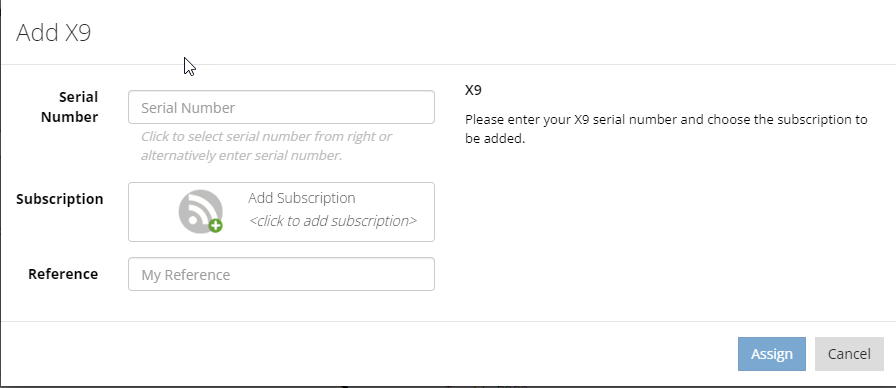
SP100, R780 / R780-2, R980, Trimble Ri, X9
-
Enter the Serial Number for the device.
-
Click in the Subscription field and then select the subscription to assign to the selected customer.
-
If required, enter a reference for this order in the Reference field.
-
Click Assign.
The new subscription appears in the Subscriptions panel for the selected customer.
Subscripions for Trimble Insight Machine
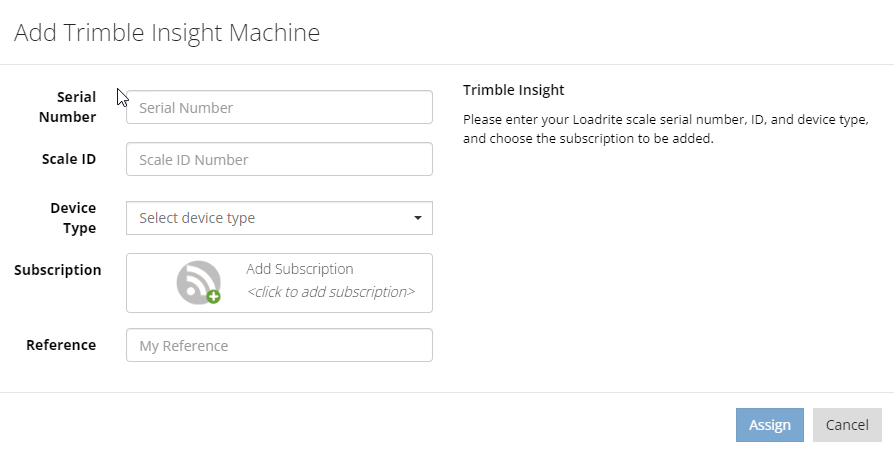
Loadrite serial Number, Scale ID, Device Type, Subscription, Reference
-
Enter the Serial Number for the device.
-
Enter the Scale ID.
-
Select the Device Type from the dropdown.
-
Click in the Subscription field and then select the subscription to assign to the selected customer.
-
If required, enter a reference in the Reference field.
-
Click Assign.
The new subscription appears in the Subscriptions panel for the selected customer.
