Trimble Perspective Wi-Fi connection
Connecting to the scanner
To operate the scanner with the field software, it must be connected to a controller. The controller can be a T10x tablet or a comparable Windows 10 tablet running Perspective. When the scanner is started, it is available for connection by the field software via Wi-Fi connection.
Follow the steps below to connect:
-
Insert the two battery packs in the scanner. See Battery and power supply.
-
Power on the scanner by pressing and holding the On/Off button for at least 0.3 seconds:
-
The power-up process will start and takes about 20 seconds.
-
Do not touch the screen during startup.
-
The startup is complete after an audible sound.
-
You will be prompted to enter a Wi-Fi password for security. Future startups will not require a Wi-Fi password to be entered. See Start Screen.
-
-
Start Trimble Perspective from the tablet.
-
If there is no project available, tap Create New + to create a new project and the new created project will load.
-
If there are several projects available, the last loaded project is automatically loaded.
-
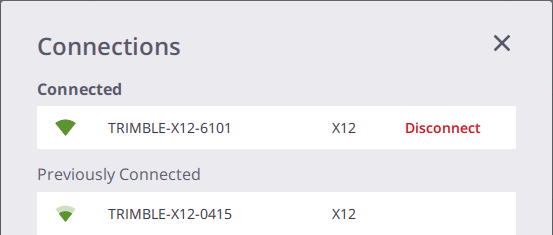
Tap the Scanner icon in red to open the Connections page. Scanner serial numbers in the range of the controller will display for connection.
-
Choose a scanner to connect.
-
For your first Wi-Fi connection to the scanner, enter the Wi-Fi password that has been set to the scanner (see Start screen).
-
If you have already connected to the scanner with the Wi-Fi with:
- The same controller, the connection is automatic and does not require the Wi-Fi password.
- A different controller, enter the Wi-Fi password that has been set to the scanner.
-
-
Once the connection is established, the connected scanner is shown in the Connections. Tap Close.
-
The Scanner and Wireless Signal icons turn green and the Battery icon shows the level of the battery in the scanner.

Wi-Fi settings
The scanner has the wireless 802.11n technology meaning the scanner supports the 2.4 GHz and 5 GHz frequency bands. The default factory values for the Wi-Fi settings are respectively Auto (2.4 GHz), Auto, and Empty for the frequency band, the channel, and the region code for each newly shipped scanner.
At the first connection with a new scanner (or in case of an already connected scanner and if the region code of the scanner differs from the region of the controller), the field software applies the region of the controller to the scanner, and keeps the frequency band and the channel unchanged (Auto). During the update process, the scanner is automatically disconnected and reconnected to the controller. Based on the region code, the field software scans the Wi-Fi environment to select the best frequency and channel to use.
When out of the Auto mode, you can switch between 5 GHz and 2.4 GHz. The 5 GHz frequency provides a faster data exchange rate at a shorter distance while the 2.4 GHz frequency offers coverage for further distances, but may perform at a slower speed in the data exchange. Both frequencies can be used with a multitude of channels including indoor-use channels.
Reset the Wi-Fi settings to 2.4 GHz Auto mode, before shipping. This setting is legal in all countries and can be used to put the scanner in a legal state before shipping it internationally. See Settings > About.
The Wi-Fi advanced settings are enabled only if a wireless connection between the scanner and the controller has been set.
Connecting with the Ethernet cable
When the Ethernet cable is connected to the scanner, the cable is automatically selected as the primary communication type and the connection to the scanner is automatically established.

If the Ethernet cable is disconnected from the scanner, the controller starts searching for a scanner in its vicinity using Wi-Fi.
For more information on the Perspective field software refer to the Perspective Help file.
